Text & Screenshot Clarity
Can blurry text in an image be made readable?


TL;DR
- Yes, blurry text in an image can often be made more readable if the letter shapes are still partly there.
- Start with the best original you can get, then crop tightly around the text before you enhance anything.
- For screenshots, documents, and labels, text-focused AI tools usually work better than a generic sharpen slider.
- PhotoSharpener is a practical browser-based option when the text is soft, small, or lightly compressed and you want a quick readability check.
- If you need the words copied out, run OCR after cleanup and verify confusing characters by hand.
- Severe blur, tiny compressed screenshots, and completely smeared letters still have a hard ceiling.
Yes, blurry text in an image can often be made readable, but the result depends on what kind of damage you are dealing with.
If the image is only mildly soft, compressed, or too small, you usually have a real chance of recovering the words. If the text is deeply out of focus, stretched by motion blur, or reduced to blocky mush, you may improve it but not fully restore it.
That is why random sharpening is not the best first move. Text is less forgiving than faces or scenery. A photo can stay recognizable when it gets a little soft. Text cannot. One or two lost edge pixels can turn a clear letter into a guess.
The practical workflow is simple: judge whether the text is still recoverable, get the strongest source file you can, prep the image so the letters stand out, use the right enhancement method, and only then run OCR if you need the text extracted. That sequence gives you the best odds of a readable result without inventing fake details.
Know whether the text is still recoverable
Mild blur and compression usually improve well
The best candidates are images where the characters are fuzzy but still recognizable. You can tell a line is text, spacing looks normal, and some letters are almost readable when you zoom in.
That often includes:
- screenshots that were compressed by chat apps
- scanned receipts or documents with soft edges
- product labels photographed in decent light
- presentation slides or whiteboards shot from a little too far away
In these cases, the software is not starting from zero. It still has enough structure to work with, which is why text-focused enhancement can improve readability a lot more than people expect.
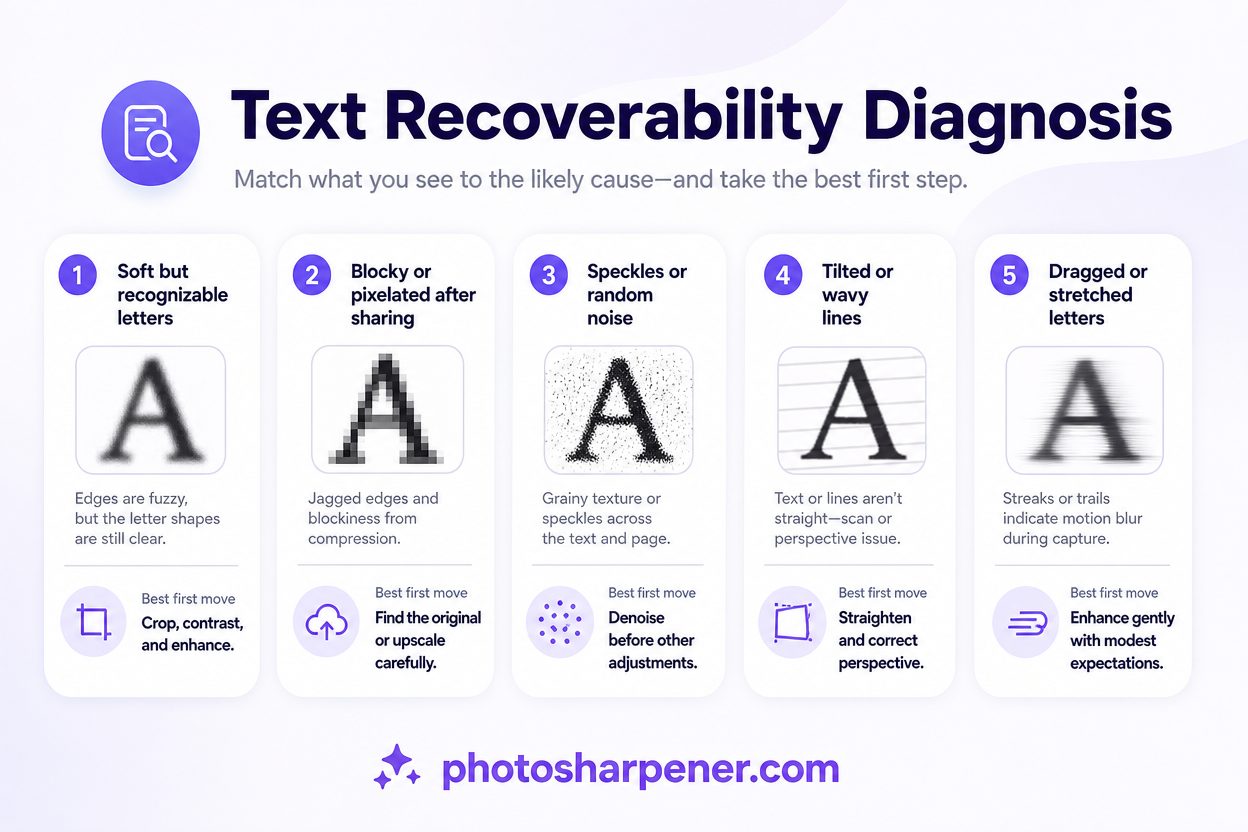
| What you see | Most likely problem | Best first move |
|---|---|---|
| Letters look soft but shapes are still obvious | Mild blur or low contrast | Crop, boost contrast, then enhance |
| Text looks blocky after sharing or downloading | Compression and low resolution | Find the original or upscale a clean crop |
| Text has speckles or rough background noise | Grain or scan noise | Denoise lightly before sharpening |
| Lines of text tilt or curve | Bad scan or angled phone capture | Straighten before OCR |
| Letters are dragged in one direction | Motion blur | Try recovery, but keep expectations modest |
Severe blur still has a hard ceiling
If the text has turned into a smear with no clean edges left, every tool starts guessing harder.
This is where people waste time. They keep stacking sharpen, upscale, and AI passes when the file simply does not hold enough information. You may get a clearer-looking image, but not a trustworthy reading of the original words.
A good reality check is this: if you cannot tell whether a character is an E, F, or B even when zoomed in, the image may still become more legible, but it is not a strong candidate for exact recovery. That matters a lot for anything sensitive such as receipts, serial numbers, account details, or legal paperwork.
Start with the best source you can get
Original screenshot, export, or fresh scan beats a recycled copy
Many unreadable text images are not doomed originals. They are weak copies.
The screenshot was shared through a messaging app. The document was photographed from another screen. The product label was cropped from a listing thumbnail. The scan was saved as a low-quality JPEG years ago and re-saved several times since then.
Before you edit anything, look for:
- the original screenshot or exported image
- the source PDF or document if one exists
- the photo straight from the phone instead of a chat copy
- a fresh scan if the text comes from paper
If the image comes from a document or print, a new scan often helps more than stronger processing. According to Tesseract's preprocessing guide, OCR works best when the input image is clean, properly oriented, and large enough for the engine to read comfortably.
Crop to the text before you enhance anything
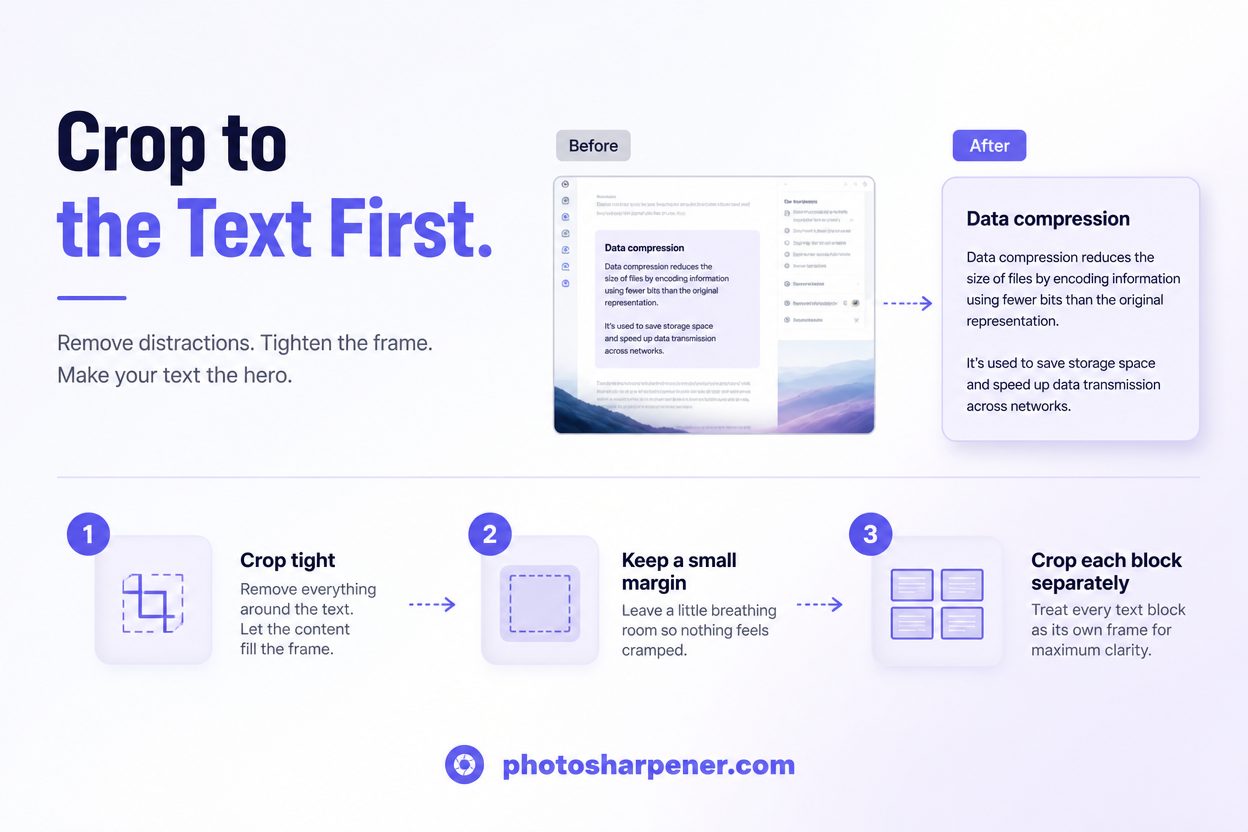
Cropping is one of the highest-value steps because it removes irrelevant detail and gives both enhancement tools and OCR a clearer target.
Do not upload a full desktop screenshot if the text you need is a small error message in one corner. Do not process a whole photo of a box if the only thing that matters is the ingredient label.
A practical rule works well here:
- crop tight enough that the text dominates the frame
- keep a small margin around it so letters are not cut off
- if the image contains multiple blocks, crop each important block separately
Tesseract's docs also note that overly large borders and poorly cropped regions can reduce accuracy, while a small clean margin can help text segmentation. That same idea helps even if your first goal is human readability rather than OCR.
Prepare the image so letters stand out
Increase contrast and remove obvious noise
Blurry text gets much harder to recover when the background is muddy or noisy.
If the letters are gray on gray, or if scan grain is crawling across the image, do a light cleanup before sharpening. You are trying to separate the text from the background, not make the whole image look dramatic.
The safest prep steps are:
- raise contrast until the text stands out more clearly
- reduce obvious grain or JPEG speckling
- straighten the image if the text lines lean
- fix heavy shadows or uneven lighting when the text sits on paper
This matches the common OCR advice from Tesseract and ABBYY: clean input, stronger foreground-background separation, and straight text lines lead to better recognition.
What you should not do is apply strong smoothing. If you blur the image while trying to remove noise, you erase the same edge information you need to read the letters.
Save a clean copy and keep the text dark on a light background
If you only have one weak source file, protect it.
Make a copy before you start editing, and save your working version in a format that does not keep re-compressing the image. PNG is usually the safest option for screenshots, scans, and UI captures because it avoids the extra JPEG damage that can make text edges look rougher every time you export.
For OCR, dark text on a light background is usually easier to read than light text on a dark background. Tesseract specifically recommends dark text on light backgrounds for current versions. So if your text is white on black and your OCR results look messy, testing an inverted version is often worth the minute it takes.
Choose the right tool for the job
When an AI text enhancer is the fastest option
If you are a beginner and the problem is "I need to read this screenshot, label, or scan," a text-aware AI enhancer is usually the simplest route.
That kind of tool works best when:
- the text is present but soft
- the screenshot was compressed
- the image is a little too small
- you want a quick before-and-after check in the browser
The reason it helps is straightforward. Generic sharpen filters only boost the contrast around existing edges. Text-focused AI models are designed to preserve letter geometry better, which is why they often do a better job on screenshots, labels, and scanned pages than a standard photo enhancer.
If you want a browser-first workflow for screenshots, scans, or small text-heavy images, PhotoSharpener is a practical option because it combines clarity cleanup and upscaling without forcing you into a full desktop editing setup. The same rule still applies, though: stop at the most readable natural-looking version, not the strongest-looking preview.
When manual sharpening or OCR prep is enough
Not every blurry text image needs AI.
If the letters are already almost readable, a gentle manual pass can be enough:
- a mild sharpen or clarity adjustment
- a careful contrast boost
- a small upscale when the text is simply too tiny on screen
This works especially well on clean screenshots and decent scans where the problem is slight softness, not severe damage.
If your real goal is copying the words, it can be smarter to optimize for OCR rather than for appearance. In other words, make the text machine-readable first instead of trying to make the whole image pretty.
Run OCR after the image is readable
Give OCR a text-friendly image
If you need the words extracted, do not start with OCR on the weakest version of the file. Clean it first.
Tesseract's guide recommends several preprocessing habits that translate well into a simple checklist:
- use a large enough image, often around 300 DPI or better for document-style text
- crop to the relevant region
- deskew the image so text lines are horizontal
- remove noise that interferes with letter shapes
- use a binarized or higher-contrast version when the background is uneven
For screenshots or single text lines, OCR settings also matter. Tesseract notes that page segmentation assumptions can hurt accuracy when the image is not a full page of text. So if your image is just one line, one label, or one code block, a tool that lets you choose a matching OCR mode will usually perform better than a default full-page scan.
Check confusing characters before you trust the result
Even after a good cleanup pass, OCR mistakes tend to cluster around similar-looking characters:
Oand0I,l, and1rnandmBand8
That is why a readable-looking result is not automatically an accurate one.
If the text matters, verify it against context. A receipt total should match the surrounding numbers. A product code should follow the expected format. An error message should resemble the rest of the interface language. This small check catches a lot of false confidence.
Use a different approach for common real-world cases
Screenshots, chat images, and app UI
Screenshots usually respond well because text on screens begins as crisp digital type.
The problem is often not the original text. It is what happened afterward: compression, re-sharing, cropping, or scaling. That means your best workflow is usually:
- locate the original screenshot if possible
- crop to the message, error, or text block
- upscale if the text is tiny
- apply light text-focused enhancement
- run OCR if you need searchable text
If the screenshot is from a chat app, avoid taking a screenshot of a screenshot if you can get the original file instead. Every extra step usually makes the letter edges worse.
Scans, paper documents, and handwritten notes
Paper adds different problems: skew, shadows, stains, bleed-through, and inconsistent contrast.
For these images, better prep matters more:
- rescan if you can
- straighten the page
- crop out dark scanner borders
- improve contrast before sharpening
- process handwriting separately from printed text when possible
Handwriting can improve, but it is less predictable than printed text because the letterforms vary so much from person to person. If the note is faint and cursive, aim first for "more readable than before," not "perfect transcription."
Avoid the mistakes that ruin text recovery
Over-sharpening and fake letter shapes
Text enhancement fails in a very recognizable way when pushed too hard.
Instead of becoming clearer, the letters get thicker, haloed, or strangely melted. Corners start glowing. Fine strokes close up. Tiny fonts develop chunky edges that look sharp at a glance but become less readable when you actually try to parse the word.
Use a simple decision rule:
- if the text looks clearer and more believable, keep the change
- if the text looks louder but not easier to read, back off
- if characters start changing shape, stop and return to a milder version
This is especially important when numbers, IDs, and labels matter. A wrong sharp result is worse than a slightly soft honest one.
Re-saving weak JPEGs and enlarging the wrong file
Another common mistake happens after a decent recovery.
People process the image, export a low-quality JPEG, send it through a messaging app, and then wonder why the text went soft again. Others enlarge the full original photo instead of cropping the text area first, which wastes pixels on background instead of the letters they care about.
A better workflow is:
- keep one untouched original
- make a cropped working copy
- do your cleanup on that crop
- export a clean final version once
That approach protects the little real detail the file still has.
A simple workflow that works for most people
Five practical steps
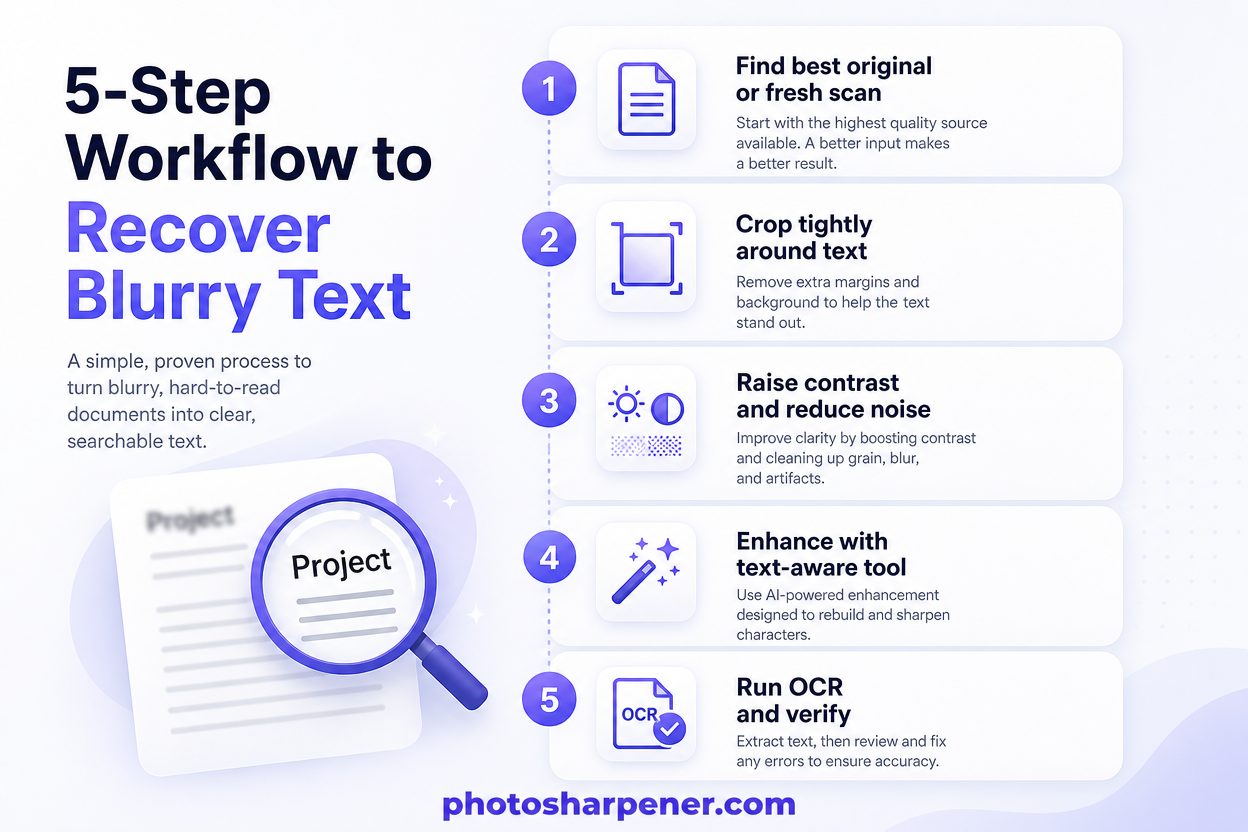
If you want the shortest dependable path, use this order:
- find the best original or make a fresh scan
- crop tightly around the text with a small margin
- raise contrast and reduce obvious noise
- enhance the crop with a text-aware tool or a light manual pass
- run OCR and verify the result if you need the text copied out
This order works because each step makes the next one easier. You are not asking the software to recover text from a cluttered, compressed, badly framed file if a cleaner crop was available all along.
When a browser-based tool is the easiest route
If this is a one-off task and you do not want to open Photoshop, learn OCR settings, or build a full workflow, a browser tool is usually enough.
That is often the best fit for:
- one unreadable receipt photo
- a fuzzy chat screenshot
- a small product label
- a blurry slide photo from a meeting
The main habit that matters is checking the result at full size. If it is easier to read at 100% zoom and the letters still look structurally believable, you probably improved it. If it only looks "stronger" in a tiny preview, you probably did not.
FAQ
Can text that is completely unreadable be restored?
Sometimes partially, but not reliably. If the original file holds almost no letter structure, the software may guess rather than recover. That can still make the image more usable, but it is not the same as proving what the text originally said.
Should I upscale before or after sharpening?
If the text is tiny, crop first, then test a modest upscale so the letters have more room. After that, use light sharpening or a text-aware enhancer. What you want to avoid is sharpening a full weak image before isolating the text you actually care about.
Can this help with labels, receipts, screenshots, or license plates?
Often, yes, especially when the text is only mildly blurred or compressed. But accuracy matters more in those cases, so do not trust the first readable-looking result blindly. Verify character-by-character when the details are important.
