Messaging App Compression
What's the best way to restore a compressed image?


TL;DR
- The best restoration order is to find the cleanest source, remove compression artifacts first, then sharpen or upscale only if the image still needs it.
- Blockiness, ringing, banding, and smeared texture should be cleaned before any detail enhancement, or the damage becomes more obvious.
- Upscaling helps only when the restored image is still too small for the final use; otherwise it just creates a bigger weak file.
- If the compressed copy is all you have, PhotoSharpener works best as a moderate cleanup-plus-sharpening pass, not a maxed-out rescue attempt.
The best way to restore a compressed image is to work in the same order the damage happened. Start by finding the cleanest copy you can, remove compression artifacts first, then sharpen or upscale only if the image still needs it. That sequence usually gives a cleaner and more natural result than jumping straight to an aggressive enhancer.
Most compressed images do not have just one problem. They often have blocky edges, smeared texture, color banding, and fewer real pixels at the same time. If you treat all of that like simple blur, you usually get a bigger or sharper-looking file that still looks bad.
Use a simple restoration order from the start
The fastest workflow for most compressed images
If you want the short version, use this checklist:
- get the best available source file
- inspect it at full size
- remove obvious compression artifacts
- reduce noise or blur only if those problems are still visible
- upscale last, and only when the final use needs more pixels
- export one clean final copy
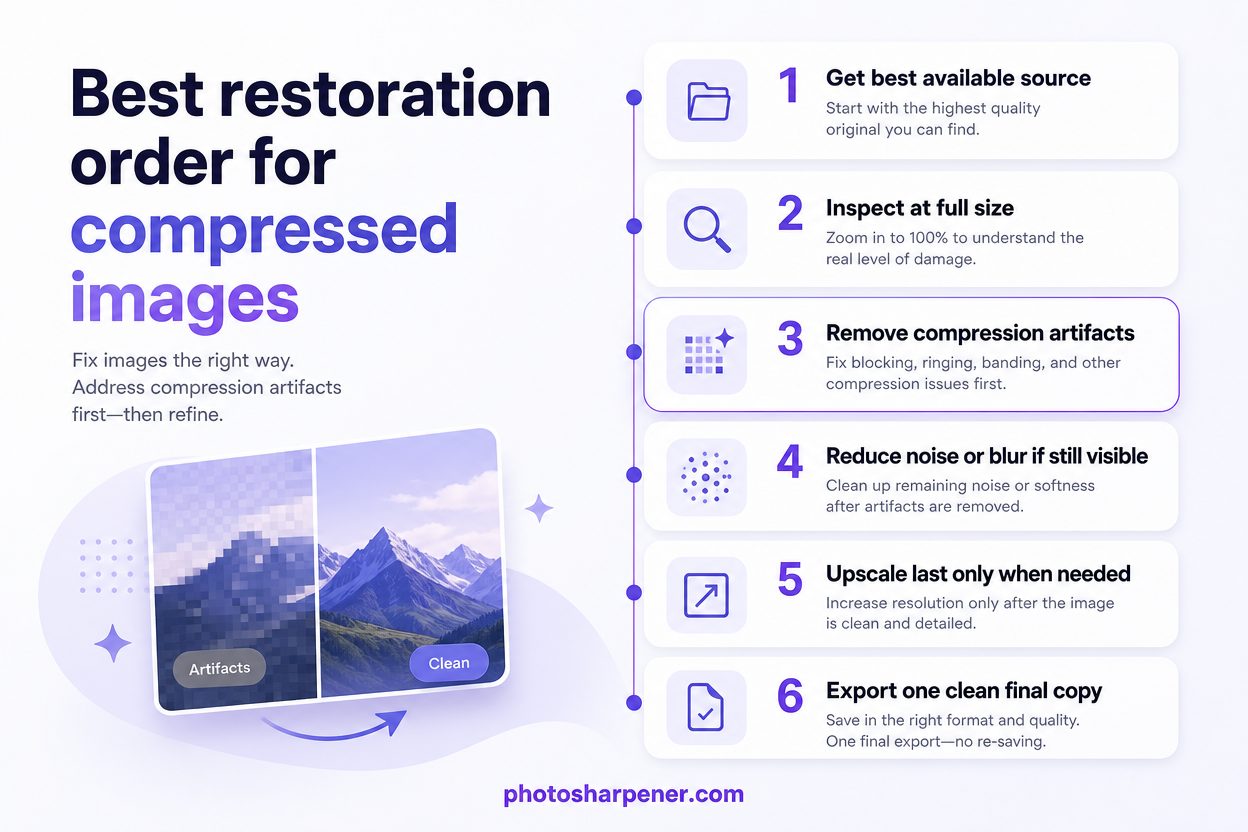
That order works for images damaged by messaging apps, social media downloads, screenshots, repeated JPEG saves, and old low-quality exports.
Why this order works better than random edits
Compression damage is structured. It tends to show up as blockiness, ringing around edges, muddy texture, and rough gradients. If you sharpen before cleaning those patterns, you make them more visible. If you upscale first, you create a larger version of the same damage.
So the goal is not "make it sharper as fast as possible." The goal is to remove the most artificial-looking damage first, then improve clarity from that cleaner starting point.
Check what kind of damage the image has
Signs of compression artifacts
Open the image at full size before you do anything. A compressed image usually gives itself away with one or more of these signs:
| What you see | Likely cause | Best first move |
|---|---|---|
| Square or grid-like patches | JPEG blockiness | Artifact cleanup |
| Bright or dark outlines around edges | Ringing | Artifact cleanup before sharpening |
| Smooth areas breaking into stripes | Color banding | Gentle cleanup, then reassess |
| Detail that looks smeared instead of crisp | Heavy compression | Cleanup, then light sharpening if needed |
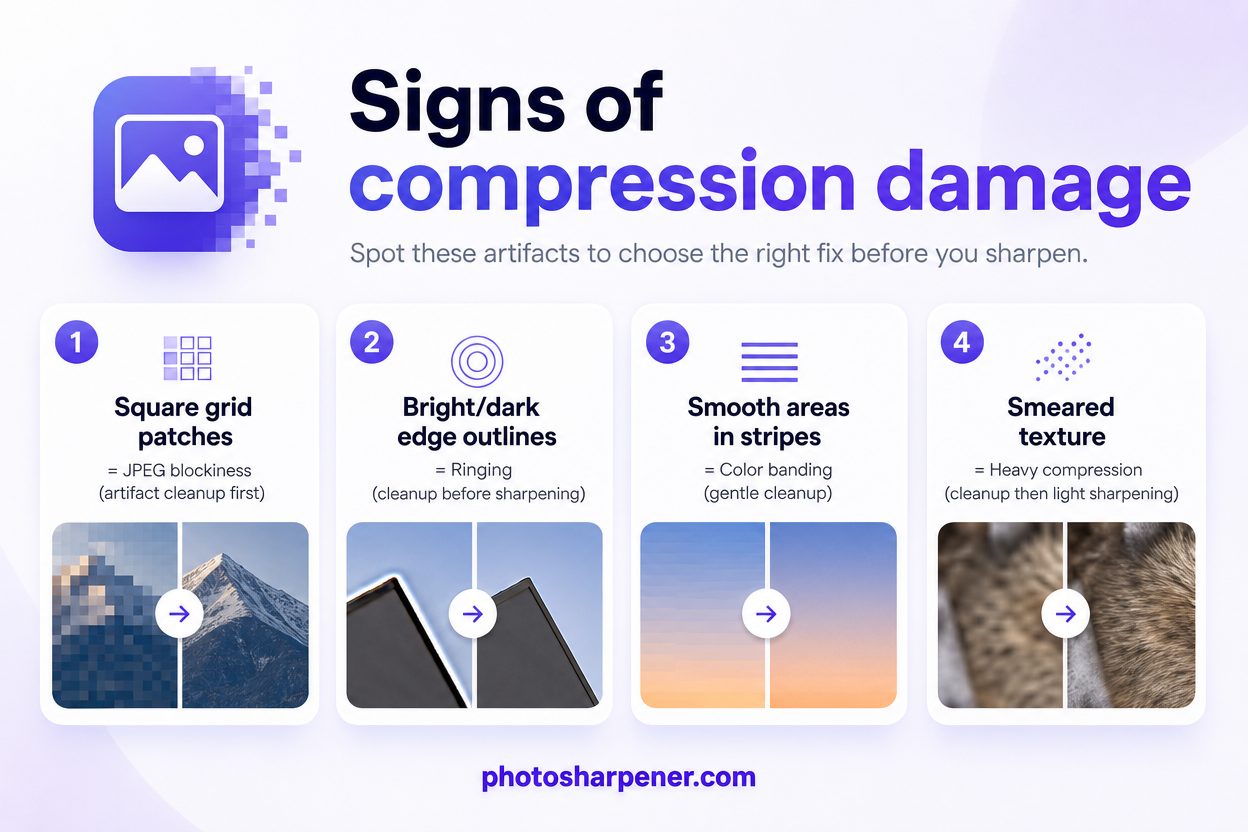
These problems are common in photos saved from chat apps, social media, old websites, and files that have been re-saved over and over.
When the real problem is blur, noise, or size
Not every ugly image is mainly a compression problem. Some files are soft because the original photo was out of focus. Some look rough because they were shot in low light and have strong noise. Some just do not have enough pixels for the job.
Use this decision rule:
- if you mostly see blocky patterns and dirty edges, start with artifact cleanup
- if the whole image has directional smear, motion blur may be the real issue
- if dark areas look gritty, denoising may matter after cleanup
- if the image looks acceptable on screen but falls apart when enlarged, resolution is the main limit
If you are working with a weak chat image specifically, our guide on Can a blurry WhatsApp photo be improved? helps you separate true file damage from simple preview blur.
Start with the best source before you edit
The original file beats any repaired copy
This is the most important rule in the whole process: the best restoration is still a better source file.
If the image came from WhatsApp, Instagram, Facebook, Discord, email forwarding, or a screenshot, try to find the original before you spend time repairing the damaged copy. A restored compressed image can become more usable, but it almost never becomes identical to the untouched source.
That is why the smartest first move is often file recovery, not editing.
Where to look for a cleaner version
Check these places before you start restoring:
- the sender's camera roll or export folder
- your own phone gallery or downloads folder
- cloud backups such as Google Photos, iCloud, or Dropbox
- the original email attachment or file-sharing link
- a resent version shared as a document instead of a normal photo
If a cleaner version exists, use that. If the compressed file is the only copy left, then move into restoration mode.
Our article on Why do photos lose quality after WhatsApp sending? is useful here because it explains why forwarded or repeatedly saved chat images degrade so quickly.
Remove artifacts before sharpening or upscaling
Clean blockiness, ringing, and banding first
Once you know the compressed file is the best one you have, start by cleaning the compression damage itself. This usually means reducing:
- blockiness in flat or detailed areas
- ringing around text, faces, and high-contrast edges
- banding in skies, walls, or other smooth gradients
Do that first because it gives every later step better input.
If you want the easiest route for a single photo, a browser-based tool like PhotoSharpener can be practical because it combines cleanup, sharpening, and upscaling in one workflow. The important part is still restraint. Run a moderate pass, compare at full size, and stop when the image looks natural enough for its real use.
Use a light hand on faces and fine texture
People often ruin compressed images by trying to force detail back too aggressively. Skin turns waxy, hair becomes crunchy, and small textures look painted.
Use this quality check after each pass:
- zoom to 100 percent
- compare edges, skin, and text against the starting file
- keep the version that looks cleaner, not just more dramatic
If the file contains a person's face, the best result is usually the most believable one, not the sharpest-looking one.
If the image is low-resolution as well as compressed, pair this step with our guide on How to sharpen low-res images without halos or crunch.
Upscale only when the restored image is still too small
When upscaling helps
Upscaling makes sense when the restored image still does not have enough pixels for the final job. Common cases include:
- printing a small photo
- reusing a tiny web image in a document or slide
- enlarging a chat image for a profile, listing, or small poster
In those cases, upscaling after cleanup can help because the model is building from a cleaner base instead of from visible compression damage.
When it only creates a bigger weak file
Upscaling is not a magic fix for missing information. If the image is already falling apart at normal viewing size, making it 2x or 4x larger may only give you a larger weak image.
Use this rule:
- if the restored image already looks acceptable at the size you need, stop there
- if it looks decent but too small, upscale carefully
- if important details are already unreadable or unrecognizable, ask for a better source if possible
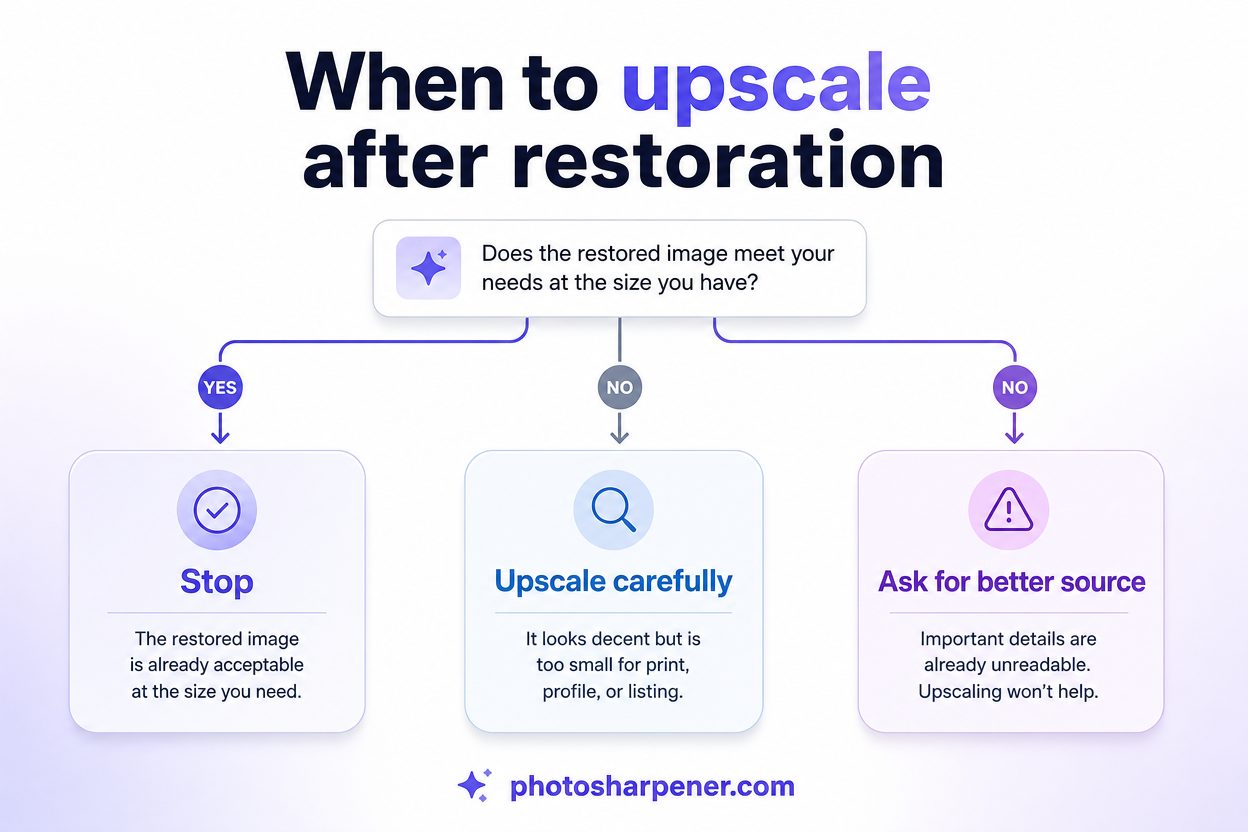
If your goal is print, read What resolution is needed to print an AI-upscaled photo? before you promise yourself a large output.
Match the workflow to the final use
Family photos and portraits
Portraits and family photos usually need a natural result more than a hyper-detailed one. Small facial features can improve a lot, but they can also drift fast if the tool is pushed too hard.
For emotional or archival images, use this standard:
- natural skin beats over-smoothed skin
- believable eyes beat overly sharpened eyes
- a modest improvement beats a fake-looking "wow" version
If the file is both old and compressed, you may also need a restoration-first workflow rather than a pure compression cleanup workflow.
Text, screenshots, and print jobs
Text-heavy images are less forgiving. A portrait can still be useful when it just looks nicer on a phone screen. Text has to be readable, and a print file has to hold together at the target size.
Before you restore a screenshot, document photo, or product image, decide what "success" means:
- readable text at 100 percent
- clean edges around logos or interface elements
- enough resolution for the print size you actually need
If the letters are already merging together into blobs, restoration may help a little, but it may not recover reliable readability. That is your cue to hunt for a better original instead of over-editing the damaged copy.
Export the restored image without re-damaging it
Save one clean final version
A lot of restoration work gets undone at the export step. People improve a compressed file, save it as another low-quality JPEG, reopen it, crop it, re-save it, and then wonder why it looks rough again.
Use a cleaner habit:
- do the restoration once from the best available source
- save one final master export
- make smaller sharing copies from that export if needed
This protects you from generation loss, which is what happens when a weak JPEG keeps getting recompressed.
Choose PNG or high-quality JPEG on purpose
If the image contains text, graphics, or hard edges and file size is not a big problem, PNG is often the safer choice for the final save because it avoids another round of lossy JPEG compression.
If the file is a normal photo and needs to stay lightweight, a high-quality JPEG is usually fine, but save it once at the end instead of repeatedly. The key is not to bounce between edits and new lossy exports.
Prevent the same problem next time
Share originals when quality matters
The best restoration workflow is still prevention. If a photo may be printed, edited, archived, or reused later, do not send the only good copy through a workflow that compresses it by default.
For important images:
- send the file as a document when the app allows it
- use a cloud link for albums or client delivery
- keep the original export outside chat apps
That one change usually saves more quality than any enhancement tool can recover later.
Keep one clean master copy
Treat messaging apps and social platforms as delivery channels, not as your archive. Keep one clean master file in your gallery, cloud backup, project folder, or external drive, and make throwaway sharing copies only from that master.
Once you build that habit, compressed-image repair becomes an occasional fix instead of a repeated problem.
FAQ
Can a compressed image be fully restored?
Usually no. It can often be improved, sometimes dramatically, but lost detail is not perfectly recoverable in every case. The better the starting file, the better the restoration.
Should I sharpen or upscale first?
Neither should usually come first. Start with artifact cleanup, then sharpen or reduce blur if needed, and upscale last if the image still needs more pixels.
What is the best tool if the image came from WhatsApp or social media?
The best tool depends on the damage. If the file mainly has blockiness and rough edges, use artifact cleanup first. If it is also soft or too small, follow with gentle sharpening or upscaling. If a better original still exists, that original is better than any repair workflow.
