Old Photo Restoration
Can AI fix cracks, fading, and tape damage in a scanned photo?


Yes, often it can. AI does surprisingly well with light to moderate physical damage in scanned prints, especially when the photo still contains enough real image data under the damage. Cracks, faded contrast, yellowing, crease lines, and many tape marks are all fixable to a useful degree. The catch is that these are not all the same problem, and AI handles each one differently.
TL;DR
- Fading, yellowing, thin cracks, and light tape residue are usually good AI-restoration candidates because the original image data still mostly exists.
- Scan first, especially if tape is still attached, because peeling old adhesive before capture can permanently remove the image layer.
- Clean global damage before upscaling so the model works from a truer base instead of enlarging defects.
- PhotoSharpener fits best after the initial cleanup pass, when you want conservative super-resolution and optional face restoration without jumping straight to aggressive enhancement.
The best way to think about it is this: AI is strongest when it can clean, reconstruct, and rebalance what is already there. It gets weaker when the damage has physically removed the image layer or when old tape has pulled detail away from the print. In those cases, the tool is no longer restoring detail. It is guessing.
What AI can usually fix well in a scanned photo
Cracks, fading, and tape damage tend to sit on a spectrum from surface-level cleanup to true reconstruction.
Fading is usually the easiest. If the photo has lost contrast, shifted warm, or looks washed out after years in sunlight or storage, AI can often rebuild tonal separation and make faces, clothing, and background objects readable again. This is closer to image correction than invention, so results are often strong.
Fine cracks and crease lines are also good candidates when they run across the print but do not remove large chunks of the image. AI can detect the line pattern and rebuild the pixels around it in a way that looks natural at normal viewing size.
Tape marks are more variable. If the tape left discoloration, a translucent strip, or sticky residue that shows on the scan, AI can often reduce the visual damage. If the tape tore fibers out of the print, lifted the emulsion, or left a hard-edged missing area, the software has to rebuild what is gone. That can still look better than the original scan, but it may not be historically exact.
Where AI starts to struggle
The limit is not whether the damage looks ugly. The limit is whether the original image information is still present.
If a crack is only sitting on top of the image, AI can often infer the interrupted texture underneath. If the crack split the surface and part of the image layer is missing, the result becomes more synthetic. The same applies to tape. A stained strip of tape is one problem. A strip of tape that removed part of a face, background object, or printed lettering is a harder one.
This is why some restorations look excellent in one area and odd in another. The tool is not inconsistent. It is responding to how much real information survived in each part of the scan.
As a rule of thumb:
- Fading and yellowing are usually very fixable.
- Thin cracks and fold marks are often fixable.
- Stains and light adhesive residue are often reducible.
- Missing detail under torn tape or deep surface loss is only partly recoverable.
If you keep that hierarchy in mind, your expectations will stay realistic and your workflow decisions get easier.
Start with the cleanest scan you can make
This step matters more than the model you choose. A poor scan makes every type of damage harder to interpret.
For printed photos, the Library of Congress notes that 300 to 400 PPI is a common preservation baseline for reflective materials, while higher capture settings may be useful depending on the original and the intended use. In practical consumer workflows, 600 DPI is a strong starting point when you expect to retouch damage or crop later because it gives the model more real structure to work from, not less.
Clean the scanner glass first. Turn off scanner auto-enhancement. Save a master file as TIFF or PNG if possible. Do not crop tightly before restoration. Damaged borders, paper tone, and nearby texture often help the AI distinguish between real picture content and damage.
If you do not have a scanner, use a flat, evenly lit phone capture rather than a quick snapshot under a ceiling lamp. Glare across old tape is especially destructive because it hides what little detail remains underneath. If the source is a brittle clipping rather than a normal print, follow a newspaper restoration workflow because halftone dots and acidic paper add a different restoration layer.
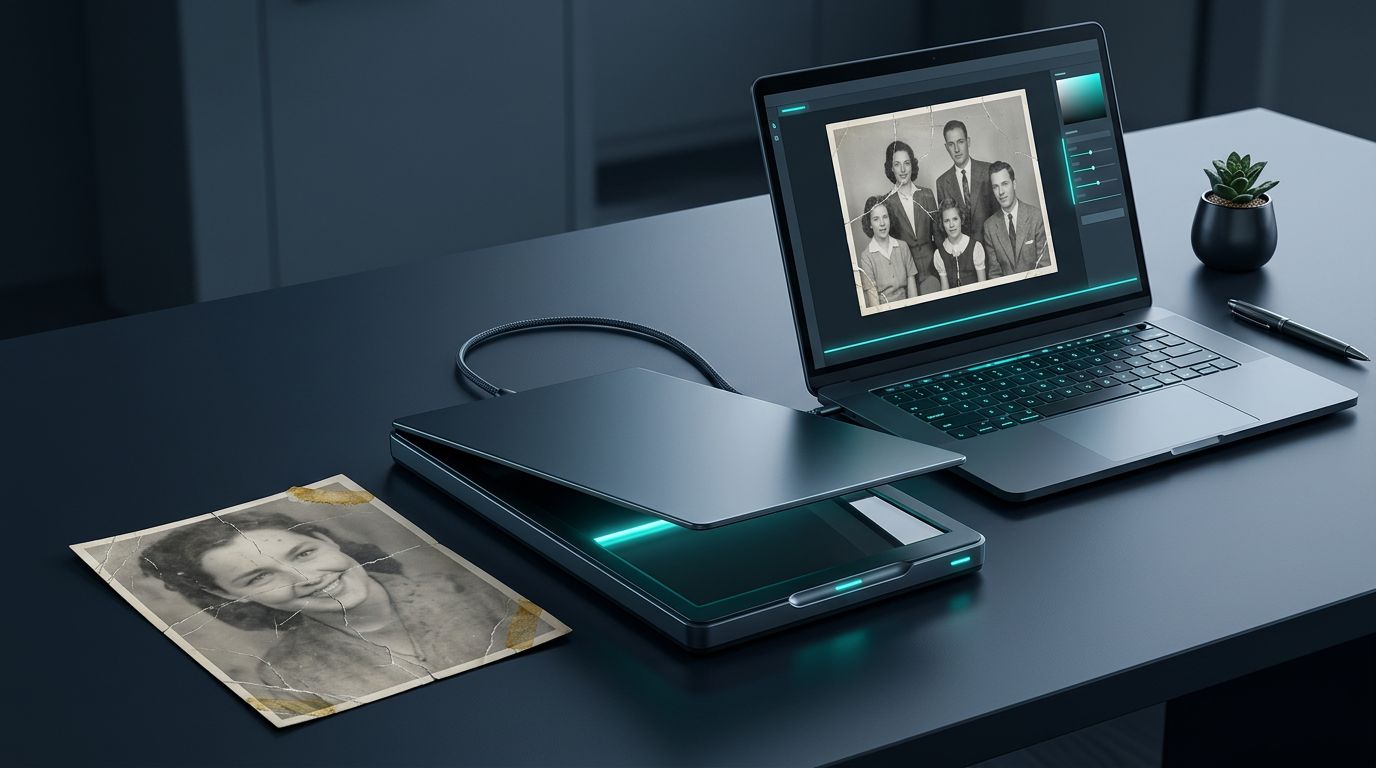
How to handle tape damage without making the photo worse
This is the damage type that causes the most avoidable mistakes.
Old pressure-sensitive tape does not just sit on the surface. Over time it can stain, harden, ooze adhesive, and bond to the print. Trying to peel it off before scanning can remove the image layer with it. That turns a repair problem into a missing-data problem.
If tape is still attached to the original print, scan first and treat the physical photo carefully. Do not assume removal is safe just because the tape looks loose at one edge.
If the goal is a good digital restoration, the safest workflow is usually:
- Scan the print as it exists now.
- Restore the scan digitally first.
- Consider physical conservation only if the original matters as an object, not just as an image.
For family snapshots with sentimental value, this avoids accidental damage while still getting you to a clean, shareable file. If the print is historically important or the tape crosses a face, ask a professional conservator before touching it.
The best AI workflow for cracks, fading, and tape marks
One-click tools are fine for quick tests, but the best results come from a staged workflow.
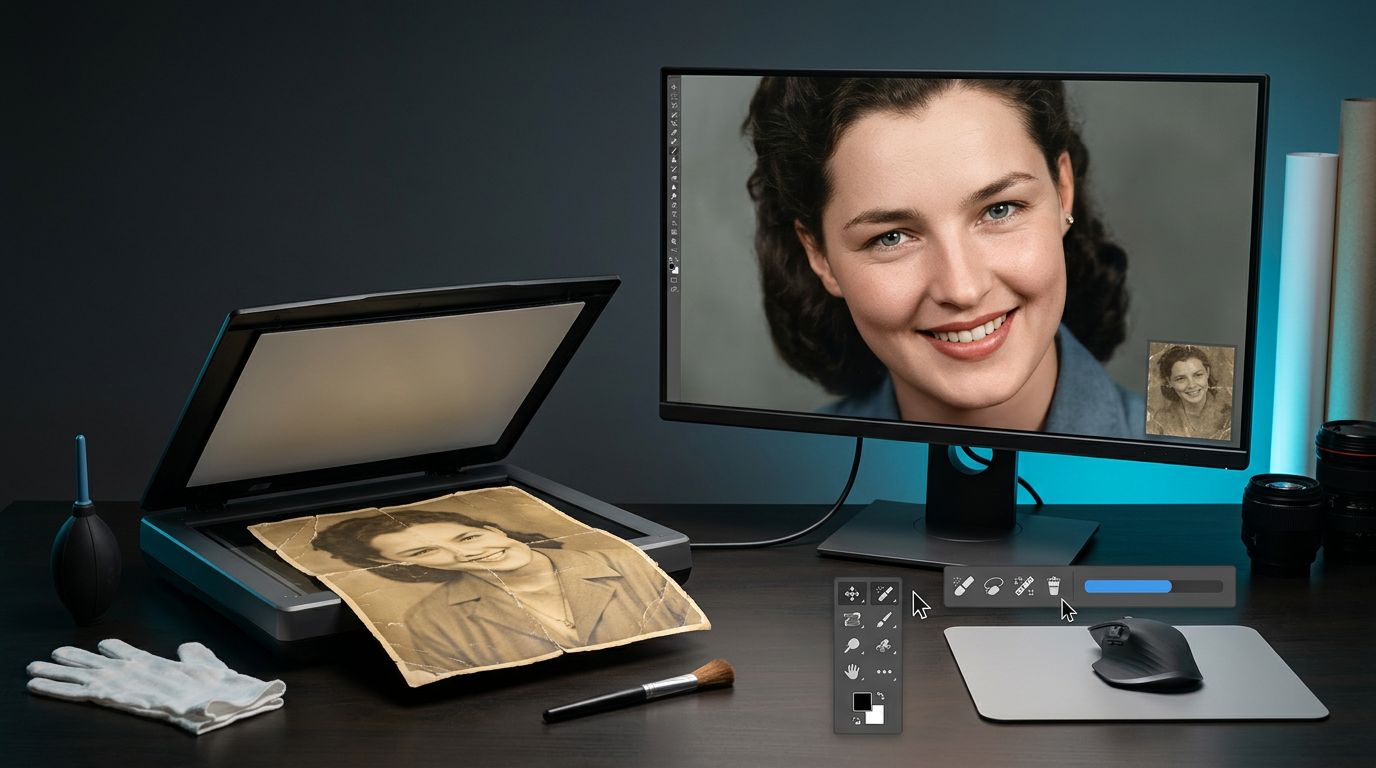
First pass: fix global damage
Run a restoration pass that targets general cleanup first: fading, yellow cast, light scratches, compression, and surface wear. This gives you a cleaner base image before you ask any tool to rebuild local damage.
Second pass: inspect the hardest areas
Zoom into the taped region, cracked edges, and faces. If the restoration looks believable at 100% zoom, stop there. If one area still looks broken, run a more targeted repair on that area only if your tool allows it. Mixed-damage photos usually improve more from selective second passes than from repeating the same aggressive preset across the whole image. When the damaged area includes a portrait, use the same identity checks outlined in this guide to preserve the original face.
Third pass: upscale only after cleanup
Do not enlarge first. Upscaling damage makes crack lines and adhesive artifacts bigger, which gives the restoration model more junk to interpret. Clean the file first, then upscale if you need more pixels for printing.
PhotoSharpener fits naturally into this workflow because it combines super-resolution cleanup with optional face restoration in a browser-first pipeline. For damaged scans, the useful move is to start conservatively, evaluate the repaired file, and only add face-specific enhancement if a portrait area still needs help.
How to tell whether the restoration is actually good
Do not judge the result by how dramatic the before-and-after looks on a phone screen. Judge it by whether the repaired areas still belong to the same photograph.
Use this quick check:
- Does the repaired crack area match nearby grain and contrast?
- Do tape-covered regions blend naturally into surrounding paper tone?
- Do faces still look like the same people?
- Did lettering, jewelry, or clothing patterns become cleaner without turning rubbery or invented?
- At normal viewing size, does the damage disappear without the image looking plastic?
If the answer is yes to most of those, the restoration is doing its job. If the image looks smoother but less truthful, dial the settings back. A slightly imperfect old print usually looks better than an over-restored file with synthetic skin and painted-looking textures. That tradeoff matters even more when the scan is your only family keepsake, so this only-photo workflow is a good gut check before you accept a heavily rebuilt result.
When AI is enough and when you need a human restorer
AI is often enough when the print has multiple mild problems at once: light cracks, fading, stains, small tape marks, dull contrast, and some softness from age or rescanning. This is exactly the kind of workload modern restoration models handle well.
Bring in a human restorer when any of these are true:
- a face is partially missing
- tape removal already tore away the image layer
- large sections of background or clothing are gone
- the photo has severe silvering, water damage, or layered chemical damage
- the image is historically important and accuracy matters more than speed
That does not mean AI failed. It means the job moved from enhancement into reconstruction. Once the original visual evidence is gone, a human with reference photos and careful judgment is the safer choice.
FAQ
Can AI remove yellowing and faded contrast from an old scan?
Usually yes. This is one of the strongest use cases for AI restoration because the image content often still exists under the tonal shift. A good scan plus conservative restoration can bring back separation in faces, clothes, and backgrounds without much guesswork.
Can AI fix a photo with tape still on it?
Sometimes, yes. If the tape mainly causes discoloration, haze, or a visible strip, AI can often reduce it in the scan. If the tape has removed part of the image, the repaired area becomes a reconstruction rather than a true recovery.
Should I remove the tape before scanning?
Usually no, not unless you know how the print will react. Old tape can pull off the image surface. Scan first, restore digitally, and only consider physical removal later if a conservator says it is safe.
Can one tool handle cracks, fading, and tape damage at the same time?
Yes, many tools can improve all three in one pass, but mixed damage often looks better when you work in stages. Start with global cleanup, inspect the hardest zones, then apply a second pass only where needed.
Will the restored file be good enough to print?
Often yes, especially if the original scan is strong and the damage is moderate. Clean first, then upscale if needed, and match the final print size to the pixel dimensions you actually have.
