Messaging App Compression
Why do photos lose quality after WhatsApp sending?


TL;DR
- WhatsApp lowers photo quality mainly because it compresses and often resizes images to make sending faster and lighter.
- The newer HD option is better than the default send mode, but it still is not the same as the untouched original file.
- If quality really matters, send the image as a document or share the original file by link instead of using the normal photo picker.
- If the only copy you have is a WhatsApp image, start by finding the original. If that is impossible, use a moderate cleanup pass in PhotoSharpener and keep expectations realistic.
Photos lose quality after WhatsApp sending because the app is built to move images quickly across millions of phones, networks, and storage conditions. To do that, it usually shrinks the file, recompresses it, and strips away some of the extra data that made the original look cleaner when you first took it.
That is why a phone photo that looked crisp in your gallery can look softer, smaller, or more pixelated after it reaches someone in chat. And it is also why people often blame the camera when the real drop happened during sharing.
If your goal is simple, this is the practical rule to remember: default WhatsApp photo sending prioritizes convenience, not preservation. Once you understand that, the fixes become much easier.
WhatsApp changes photos so they send faster
Compression is a speed and bandwidth trade-off
WhatsApp has to work well on slow mobile data, crowded group chats, and devices with limited storage. That is why the default media workflow favors smaller files. Smaller files upload faster, download faster, and take up less room in chats.
The trade-off is visible quality loss. Fine texture, tiny text, hair detail, and subtle gradients are often the first things to suffer. A photo can still look acceptable on a small phone screen, but once you zoom in or try to print it, the damage becomes obvious.
This is not unique to WhatsApp. Many messaging apps do the same thing. WhatsApp just makes the effect especially noticeable because people often send camera originals through the regular photo picker and expect the recipient to get the same file back.
It is not only blur. Resolution, detail, and metadata can change too
When people say a WhatsApp photo "got blurry," they usually mean one of several things happened at once:
| What changed | What it looks like | Why it matters |
|---|---|---|
| Resolution got reduced | The image falls apart when you zoom in | Fewer pixels means less room for detail |
| JPEG compression increased | Edges look mushy or blocky | Fine texture gets smeared together |
| Metadata got stripped | Dates, camera info, or orientation details disappear | The file is less faithful to the original |
| The image was re-saved again later | Compression damage compounds | Each weak copy becomes a worse starting point |
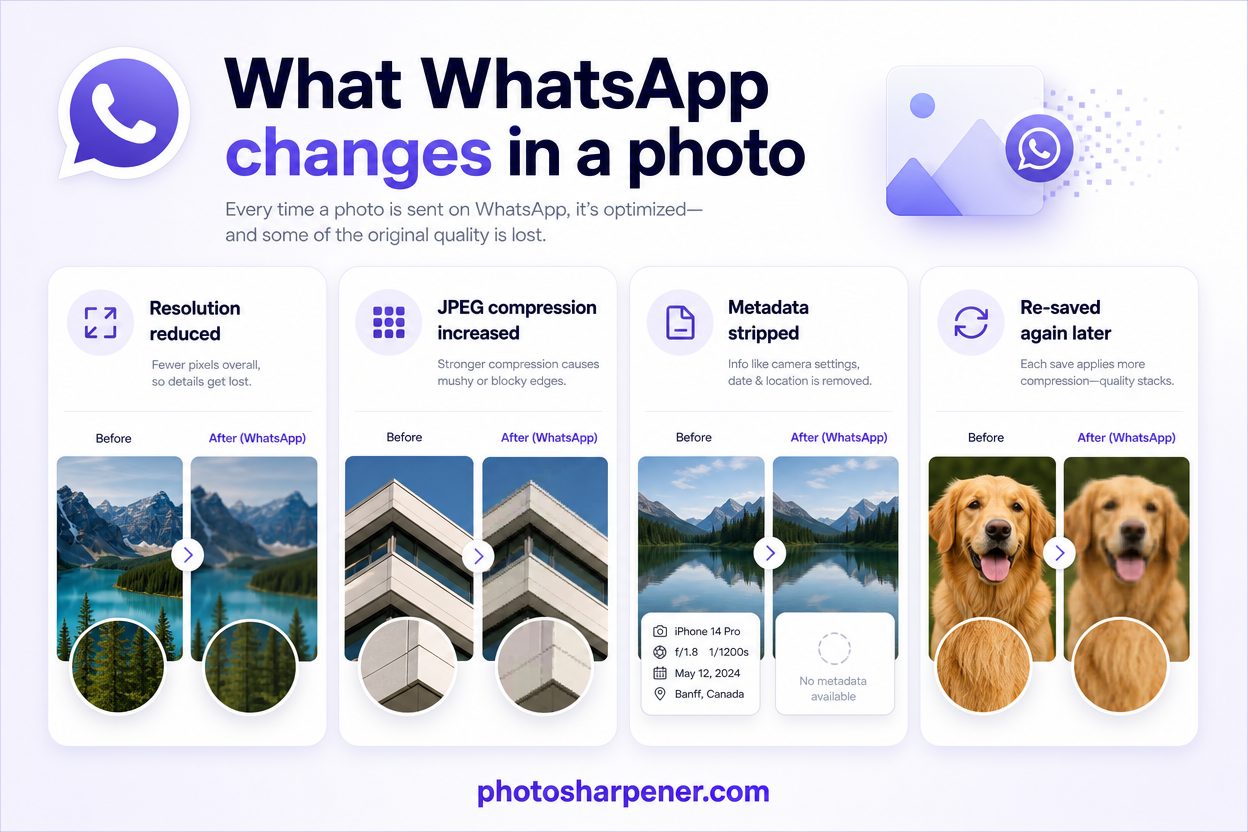
That is why a once-sharp image can end up looking both soft and small. If you want a broader recovery workflow after any weak copy, our guides on making a blurry photo clear again and restoring a compressed image pair well with this one.
HD mode helps, but it is still not the original file
WhatsApp's HD option preserves more quality than standard sending
WhatsApp now lets you send many photos in HD quality, and its own HD guide confirms that you can choose HD per send or make it your default upload quality.
That is a real improvement. In normal use, HD mode keeps more resolution and more visible detail than the standard send option, so landscapes, product shots, scanned photos, and portraits usually arrive looking noticeably cleaner.
If you just want the photo to look better in chat, HD is often enough. It is the fastest upgrade for most people because it does not change your workflow much.
HD is better quality, not untouched quality
This is the part many users miss: HD does not mean uncompressed.
Even in HD mode, WhatsApp may still recompress the image and may still reduce very large files. So if you are sending photos for printing, client approval, archival backup, or later editing, HD is safer than standard mode but still not the best preservation option.
Use this decision rule:
- if the image just needs to look good in chat, send it in HD
- if the recipient may crop, print, retouch, or archive it, send the original file another way
- if the photo is emotionally important and irreplaceable, do not rely on default chat compression at all
It also helps to know that HD does not cover every surface equally. WhatsApp notes that HD media is not currently available for status updates or profile pictures, so those image uses can still look softer even when chat sending has improved.
The best way to send important photos without losing quality
Pick the method based on how important the file is
Most people do not need the same sending method every time. A meme, a dinner snapshot, and a family archive scan do not deserve the same handling.
This quick comparison keeps the choice simple:
| Sending method | Best for | Quality outcome |
|---|---|---|
| Standard photo send | Casual, low-stakes sharing | Most compression and the highest risk of detail loss |
| HD photo send | Better everyday sharing | Better than standard, but still processed |
| Send as document | Important originals, edits, print, work files | Best chance of preserving the original file |
| Cloud link or AirDrop-style transfer | Large sets, archives, client delivery | Preserves original when shared correctly |
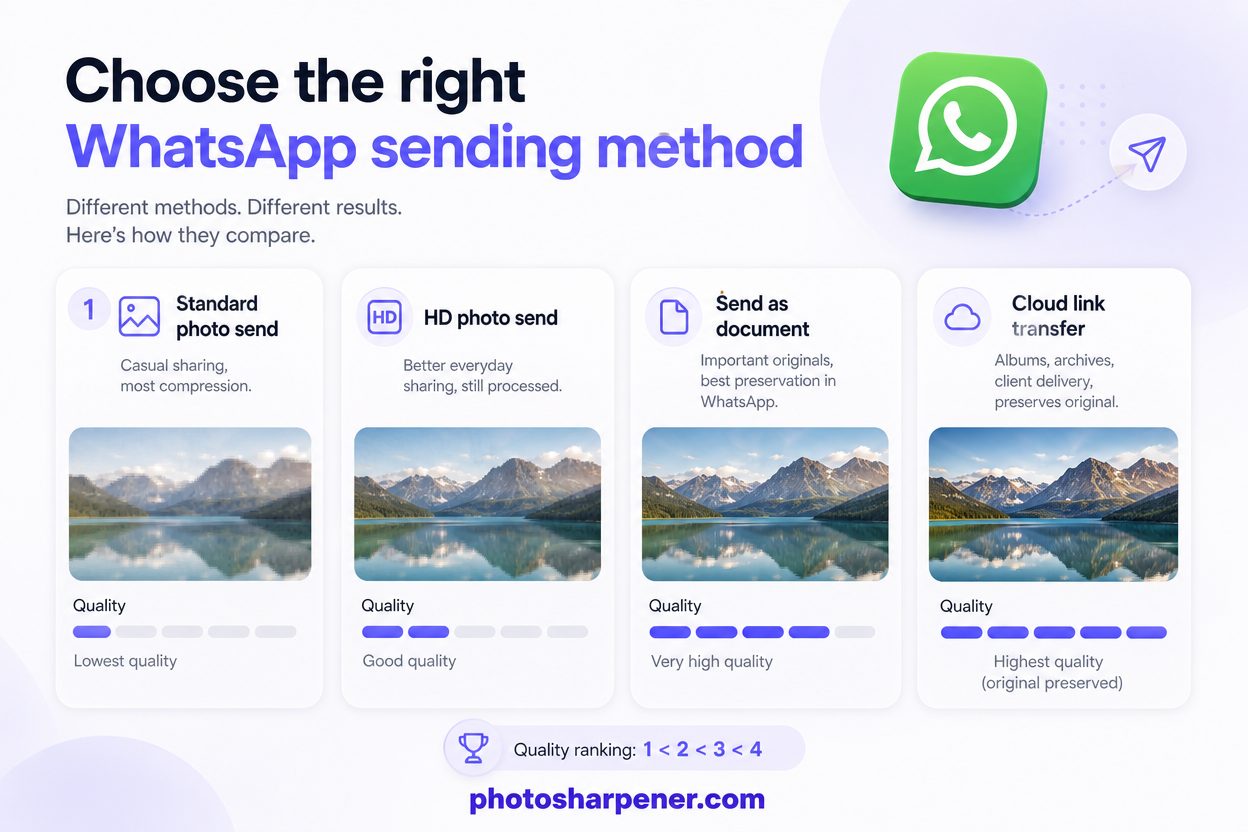
If the file matters, stop thinking "How do I send this fast?" and start thinking "What does the other person need to do with it after receiving it?"
Use document sending when you need the real file
The simplest WhatsApp workaround is to send the image as a document instead of as a normal photo attachment.
That changes the job WhatsApp thinks it is doing. Rather than preparing an easy in-chat image preview, it treats the file more like a file transfer. In practice, that is the cleanest option inside WhatsApp when you need to preserve quality.
For an important photo, use this order:
- open the chat
- tap the attachment option
- choose Document instead of Photos or Gallery
- select the original image file from your device storage
- send that file as-is
If the person on the other end only needs to view the image casually, HD may be more convenient. But if they need to crop, print, restore, or edit it later, document sending is the safer move.
For albums, client work, or family archives, use a link instead
Sometimes the best WhatsApp photo strategy is not sending the photo through WhatsApp at all.
If you are sharing a batch of originals, cloud links are often cleaner and less stressful. Upload the files to iCloud Drive, Google Drive, Google Photos, Dropbox, or another service you trust, then send the link in chat. That way the conversation stays in WhatsApp, but the file delivery happens through a channel meant for full-quality files.
This is especially useful for:
- wedding or event albums
- old family scans
- design proofs
- product photography
- anything that may later be printed
If the only copy left is a WhatsApp photo, do this next
Try to find a better source before you start editing
If a WhatsApp image already looks weak, the first fix is often not editing. It is file recovery.
Before you sharpen anything, check whether the original still exists:
- in your phone gallery
- in the sender's camera roll
- in iCloud, Google Photos, or another backup
- in an email attachment or file-sharing link from earlier
That one step can save you a lot of frustration. Improving a compressed copy can help, but improving the original almost always gives you a cleaner result.
If this is a phone photo that was only made blurry after sharing, our iPhone and Android troubleshooting guides can help you separate camera problems from file-handling problems: blurry iPhone photos and blurry Android photos.
If no better file exists, enhance the copy gently
When the WhatsApp file is the only version left, the goal shifts. You are no longer preserving quality. You are trying to recover usability without making the image look fake.
Use this order:
- inspect the file at full size
- decide whether the problem is mostly softness, noise, or low resolution
- reduce obvious noise first if the image looks gritty
- apply a moderate sharpening or AI enhancement pass
- upscale only if the image is also too small for your final use
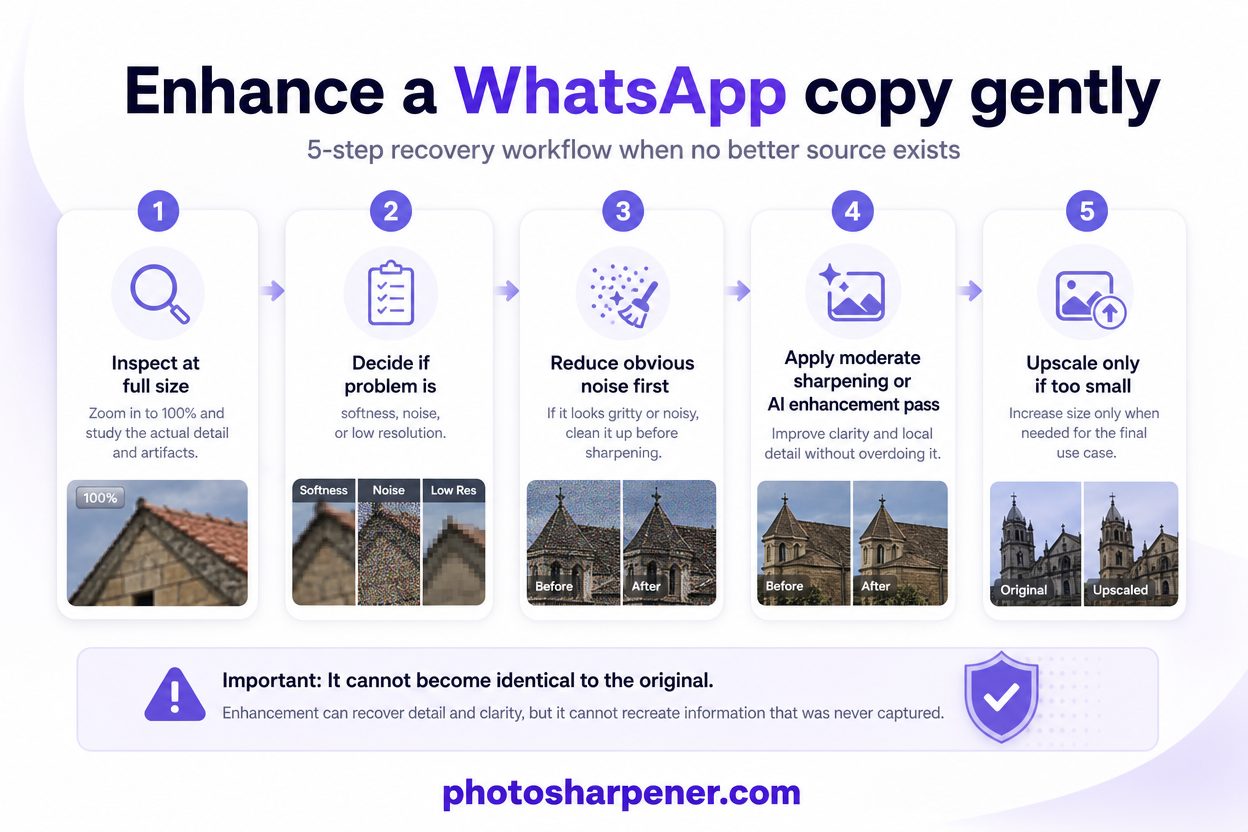
This matters because a compressed file usually has two problems at once: lost detail and too few pixels. If you upscale before improving the softness, you often get a larger weak image instead of a better one. If your copy still looks bad in chat or in the saved file, our walkthrough on improving a blurry WhatsApp photo helps you tell preview blur from true file damage before you start editing.
For casual users who do not want to build a desktop editing workflow, PhotoSharpener can be a practical option here because it combines sharpening, upscaling, and cleanup in one browser-based pass. The main rule is still restraint. Stop when the image looks natural enough for the job.
If you want a more detailed walkthrough for weak files, our guide on sharpening low-resolution images without halos or crunch goes deeper on how to improve a file without pushing it too far.
Important: a compressed WhatsApp image can often become clearer, but it usually cannot become truly identical to the original camera file.
A few habits prevent repeat quality loss
Keep one clean master and stop re-saving weak copies
The biggest long-term mistake is not the first compression. It is everything that happens afterward.
People download a chat image, crop it, screenshot it, send it through another app, then edit that copy later. By that point, the file has been weakened so many times that even good tools start with almost nothing.
A much better workflow is:
- keep the original or best export as your master
- make smaller copies only from that master
- avoid screenshots unless they are your last resort
- do not keep re-saving the same low-quality JPEG
If you follow only one habit from this article, make it that one.
Match the sending method to the job
Use standard send only when quality barely matters.
Use HD when you want a better-looking chat image and convenience still matters.
Use document sending or cloud links when the file has real value later, such as printing, editing, archiving, or business use.
That small decision at send time is usually more important than any repair you try afterward.
FAQ
Why do WhatsApp photos look blurry after sending?
Usually because WhatsApp compressed and possibly resized the image to make it faster to transfer and lighter to store. The photo may still look fine in a small preview, but zooming in reveals the lost detail.
Does sending in HD stop WhatsApp from compressing the photo?
No. HD improves quality compared with standard sending, but it still is not the same as a true untouched original in every case.
What is the best way to send photos on WhatsApp without losing quality?
Send the image as a document instead of as a normal photo, or share the original file by cloud link. Those methods are better choices when the recipient may edit, print, or archive the image.
Can a blurry WhatsApp photo be fixed?
Often it can be improved, especially if the subject is still recognizable and the file is not tiny. But the result depends on how much detail survived the compression and whether you can find a better source first.
