Tool Comparison & Selection
Best tools to upscale low-resolution images?


TL;DR
- The best tool depends on what kind of image you have and how honest the final result needs to be.
- Topaz Gigapixel is the strongest choice when you care most about photo fidelity, print use, and difficult real-world images.
- Upscayl is the best free option that is still worth taking seriously.
- Adobe Super Resolution makes sense when you already live inside Lightroom or Camera Raw.
- Let's Enhance is convenient for browser-based product, catalog, and batch-style workflows.
- If you want the simplest path for a single everyday photo, a browser-first tool like PhotoSharpener can be enough, but you should still review the output at
100%zoom.
If you are looking for the best tools to upscale low-resolution images, the hard part is not finding tools. It is avoiding the wrong kind of tool for the image you actually have.
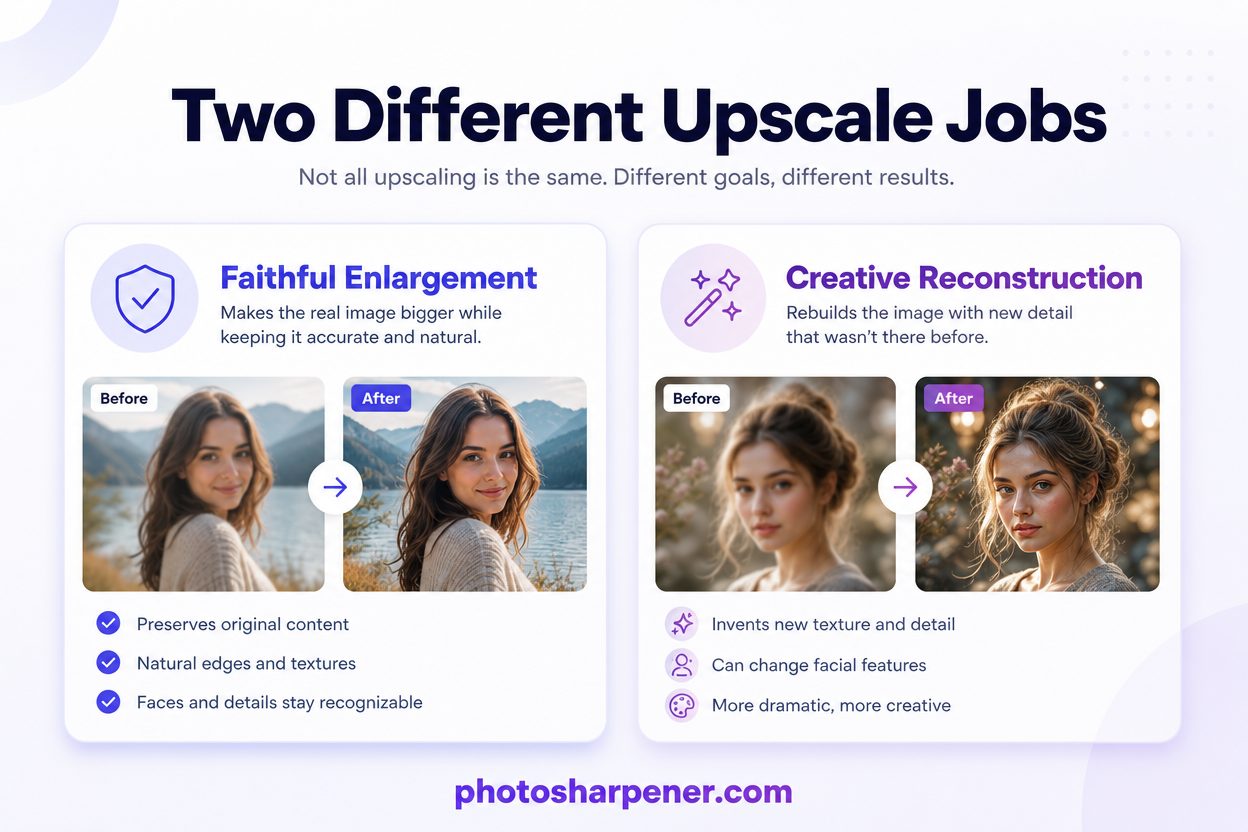
That matters because "upscale" now covers two very different jobs. One job is faithful enlargement, where you want a real photo to look larger and cleaner without changing the subject. The other is creative reconstruction, where the software invents extra texture and detail that may look impressive but may not stay true to the original file.
For most people with old family photos, product shots, screenshots, or small images that need to print better, faithful enlargement is the safer goal. If you already understand can you upscale an image without quality loss, this article is the next step: choosing the tool that fits your source image, budget, and workflow.
What makes an upscaling tool "best"?
Faithful detail matters more than aggressive sharpness
Many beginners choose the tool that produces the most dramatic preview. That is often a mistake. The strongest tool is usually the one that makes the image look more usable, not the one that makes it look most "enhanced."
When you enlarge a real photo, you want edges to stay believable, faces to stay recognizable, and textures to stay natural. If a tool adds halos, plastic skin, fake hair strands, or crunchy text, it may look sharper at first glance but worse in the final use.
That is why current comparison pages keep returning to the same criteria: fidelity, artifact control, ease of use, privacy, batch handling, and whether the tool fits print, web, or catalog work.
Match the tool to the job, not the marketing
A designer preparing print files does not need the same workflow as someone enlarging one old phone photo. And someone cleaning up a family portrait should not use the same kind of model that an AI artist uses to make fantasy renders look richer.
Before you choose a tool, answer these three questions:
- Is this a real photo that needs to stay accurate?
- Do I need a quick browser workflow or deeper desktop control?
- Am I fixing a size problem, a blur problem, or both?
If the main issue is blur rather than missing pixels, start with AI upscaling vs normal sharpen filter: what's different? so you do not expect the wrong kind of software to do everything.
Quick comparison of the best tools
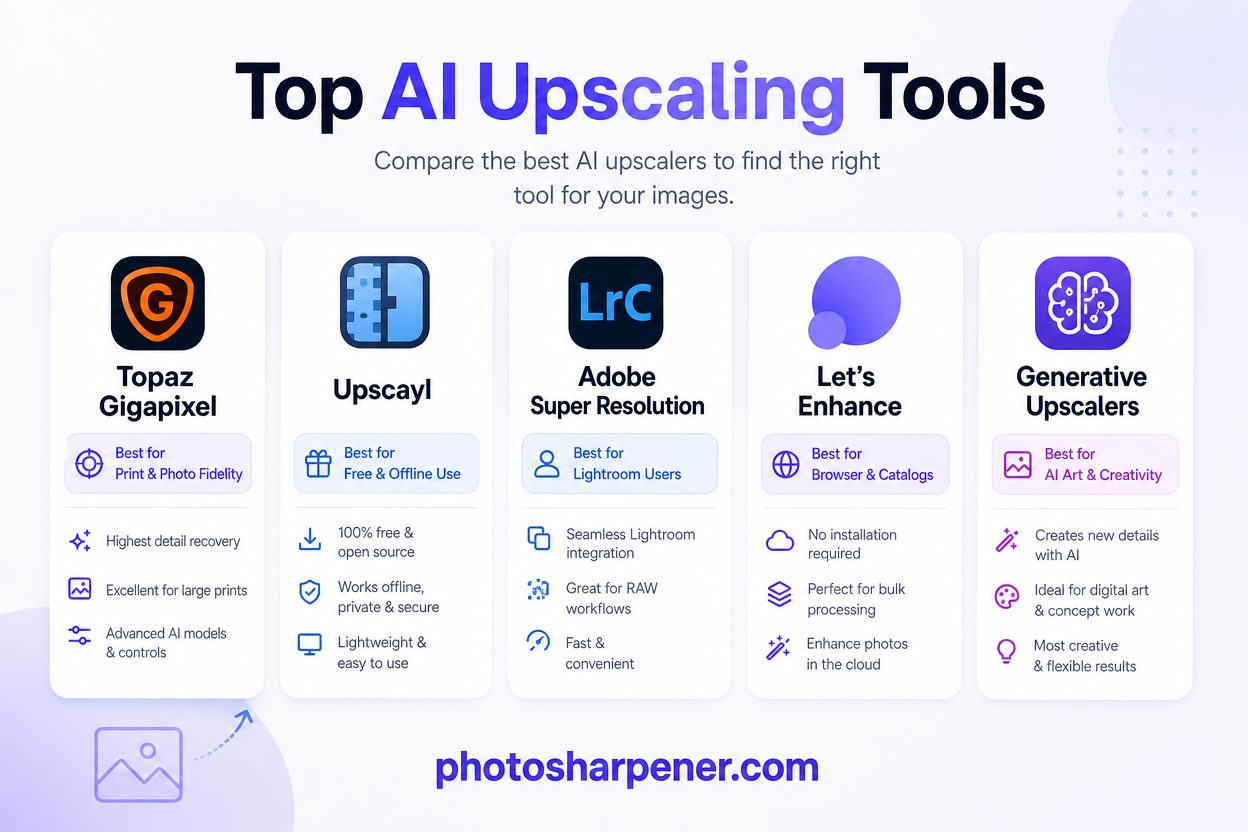
Here is the short version for the tools that show up most often in current comparisons and real workflows:
| Tool | Best for | Why it stands out | Main trade-off |
|---|---|---|---|
| Topaz Gigapixel | Print work, real photos, difficult low-res files | Strong photo fidelity and good control on tricky sources | Paid desktop workflow |
| Upscayl | Free local upscaling | Open-source, offline, and better than most free tools | Less refined on hard portrait detail |
| Adobe Super Resolution | Existing Adobe users | Easy to use inside familiar photo workflows | Best when you already pay for Adobe |
| Let's Enhance | Product images, browser teams, batch-style work | Fast web workflow with catalog-friendly output | Credit-based pricing can add up |
| Generative upscalers like Magnific | AI art and stylized creative work | Very strong at inventing texture | Can change real photos too much |
That table is enough for many readers already. If you want the safest default for real photos, start with the first three rows and treat generative-first tools as a separate category.
Topaz Gigapixel is best when photo fidelity and print use matter most
Why it is so strong on real photos
Topaz Gigapixel keeps showing up near the top of serious comparison pages for a simple reason: it is built for people who care whether the enlarged image still feels like the same photograph. Its official product page emphasizes AI upscaling, face recovery, restore modes, and enlargement up to 6x, which matches how working photographers and print-focused users tend to describe it in reviews.
In practice, this makes it a strong choice when you have:
- an old family scan that needs to print larger
- a product image that is too small for a cleaner listing
- a client file that cannot afford weird face changes
- a cropped photo that still has enough real structure to rebuild
It is also one of the better fits when your image has several mild problems at once, such as softness, slight compression, and too few pixels. That does not mean it performs miracles. It means it tends to stay more disciplined than highly creative tools.
Who should skip it
Topaz is usually too much tool for someone who only needs to rescue one image and does not want any setup. It is also not the best choice if your main goal is fast, cheap, browser-only convenience.
If you mainly need a simple answer for "make this small photo bigger and cleaner" without a desktop install, a browser-first option will feel easier. And if the file is already too damaged to stay truthful, the question may be less about "best upscaler" and more about realistic limits, which we cover in best way to increase a photo's resolution.
Upscayl is the free tool worth trying first
Where it gives surprising value
Most free upscalers are fine for demos and weak for real work. Upscayl is the main exception people keep returning to because it is open-source, runs locally, and is still capable enough to use on genuine photo jobs. Its public repository also makes the privacy story clearer than many browser tools because you are not forced to upload the image to a third-party service.
Upscayl makes sense when:
- budget matters more than polish
- you do not want your images uploaded
- you are working on a normal laptop or desktop workflow
- the photo is decent already and mostly needs more pixels
It is especially attractive for hobbyists, side projects, and people who want to test whether AI upscaling will help before paying for anything.
Where free starts to show its limits
Free does not mean equal. Difficult faces, tiny text, and very weak originals are still where paid tools usually pull ahead. You can often get a useful result from Upscayl, but you may need a little more trial and error, and the final image may not hold up as well for demanding print work.
So if the image is emotionally important, client-facing, or headed to a larger print, treat Upscayl as a smart first pass, not always the final answer.
Adobe Super Resolution makes the most sense inside an Adobe workflow
Why it feels easy for photographers and editors
Adobe's main advantage is not that it wins every comparison. It is that many people already have Lightroom or Camera Raw open, so trying Super Resolution feels like a natural next step instead of a new system to learn.
That is valuable when speed matters more than feature hunting. If you already cull, edit, and export inside Adobe tools, using built-in enlargement can be more practical than bouncing to another app just to upscale one image.
It is a good fit for:
- photographers already paying for Creative Cloud
- editors working from RAW files
- people who want moderate enlargement without changing their workflow
- users who prefer familiar controls over another subscription or install
What it does not replace
Adobe is convenient, but convenience is not the same as being the best fit for every problem. If you need stronger recovery from a tiny, damaged, or especially weak source, more specialized upscalers may give you a better result. And if you do not already use Adobe, it is usually hard to justify choosing it just for upscaling alone.
Think of Adobe Super Resolution as the easiest "good enough and already here" choice, not automatically the best specialist choice.
Let's Enhance fits product images and batch-friendly browser work
Why browser-based teams like it
Let's Enhance shows up often in comparison lists because it solves a real operational problem: not everyone wants a local desktop app, and not every team wants to pass images through a full editing stack.
For e-commerce, catalog, and marketplace workflows, the appeal is obvious. You open a browser, upload the asset, enlarge it, and move on. That kind of repeatable simplicity is useful when the job is not "perfect one hero image" but "clean up a lot of product images without friction."
It tends to make sense when:
- you handle many listing or catalog images
- several people need the same lightweight workflow
- convenience matters more than deep manual control
- the output is mostly for web or modest print use
Where it can feel expensive
The trade-off with browser tools is usually less about image quality than about cost at scale and limited control. Credit-style pricing can feel fine for occasional use and frustrating for larger batches.
That is why browser-first tools work best when you value team simplicity more than total flexibility. If your image set is large and recurring, compare the real cost against a desktop option before you commit.
A simple browser workflow can be the right choice for everyday photos
When convenience beats deep control
A lot of people asking this question are not professional retouchers. They are trying to fix one blurry-ish old print, one profile photo, one small marketplace image, or one scan they need to send to a relative or printer.
For that kind of job, the best tool is often the one with the fewest chances to go wrong. A simple browser workflow removes setup, model selection confusion, and export complexity. That is useful when the source image is ordinary and the user is a beginner.
One neutral example for fast one-off cleanup
If you want a browser-first option that combines AI sharpening, upscaling up to 4x, and optional face-aware recovery in one place, PhotoSharpener is a practical fit for everyday photo cleanup. It makes the most sense when the image is small, a little soft, or lightly compressed and you want a fast result without opening a full desktop editor.
The important part is not the brand name. It is the workflow rule behind it: if your image only needs a modest lift, the simplest reliable tool often beats the most advanced one.
Avoid generative-first upscalers when you need an honest photo
Why creative tools can change a face too much
Some of the most eye-catching tools in current roundups are not really "photo fidelity" tools. They are creative enhancement tools. They can add dramatic texture, richer surfaces, and stylized detail, which is perfect for AI art, concept images, and some design work.
But that same behavior can be a problem for real people. A portrait can come back looking sharper while also looking subtly like a different person. Hair can become painted. Skin can become unnaturally smooth. Textures can look richer but less true.
This is the same reason over-aggressive cleanup creates the waxy result described in why does noise reduction make faces waxy, and avoid it?. When the model pushes too hard, the image stops feeling real.
When they still make sense
Generative upscalers are still useful when the image is:
- AI-generated art
- stylized illustration
- concept art
- a design mockup where strict realism is not the goal
So they are not "bad." They are just easy to misuse if your real task is preserving a photograph.
How to choose the right tool in two minutes
Use this decision checklist
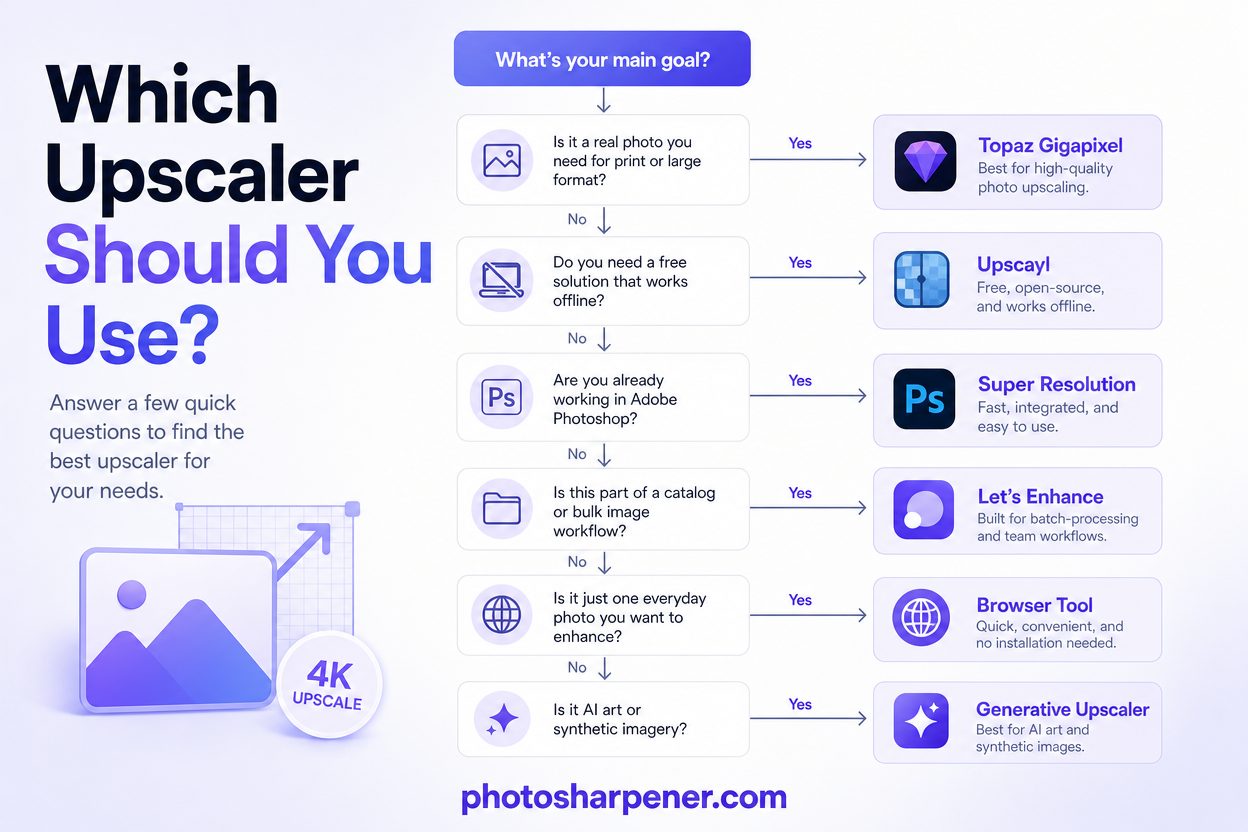
If you want a fast decision, use this:
| If your situation is... | Start here |
|---|---|
| Real photo for print or client delivery | Topaz Gigapixel |
| Free, offline, and good enough for many jobs | Upscayl |
| Already inside Lightroom or Camera Raw | Adobe Super Resolution |
| Browser-based catalog or product workflow | Let's Enhance |
| One everyday photo and you want the least setup | A simple browser-first tool |
| AI art where you want new texture invented | Generative upscaler |
Do not ignore the source file
The tool matters, but the starting image still matters more than people expect. A clean original will usually outperform a clever workflow built on a tiny social-media copy.
Before paying for any upscale, check whether you can get:
- the original file instead of a screenshot
- a fresh scan instead of an old compressed copy
- the uncropped image instead of a zoomed-in crop
If you are working toward paper output, what resolution is needed to print an AI-upscaled photo will help you decide whether you need 2x, 4x, or simply a smaller print target.
Test one hard image before you commit to any tool
What to inspect at 100% zoom
Never judge an upscaler from the thumbnail preview alone. Almost every tool looks better when the image is small on screen.
Zoom in and inspect:
- eyes and facial features
- text and logos
- hair, fabric, and skin texture
- sharp contrast edges
- flat backgrounds where noise becomes obvious
If those areas look cleaner without looking fake, the tool is doing its job.
The most common signs a tool pushed too far
Back off if you see:
- halos around edges
- plastic-looking skin
- repeated fake texture in grass, brick, or fabric
- text that looks thicker but not more readable
- facial features that feel "off" even if they look sharper
That last point matters more than people expect. A believable 2x result is usually better than a strange-looking 4x result.
FAQ
What is the best free tool to upscale low-resolution images?
For most people, Upscayl is the strongest free option to try first because it runs locally, avoids watermark-style limitations, and gives better results than most free web demos.
What is the best tool for printing enlarged photos?
Topaz Gigapixel is usually the safest recommendation when print quality and photo fidelity matter most. It tends to handle real photos more conservatively than creative upscalers.
What if I already use Photoshop or Lightroom?
Start with Adobe Super Resolution. It may not be the most specialized choice in every case, but it is often the fastest practical choice when your workflow already lives inside Adobe tools.
Are browser-based upscalers good enough now?
For many everyday jobs, yes. They are especially useful for one-off images, product photos, and moderate enlargements. Desktop tools still have the edge on privacy, control, and difficult files.
Should I use a generative upscaler on an old family photo?
Usually not as your first choice. If the goal is to preserve the person's real appearance, use a more faithful photo upscaler first and keep your expectations realistic.
