Messaging App Compression
Can a blurry WhatsApp photo be improved?


TL;DR
- A blurry WhatsApp photo may only be a weak preview or incomplete download, so open it full size and save it locally before judging the damage.
- Ask for the original, an HD resend, or a document version before editing because a better source beats any repair workflow.
- Clean compression artifacts before sharpening, and upscale only after the image already looks cleaner.
- If the chat copy is the only file left, PhotoSharpener is best used for one moderate cleanup pass instead of aggressive repeated edits.
Yes, a blurry WhatsApp photo can often be improved, but the best result depends on why it looks blurry in the first place. Sometimes the problem is true compression damage. Sometimes the photo is only loading poorly, the saved file is missing, or the image was forwarded so many times that the copy in chat is much weaker than the original.
The practical goal is not to chase a miracle. It is to figure out whether you can recover a better source, and if not, to make the WhatsApp copy clearer without making it look fake. If you start with that mindset, you make better decisions and waste less time on edits that cannot bring the lost detail back.
Can a blurry WhatsApp photo really be improved?
When the problem is compression, preview blur, or a weak download
Many WhatsApp photos improve more than people expect because the file is not always as bad as the first preview suggests. A chat preview is small, and the app can also show a blurry image when the file is not fully available on your device yet. WhatsApp's own help page on seeing blurry photos points to two simple causes first: the photo may no longer exist locally, or your connection may have been weak while the image was uploading or downloading.
That matters because the fix changes completely depending on the cause. If the file is just loading badly, the photo may look normal once it finishes downloading or once you save it properly. If the problem is ordinary WhatsApp compression, there is still often enough structure left for a careful enhancement pass to make the image more usable.
When the detail is actually gone
There is still a hard limit. If the photo has been sent as a regular chat image, screenshotted, cropped, and forwarded again, the file may have lost so much real information that you are mostly looking at blocky guesswork. Tiny faces, small text, and fine textures are usually the first things to break.
Use this rule before you edit:
- if you can still recognize edges, facial features, or text shapes, improvement is realistic
- if the image falls apart as soon as you zoom in, improvement may only be modest
- if the important detail is already a mushy blob, ask for a better source before doing anything else
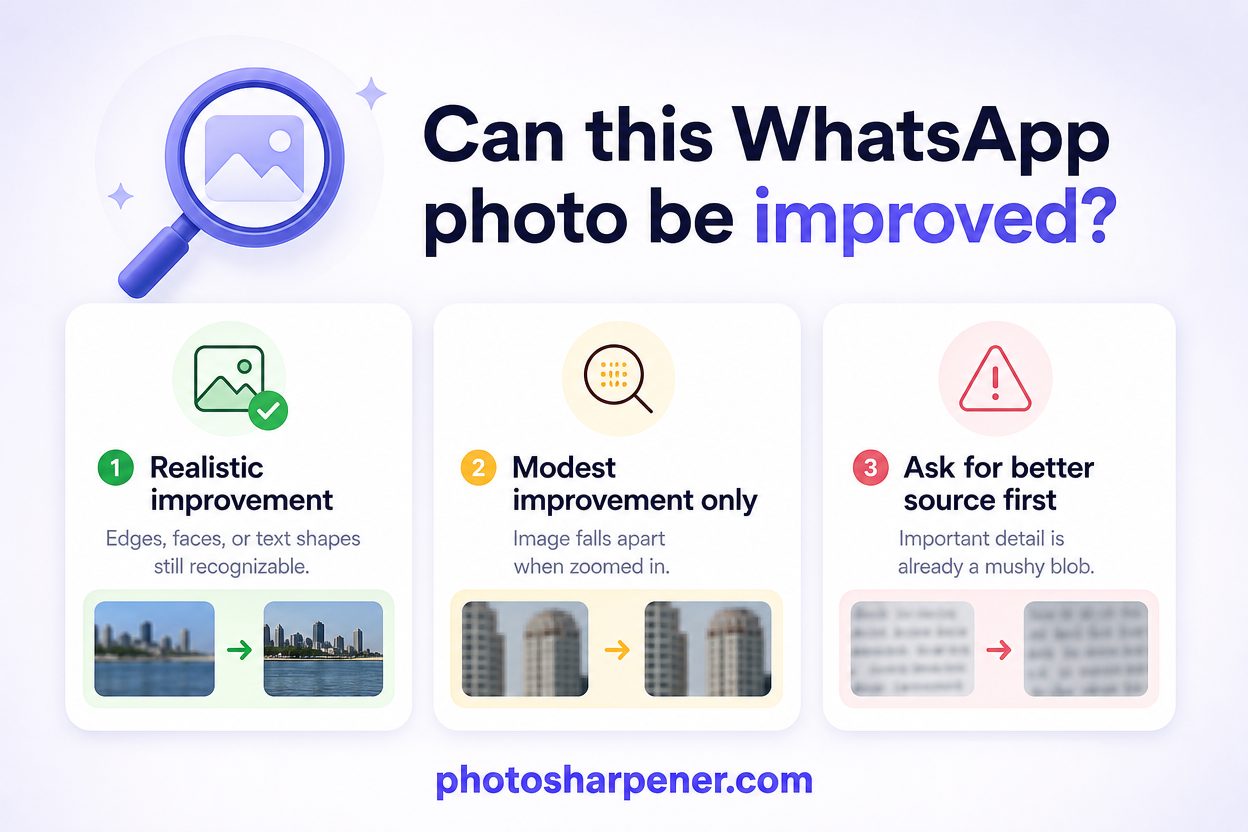
That is why a blurry WhatsApp photo can often become clearer, but not necessarily become identical to the original camera file.
Check whether the file is bad or just loading badly
Open the image full size and save it locally
Before you reach for an enhancer, open the photo outside the chat preview and inspect it at full size. Many people judge the image from the message thread alone, which is the weakest possible way to assess it.
Use a quick check:
- tap the image and open it full screen
- wait a moment to see whether detail improves after loading
- save the photo to your device
- open the saved version in your phone gallery and compare it with the in-chat preview
If the saved file looks noticeably better, the issue may have been the preview, not the photo itself. If the image still looks soft in the gallery, now you know you are dealing with a genuinely weak file.
This is also a good moment to compare it with the broader workflow in our guide on making a blurry photo clear again. The WhatsApp part is specific, but the recovery logic is similar.
Fix weak connection, storage, and app glitches first
If a photo looks unusually blurry, do the boring checks before editing. They solve more cases than people expect.
According to WhatsApp's help guidance, the best first moves are to:
- update WhatsApp to the latest version
- switch between Wi-Fi and mobile data if the current connection is weak
- restart the phone if downloads or previews seem stuck
If the photo is missing from local storage, WhatsApp may only be showing a low-confidence view of it rather than the full saved file. Turning on media visibility and making sure the image actually downloads to the device can solve that.
This sounds basic, but it prevents a common mistake: trying to "fix" a photo that was never fully available in the first place.
Find a better source before you edit anything
Ask for the original, an HD resend, or a document version
If the file still looks bad after the checks above, the next question is simple: can you get a cleaner copy?
WhatsApp's HD guide confirms that you can choose HD quality when sending many images. That is better than standard chat sending, but it is still not the same as a true untouched original. For anything important, ask the sender to resend using one of these options:
| What to request | Best for | Quality outcome |
|---|---|---|
| HD resend | Everyday photos that just need to look better in chat | Better than standard, but still processed |
| Send as document | Important originals, editing, print, records | Best chance of keeping the real file |
| Cloud link or email attachment | Albums, archive scans, client work | Strongest option when full quality matters |
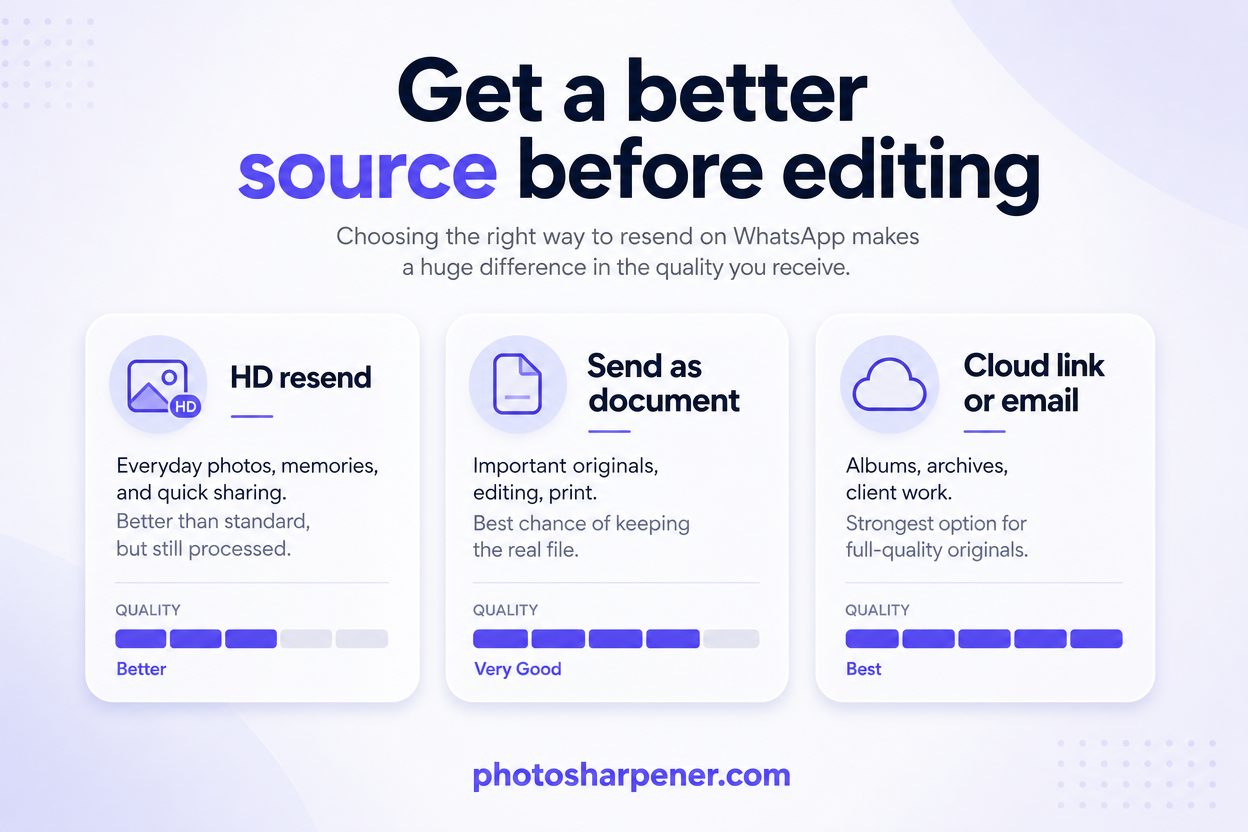
This step often gives a bigger improvement than any sharpening tool. If a better copy exists, use it. Do not spend twenty minutes rescuing a file that could be replaced in twenty seconds.
Stop forwarding screenshots and re-saved copies
WhatsApp images get worse fast when people keep bouncing them between apps. A screenshot of a chat photo, followed by a crop, followed by another send, is a classic quality collapse.
If you need to resend the same image to another person, go back to the best saved version first. Do not forward a damaged forward if you can avoid it. Our article on why photos lose quality after WhatsApp sending explains that compression damage compounds, and that is exactly why repeated low-quality sharing becomes so hard to reverse later.
Improve the WhatsApp copy in the right order
Denoise and artifact cleanup before sharpening
A compressed WhatsApp photo usually has more than one problem. It may be soft, but it also often has JPEG blockiness, rough gradients, and noise in dark areas. If you sharpen first, you can make those flaws stand out even more.
The safer order is:
- inspect the photo at full size
- decide whether the biggest issue is blocky compression, noise, or plain softness
- clean the obvious artifacts first
- sharpen or enhance only after the file looks cleaner
This is especially important for skin, hair, and text. Compression artifacts around those details can turn into halos or crunchy edges if you jump straight to aggressive sharpening. If the file also shows blockiness or banding, our guide on restoring a compressed image is the best companion before you push sharpening further.
Upscale only after the image looks cleaner
People often say a WhatsApp photo is blurry when the real problem is both blur and low resolution. The file is soft, and it is also too small. In that case, do not enlarge it first.
Clean it first, then upscale if needed. Otherwise you just create a bigger weak image.
If the file is very small, pair this step with our guide on sharpening low-res images without halos or crunch. If the final goal is print, also check what resolution is needed to print an AI-upscaled photo. Those two questions usually travel together.
Use different fixes for portraits, screenshots, and prints
Faces can improve, but watch for identity drift
Portraits often respond well to AI enhancement because the software has recognizable facial structure to work with. But that is also where over-processing becomes obvious fastest. Eyes can become too sharp, skin can turn waxy, and subtle family resemblance can drift if the tool pushes too hard.
If the photo is emotionally important, choose the version that looks more natural, not the one that looks most dramatic at first glance.
For casual users, PhotoSharpener can be a practical browser-based option because it combines sharpening, upscaling, and portrait-friendly cleanup in one workflow. The best use case is not "max everything." It is "run one moderate pass, compare carefully, and stop early."
Text and print jobs need a stricter quality standard
Screenshots, receipts, scanned forms, and photos meant for print deserve a harsher quality test. A portrait can be acceptable when it looks pleasant on a phone. Text has to be readable. A print file has to survive enlargement.
If the blurry WhatsApp image contains text, do this before enhancement:
- zoom to 100 percent and check whether letter shapes are still distinct
- if the text is already merging together, ask for the original or a document resend
- if the image is for print, decide the output size first so you do not over-promise what the file can handle
This is why "looks better on screen" and "is good enough for print" are not the same standard. A weak chat image can sometimes become usable for sharing, but still remain a poor print source.
A simple workflow that works for most people
Five steps from blurry chat image to usable file
If you want the shortest dependable path, use this sequence:
- open the image full size and save it locally
- check whether the photo is truly weak or just loading badly
- ask for the original, HD version, or document version if a better source might exist
- clean compression artifacts and softness in one moderate enhancement pass
- upscale only if the image is still too small for the final use
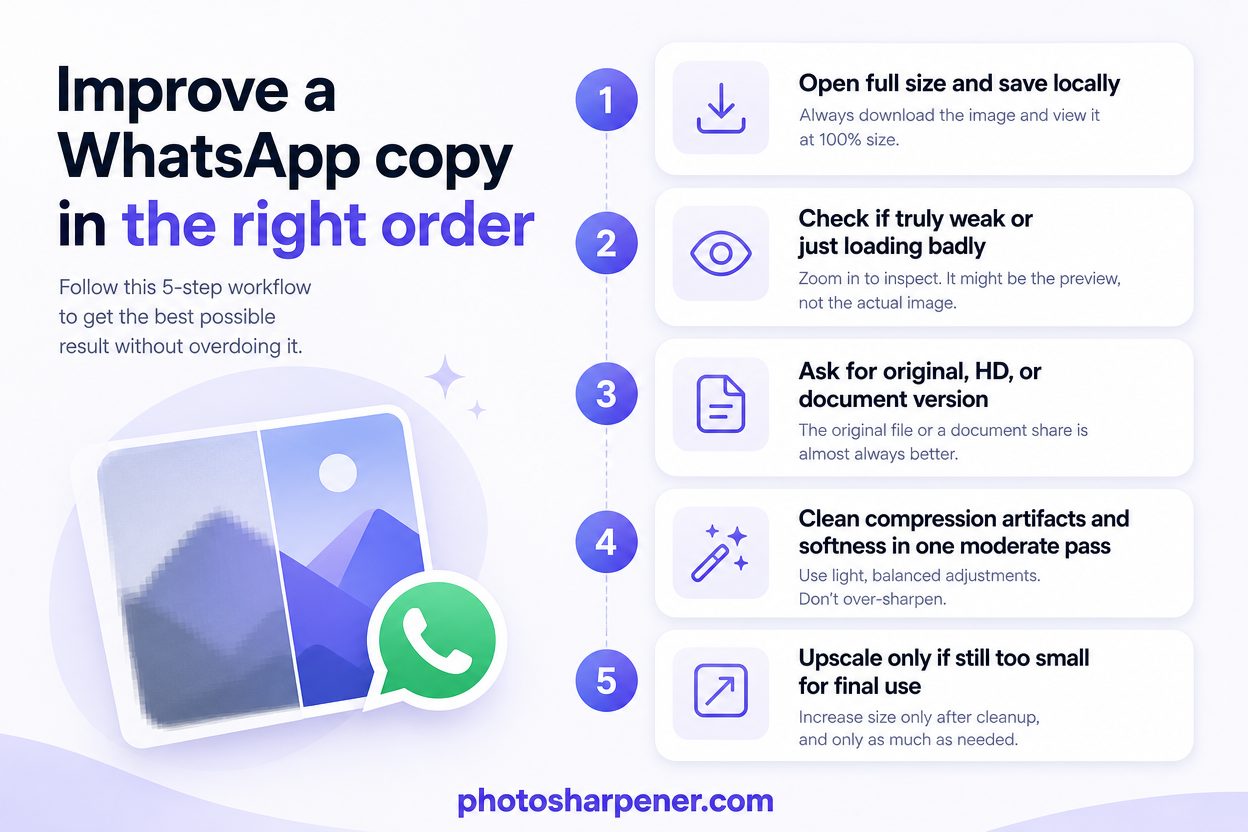
This order works because it keeps you from editing the wrong problem. It also protects you from the most common trap, which is trying to sharpen your way out of missing data.
When a browser-based tool is the easiest option
If this is a one-photo job and you do not want to build a desktop editing workflow, a browser tool is usually enough. Upload the best copy you have, compare the result at full size, and stop once the image looks natural for the way you plan to use it.
That approach is especially helpful when the photo is a family image, chat picture, profile image, or quick product shot. You get a faster answer to the real question, which is not "What is the perfect editing stack?" but "Can I make this usable without turning it into a project?"
Prevent the same problem next time
Use HD for casual sharing and documents for important files
For future sends, the best fix is prevention. WhatsApp's HD option is worth enabling for normal photo sharing because it preserves more detail than the standard route. Its own help documentation also notes an important limitation: HD media is not currently available for statuses or profile pictures, so those surfaces can still look softer than a normal HD chat send.
A practical decision rule keeps things simple:
- use standard send only when quality does not really matter
- use HD when you want a better-looking image in chat
- use document sending or a cloud link when the file may be edited, archived, or printed later
That small choice at send time matters more than most repair tricks after the fact.
Keep one clean master copy outside chat
The habit that saves the most pain is keeping a clean master file somewhere outside WhatsApp. Leave the original in your camera roll, cloud backup, email attachment, or project folder. Make smaller copies only when you need them.
Once you start treating chat apps as delivery tools instead of as your archive, quality problems become much easier to control.
FAQ
Can WhatsApp blur a photo even if the original looked sharp?
Yes. A sharp original can still look blurry after sending if WhatsApp compressed it, resized it, or showed a weak preview during a poor download.
Is an HD WhatsApp photo good enough for printing?
Sometimes for small casual prints, but not as a general rule for important work. If the image matters for print, ask for the original file or a document resend instead of relying on a normal chat copy.
Can AI fully restore a badly compressed WhatsApp image?
No. AI can often make a compressed image look clearer and more natural, but it cannot reliably recover every piece of detail that was discarded during compression.
