Text & Screenshot Clarity
Why does screenshot text look blurry or pixelated?


TL;DR
- Screenshot text usually turns blurry or pixelated because the file is too small, saved in the wrong format, stretched after capture, or already blurry on screen before you captured it.
- PNG is usually the safest format for screenshots with text, while JPEG often softens letters and adds ugly artifacts.
- A screenshot that looks sharp on your device but blurry after sharing is often being compressed or displayed at a larger size than its real pixel dimensions.
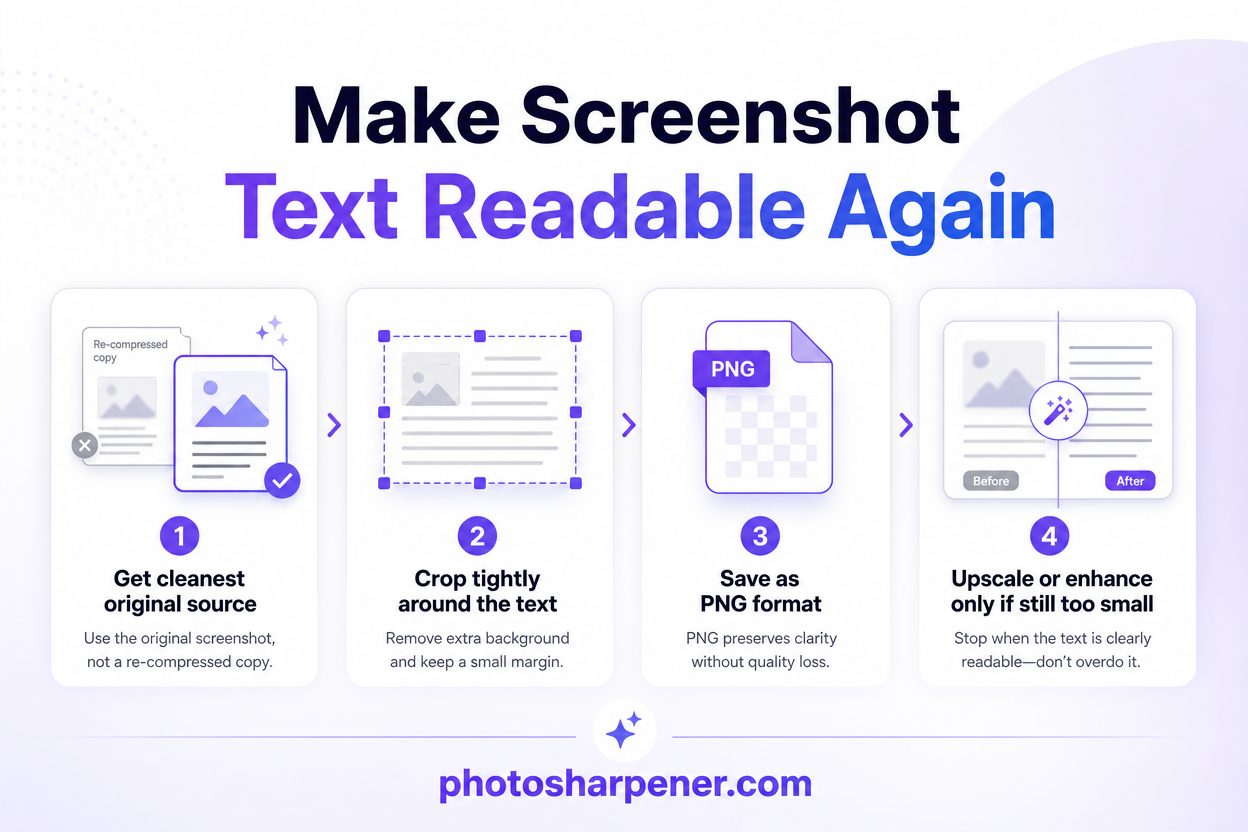
- The fastest recovery workflow is: get the best original, crop to the text, keep it in PNG, then upscale or enhance only if the text is still too small.
- PhotoSharpener can help with mildly soft or undersized screenshots, but it works best after you fix format, scaling, and sharing issues first.
- If the text was already smeared before the screenshot was taken, you can improve it, but there is a hard limit to what any tool can recover.
If screenshot text looks blurry or pixelated, the problem is usually not random. It almost always comes from one of a few predictable causes.
Sometimes the screenshot was captured from a low-resolution display, so there were never enough pixels to begin with. Sometimes the file was saved as JPEG or pushed through a chat app that recompressed it. And sometimes the screenshot is technically fine, but it is being stretched inside a document, slide deck, browser, or phone screen where the text is shown larger than the file can support.
That is why the best fix starts with diagnosis, not sharpening. If you identify the real cause first, the solution gets much simpler and the result is usually much cleaner.
Start by spotting what kind of damage you have
Soft blur and blocky pixelation are not the same problem
People often describe every bad screenshot as "blurry," but the visual clues matter.
If the letters look soft, slightly smeared, or a little out of focus, you are usually dealing with scaling, low source resolution, or light compression. If the letters look blocky, jagged, or surrounded by ugly squares, the bigger issue is often JPEG compression or repeated re-saving.
That distinction matters because the fixes are different. Upscaling can help when the screenshot is too small. Re-exporting as PNG helps when the format is the problem. But sharpening a heavily compressed JPEG usually makes the artifacts louder, not the text more readable.
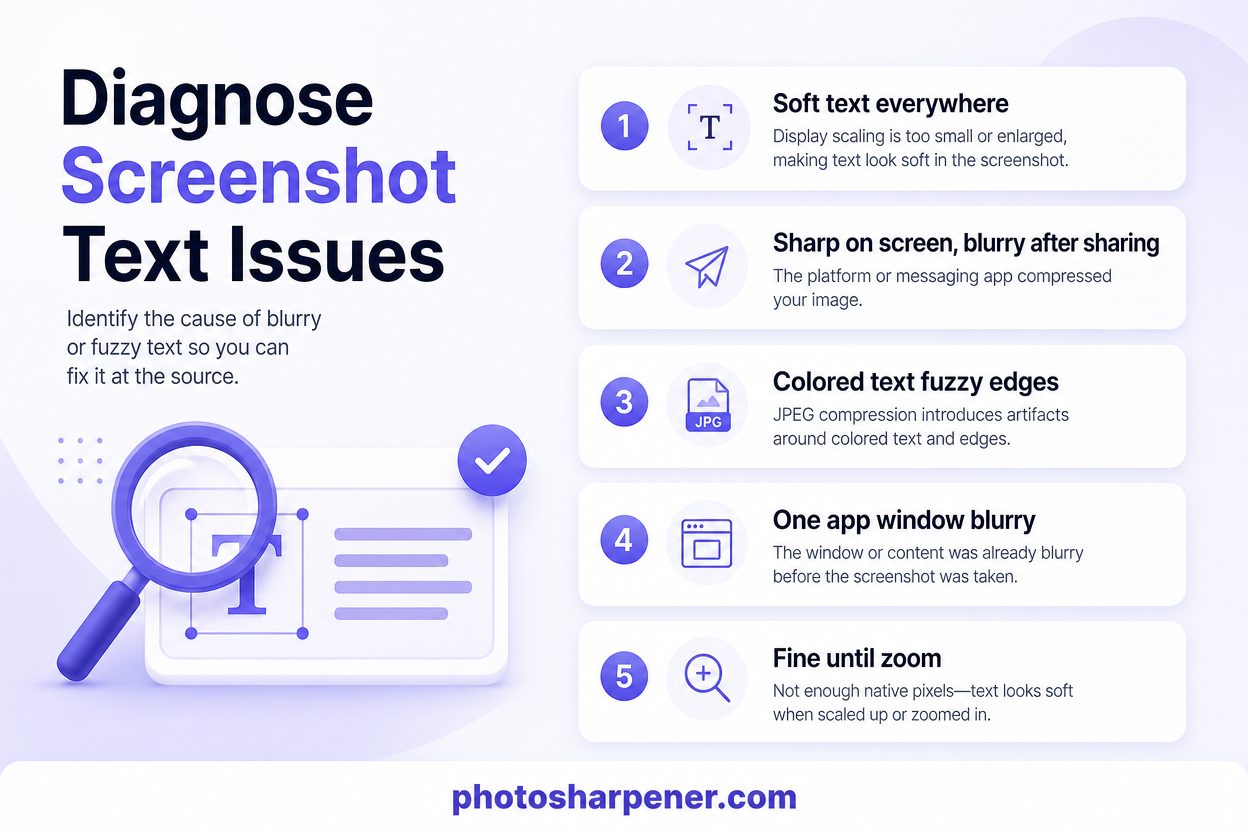
| What you see | Most likely cause | Best first move |
|---|---|---|
| Text looks soft everywhere | Screenshot is too small or being enlarged | Check the file's real pixel size and display size |
| Text looks sharp on your screen but blurry after sharing | App or platform compressed it | Send the original as a file, not an inline image |
| Colored text has fuzzy edges | Lossy compression hurt the color edges | Re-export or save as PNG |
| Only one app window looks blurry in the screenshot | The app or display was blurry before capture | Fix zoom, scaling, or app rendering first |
| Screenshot looks fine until you zoom in | Not enough native pixels for the job | Recapture larger or upscale a clean copy |
Check the screenshot at 100% before you do anything else
One of the easiest mistakes is judging clarity from a scaled preview.
If your phone, browser, or image viewer is auto-fitting the file, you may be looking at an enlarged version without realizing it. Open the screenshot at 100% zoom and check whether the letters are actually blurry in the file or only blurry because the viewer is stretching it.
This quick check saves time because it tells you whether the problem lives inside the screenshot itself or in the way it is being displayed.
The screenshot may simply be too small for the text you need
Screen resolution sets the ceiling for a full-screen screenshot
A full-screen screenshot can only capture the pixels that were on screen at the moment you took it.
If your monitor is 1366x768, the screenshot will also be 1366x768. If you later crop a small settings panel, a tiny chat message, or one error line from that capture, the text area may end up very small. Once you enlarge that crop, the letters start to look soft or visibly pixelated because there are not enough real pixels in the text anymore.
This is why screenshot text often looks worse than it felt on screen. On the original display, your operating system may have been helping with font rendering, subpixel smoothing, and screen scaling. Once you turn that view into a static image and zoom into a small region, that extra visual help disappears.
Tiny crops break down fast when you enlarge them
This is common with:
- cropped chat messages
- screenshots of small tooltips
- spreadsheet snippets
- product labels shown inside a photo or app preview
- screenshots of screenshots
A practical rule helps here: if the text only occupies a small corner of the screen, do not assume a full-screen capture is enough. Recapturing the relevant area at a larger size often beats any later repair.
If you can, zoom the app or webpage before capturing. A slightly larger interface captured cleanly is usually better than a tiny crisp interface that you later stretch.
The file format or sharing method may be ruining the text
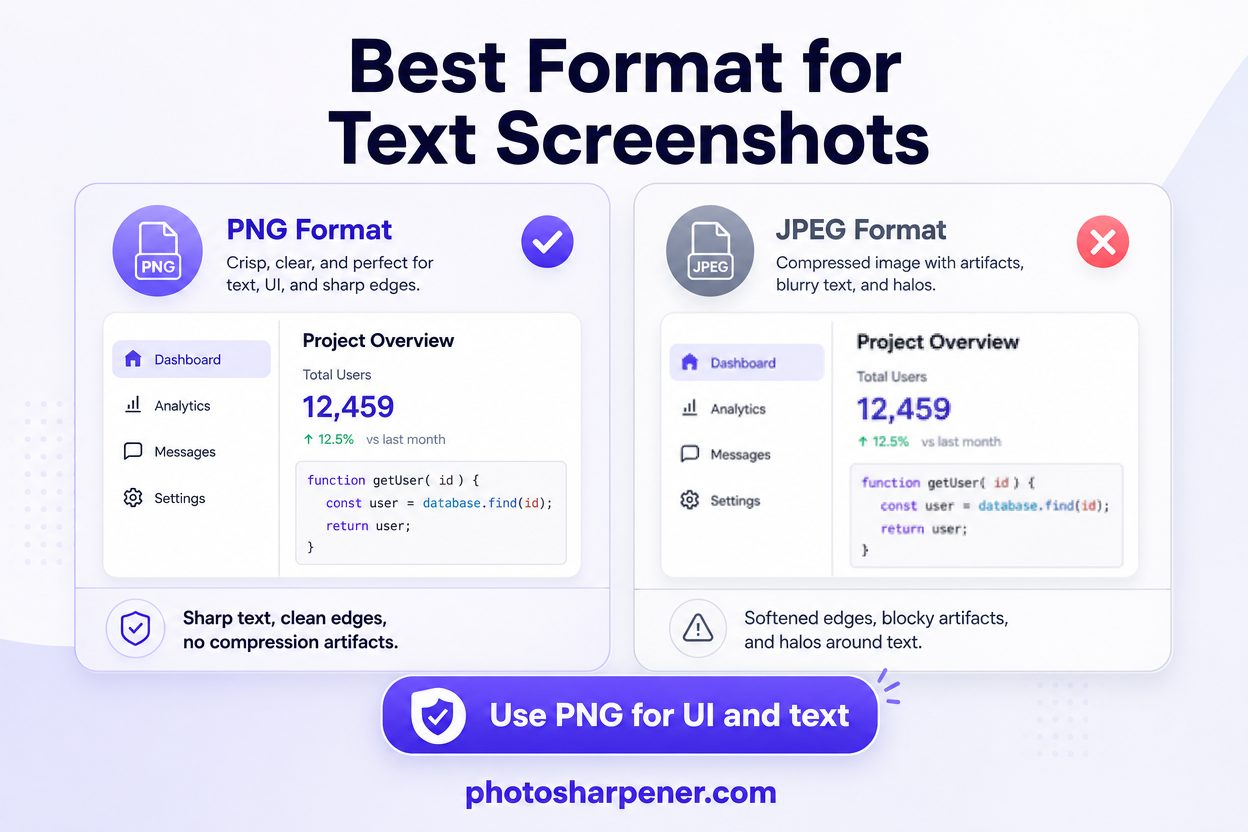
JPEG is a bad match for most screenshots with text
Text-heavy screenshots are not like normal photos.
They contain hard edges, thin strokes, and high-contrast transitions such as black text on white panels, colored icons, and small UI labels. JPEG is designed for photographic compression, so it often softens these edges and introduces ugly artifacts around letters, especially after another save or upload.
PNG is usually the better default for screenshots because it preserves the edges exactly. That matters a lot when the whole job of the image is to keep text readable.
If your screenshot contains:
- menus
- code
- settings panels
- chat messages
- tables
- labels
save it as PNG unless you have a very specific reason not to.
Messaging apps and social platforms often recompress screenshots
Many screenshots look fine right after capture and then fall apart after sending.
That usually happens because the platform converts the image, reduces the file size, or re-encodes it before delivery. The result is especially obvious on text because even light compression can create soft edges, halos, or block patterns around letters.
If the screenshot looked sharp before sending and blurry afterward, try this order:
- send the original file as a document or attachment
- avoid taking a screenshot of the already-compressed version
- keep one untouched master copy
- if you need to edit it, export once from the cleanest source
Repeated saves are where many screenshot files quietly degrade. A weak JPEG that gets downloaded, cropped, re-saved, and sent again usually ends up much worse than people expect.
The app or display may have been blurry before the screenshot was taken
A screenshot faithfully records blurry source text
Sometimes the screenshot is innocent. The screen content itself was already soft.
This happens with older desktop apps, browser zoom oddities, remote desktop sessions, scaled virtual machines, and some display setups where the app is being rendered non-natively. In those cases, the screenshot does exactly what it should do: it captures the blur that was already visible.
You can often spot this quickly. If only one window looks fuzzy while the rest of the desktop looks normal, the problem is probably app rendering, not the screenshot tool.
Scaling, zoom, and non-native display settings are common culprits
Look for these before you recapture:
- browser zoom set unusually high or low
- app-specific zoom affecting the interface
- display scaling that makes one app look soft
- remote desktop compression
- a monitor running below its native resolution
If the screenshot is meant for instructions or documentation, fix these conditions first. A clean recapture is almost always better than trying to rescue a screenshot from a blurry source window later.
The screenshot may be getting stretched after capture
A good file still looks bad if it is displayed too large
This is one of the most common reasons people get confused.
The screenshot may be perfectly fine at its native size, but the place where you use it can stretch it beyond what it was built for. That could be a slide deck, Google Doc, help center, ecommerce listing, browser layout, or phone gallery that is enlarging the image to fit a box.
When that happens, the viewer invents extra pixels. The result is soft text, jagged diagonals, and a fuzzy look that feels like "bad screenshot quality" even though the real problem is display size mismatch.
Compare natural size with rendered size
The fastest check is simple:
- look at the screenshot's actual pixel dimensions
- compare that with the size where it is being displayed
- if the placement is larger, the softness is expected
This shows up a lot in documentation workflows. Someone captures a small window, drops it into a large content column, and the CMS or slide tool scales it up to fill the space. The screenshot did not get worse. It is just being asked to do more than the file can support.
If you need the screenshot to occupy more space, recapture it larger or upscale a clean PNG before placing it.
How to make screenshot text readable again
Use the cleanest source and crop with purpose
The best rescue workflow starts before enhancement.
Find the strongest version you have. That might be the original screenshot, a fresh capture from the app, or a file exported directly from the source instead of a copy taken from chat. Then crop tightly around the text you care about, while leaving a small margin so the letters are not cramped against the edges.
This helps in two ways. First, you stop wasting pixels on irrelevant background. Second, any sharpening or upscaling step can focus on the text itself instead of the whole screen.
Upscale or enhance only after the basics are right
Once the file is clean, then enhancement makes sense.
If the text is just too small, a careful upscale can help. If the screenshot has mild softness, a light enhancement pass may improve readability. But if the file is heavily compressed or the letters are already smeared together, pushing too hard usually creates fake-looking strokes and crunchy edges.
For a browser-based workflow, PhotoSharpener can be a practical option when you have a soft PNG or lightly compressed screenshot and want a quick readability boost without opening a full editing app. The key is to stop as soon as the text is easier to read. Stronger is not always better.
Use this decision rule:
- if the letters look clearer and still believable, keep going carefully
- if the text looks louder but not easier to read, back off
- if characters start changing shape, return to the milder version
That last point matters most for numbers, product codes, and anything where one wrong character changes the meaning.
How to keep screenshot text sharp next time
Capture for the final use, not just for the moment
A screenshot that only needs to be viewed on the same device can get away with more than one that will be printed, embedded in docs, or zoomed on mobile.
Before you capture, ask one question: where will this screenshot end up?
If it is going into a guide, presentation, or listing page, give yourself more room:
- use the highest sensible screen resolution available
- zoom the relevant app or page so the text is larger before capture
- capture the important area directly instead of cropping a tiny corner later
- save as PNG
- avoid taking screenshots of already-shared screenshots
This simple habit removes most screenshot text problems before they start.
Protect the file during sharing and publishing
After capture, do not undo the good work.
Keep one untouched original. Share it as a file when possible. Avoid extra exports unless you actually need them. And if a website or document layout stretches the image larger than its real dimensions, replace the file with a larger one rather than hoping the platform will keep it sharp.
Most blurry screenshot text comes from workflow damage, not mystery. Once you protect the screenshot from the usual traps, the quality stays much more predictable.
FAQ
Why does a screenshot look sharp on my screen but blurry after I send it?
Usually because the app or platform compressed it, converted it to a lossy format, or displayed it at a different size. This is very common in messaging apps and content tools that try to shrink file sizes automatically.
Is JPG ever a good choice for screenshots with text?
Usually no. JPG can be acceptable for photographic screenshots where text is minor, but PNG is the safer format for UI, menus, labels, diagrams, and any screenshot where crisp text matters.
Can AI fix pixelated screenshot text?
Sometimes, yes, especially when the text is only mildly soft or undersized. But AI cannot reliably recover text that has been destroyed by severe compression, extreme enlargement, or blur that erased the original letter shapes.
