Image Upscaling
Best way to increase a photo's resolution?


TL;DR
- The best way to increase a photo's resolution is usually AI upscaling, because it adds pixels more intelligently than ordinary resizing.
- Start with the best original file you can find, then use the smallest upscale that solves the problem, usually
2xbefore4x.- Do not expect the
72 DPIlabel to tell you much. What matters most is the photo's actual pixel dimensions.- PhotoSharpener is a strong browser-first option when you want AI upscaling, cleanup, and face-aware recovery without opening a full desktop editor.
- Review the result at
100%zoom before you print, post, or send it anywhere, because fake texture and halos are easy to miss in a small preview.
If you want the best way to increase a photo's resolution, the short answer is this: use AI upscaling on the best source file you can get, and keep the process conservative. That works better than simply stretching the image, changing the DPI number, or piling on heavy sharpening after the fact.
The reason people get mixed results is that "increase resolution" can mean two different things. Sometimes the photo is genuinely too small and needs more pixels. Other times the file is large enough already, but it looks soft, compressed, or blurry. Those are different problems, and using the wrong fix is how an image ends up looking crunchy instead of cleaner.
Understand what "increase resolution" really means
Pixel dimensions matter more than the DPI label
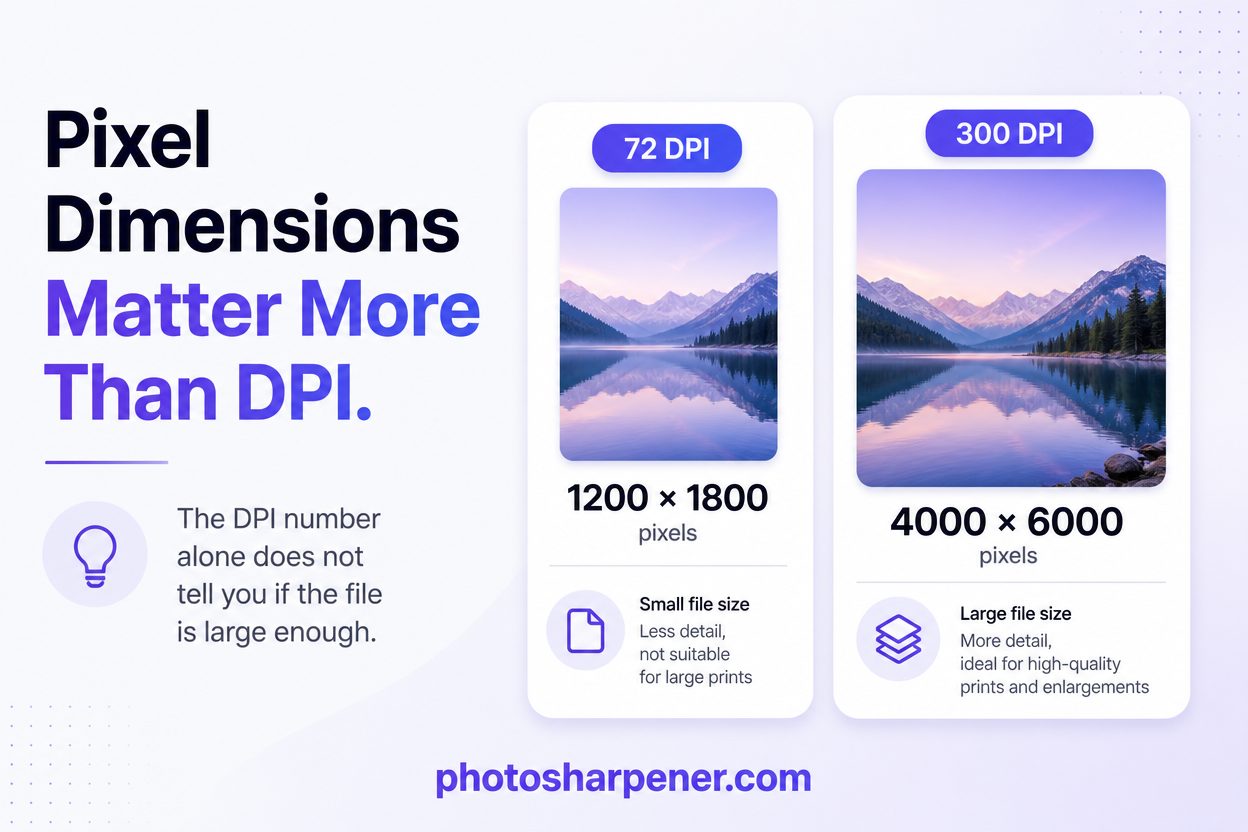
When most people say they want higher resolution, they usually mean they want the image to hold up better when it is enlarged, printed, or viewed up close. In practical terms, that comes down to pixel dimensions. A 1200 x 1800 photo contains far less usable image data than a 4000 x 6000 photo, even if both files claim 300 DPI somewhere in their metadata.
That is why a photo can look "high resolution" in one app and disappoint in another. The label alone does not tell you whether the file is large enough for a poster, a product page zoom, or a profile image crop. The actual width and height in pixels do.
If you are preparing the image for paper output, this becomes even more important. Our guide on what resolution is needed to print an AI-upscaled photo walks through the print math, but the main idea is simple: the larger the final print, the more pixels you need to support it cleanly.
Changing metadata alone does not create detail
This is the trap beginners fall into most often. They open a file, see 72 DPI, change it to 300 DPI, export again, and expect the photo to become sharper. It usually does not.
What actually improves the image is adding more usable pixels in a believable way. That can happen through AI upscaling, a better scan, or a better original source. It does not happen just because you typed a new number into a settings box.
If changing the DPI number is your only step, you did not improve the photo. You only relabeled it.
Start with the best source you can get
Use the original file, not the most convenient copy
Before you upscale anything, make sure you are starting from the strongest version of the photo. That might be the original camera file, the least-compressed export, or a fresh scan instead of an old attachment from email or WhatsApp. This one decision often matters more than the tool itself.
Low-quality copies stack problems on top of each other. A photo that was downloaded from social media may already have compression damage, reduced dimensions, and softened edges. If you upscale that version, the AI has to guess around all of those weaknesses at once. The result may still look better than before, but it rarely looks as natural as a cleaner source.
If your image came through a chat app, it helps to understand what compression already did to it. This article on why photos lose quality after WhatsApp sending is useful context before you decide whether the file is worth enlarging.
Know when the source is already the limit
Resolution is only one part of image quality. If the original photo is severely out of focus, smeared by motion blur, or filled with heavy JPEG artifacts, a higher-resolution version may still be a cleaner-looking version of the same weakness.
That does not mean upscaling is pointless. It just means you should set the goal correctly. A good upscale can make a small file more usable for web, social, moderate print sizes, and archive cleanup. It cannot guarantee a perfect recovery of detail that the camera or scan never captured in the first place.
If the main issue is blur rather than size, read AI upscaling vs normal sharpen filter: what's different? or how can I make a blurry photo clear again? before you assume more resolution will solve everything.
Use AI upscaling when the file is too small
AI upscaling is usually the best method for real photo enlargement
Ordinary resizing methods like bicubic interpolation can make a file bigger, but they do not do much to rebuild believable detail. AI upscaling is better because it analyzes the image content and predicts what a higher-resolution version should plausibly look like. That is why current SERPs lean so heavily toward AI-first workflows for this topic.
This does not mean every tool works the same way, or that every photo should be pushed aggressively. It means that if the file is too small for the job, AI upscaling is generally the strongest first move.
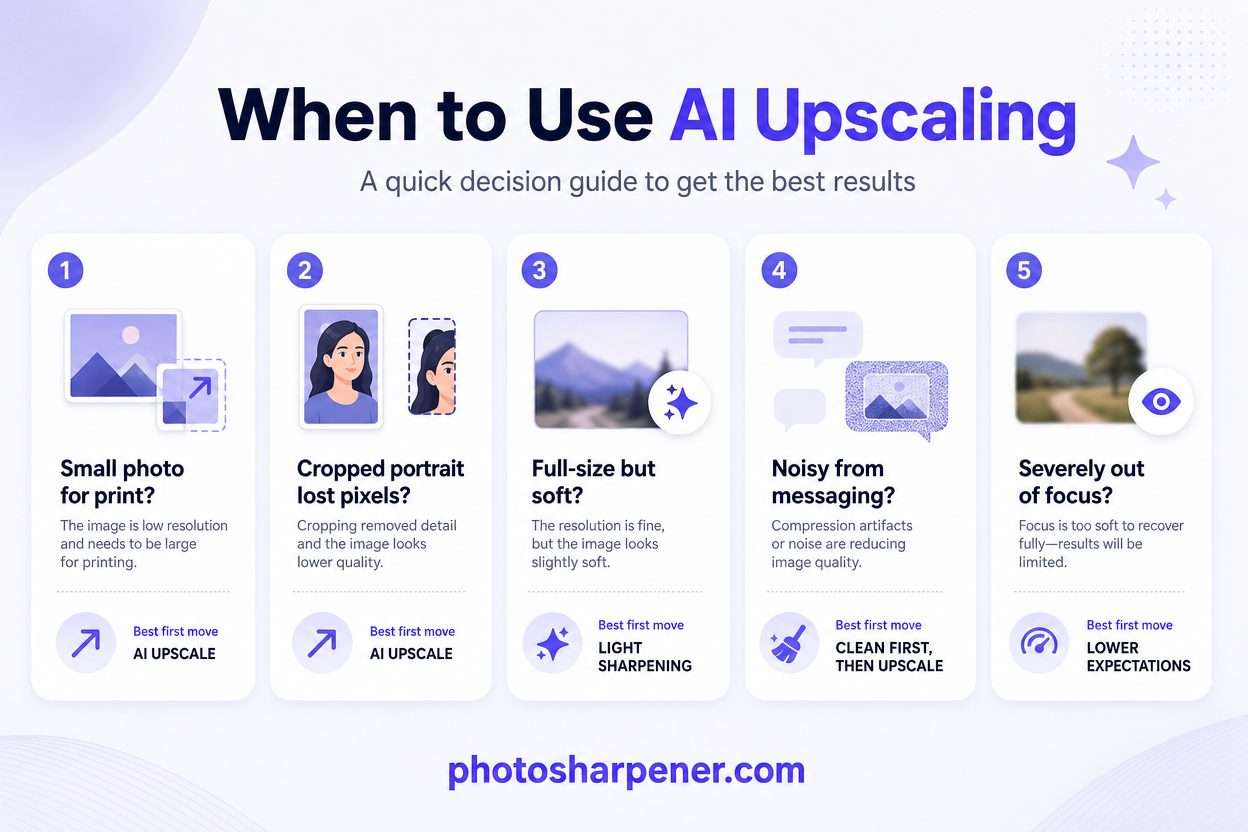
Here is a simple decision table:
| Situation | Best first move |
|---|---|
| Small photo that needs to print larger | AI upscale |
| Cropped portrait that lost too many pixels | AI upscale |
| Full-size file that only looks a little soft | Light sharpening, not full upscaling |
| Noisy or blocky image from messaging apps | Clean artifacts first, then AI upscale |
| Severely out-of-focus photo | Lower expectations and diagnose blur before chasing resolution |
For most readers, the easiest path is a browser-based tool or a built-in editor with super-resolution features. If you already use Adobe products, Adobe's Super Resolution workflow is a solid option. If you have a Copilot+ PC, Microsoft Photos now includes Super resolution directly in the app.
If you want the least setup and the photo mainly needs more pixels, a tool like PhotoSharpener can be a practical option because it handles AI upscaling, cleanup, and face-aware recovery in a browser workflow. Keep the pass gentle. Cleaner usually beats more dramatic.
Start with 2x before you jump to 4x
One of the most useful rules from both the SERP and hands-on workflows is to use the smallest upscale that solves the problem. If 2x gets the file to a usable size, do that first. A stronger upscale gives the model more room to invent texture, and that increases the risk of waxy skin, repeated patterns, and strange-looking edges.
Use 4x when the starting file is genuinely small and you really need the jump, such as an old scan, a small phone crop, or a compressed download that still has enough recognizable structure to build on. But treat 4x as a bigger intervention, not the default button.
If your goal is a large poster or framed print, the print target should decide the factor. This guide on upscaling a small photo for a large poster naturally shows why a restrained 2x result often looks more believable on paper than a harder 4x pass.
Clean the image before you enlarge it
Remove noise, compression, and distractions first
Upscaling works best when the input is already reasonably clean. If the file has obvious JPEG blocks, scanner dust, heavy noise, or a distracting border, fix those issues before asking the model to create more detail around them.
The reason is simple: AI does not always know which rough textures are real and which are damage. If you leave the artifacts in place, the upscale can exaggerate them. A light cleanup pass usually produces a more natural result than trying to fix everything afterward.
This does not have to become a full retouching session. Crop the image properly, straighten it if needed, reduce obvious compression or noise, and make sure the subject is easy to read. That is usually enough.
Do not sharpen too early
People often sharpen first because the preview feels more satisfying right away. But sharpening before enlargement can make halos, jagged edges, and brittle-looking texture much worse. Once those artifacts are strengthened, the upscale may amplify them.
The safer order is:
- start with the best source
- clean obvious noise or compression
- upscale to the size you need
- add only light finishing sharpness if the result still needs it
That order gives each step a cleaner foundation. It also makes it easier to see whether the image truly needed more resolution or just a little clarity.
Review the result like you plan to use it
Check the photo at 100% zoom
Do not judge the result only from a fit-to-screen preview. Almost every bad upscale looks acceptable when it is shrunk down. The real test is whether it still looks believable when you zoom in to inspect the details people notice first.
Check the areas that matter most:
- eyes and facial features
- text edges and logos
- hair, fabric, and skin texture
- strong contrast borders
- flat areas like skies or walls where noise becomes obvious
If the image looks cleaner and more readable at full size, you are moving in the right direction. If it looks harsh, fake, or overdrawn, back off.
Watch for signs that you pushed too far
Overprocessing has a predictable look. Once you know the warning signs, you can stop sooner:
- halos around dark edges
- skin that looks plastic or waxy
- hair turning stringy or painted
- repeated patterns in grass, fabric, or brick
- text that looks thicker but not actually clearer
These issues matter because they get easier to notice when the image is printed, cropped, or seen on a larger screen. A photo that looks a touch softer but still honest is usually better than one that looks artificially "enhanced."
Export for the final job, not just the preview
Save a clean master before sharing anywhere
Once the upscale looks right, save one clean master copy before you start sending the file around. That gives you a safe version for future edits, different crops, or alternate exports.
If you are going to keep editing, a lossless format like PNG or TIFF is safer. If the image is finished and headed to web or social, a high-quality JPEG is usually fine. What you want to avoid is repeatedly re-saving the same image at lower quality, because every extra compression pass chips away at the detail you just worked to improve.
Match the export to the destination
The best export depends on where the photo is going next:
- Print: keep the largest clean file you can, and use TIFF or a highest-quality JPEG if your printer accepts it
- Web or marketplace listings: export to the required pixel size after the upscale, not before
- Social media: start from the cleanest larger version you have so the platform compresses from a stronger source
If the destination is print, do not skip a proof when the job matters. A small test print can reveal fake texture or softness much faster than a monitor can.
The simplest workflow for most people
Follow this order if you want the least guesswork
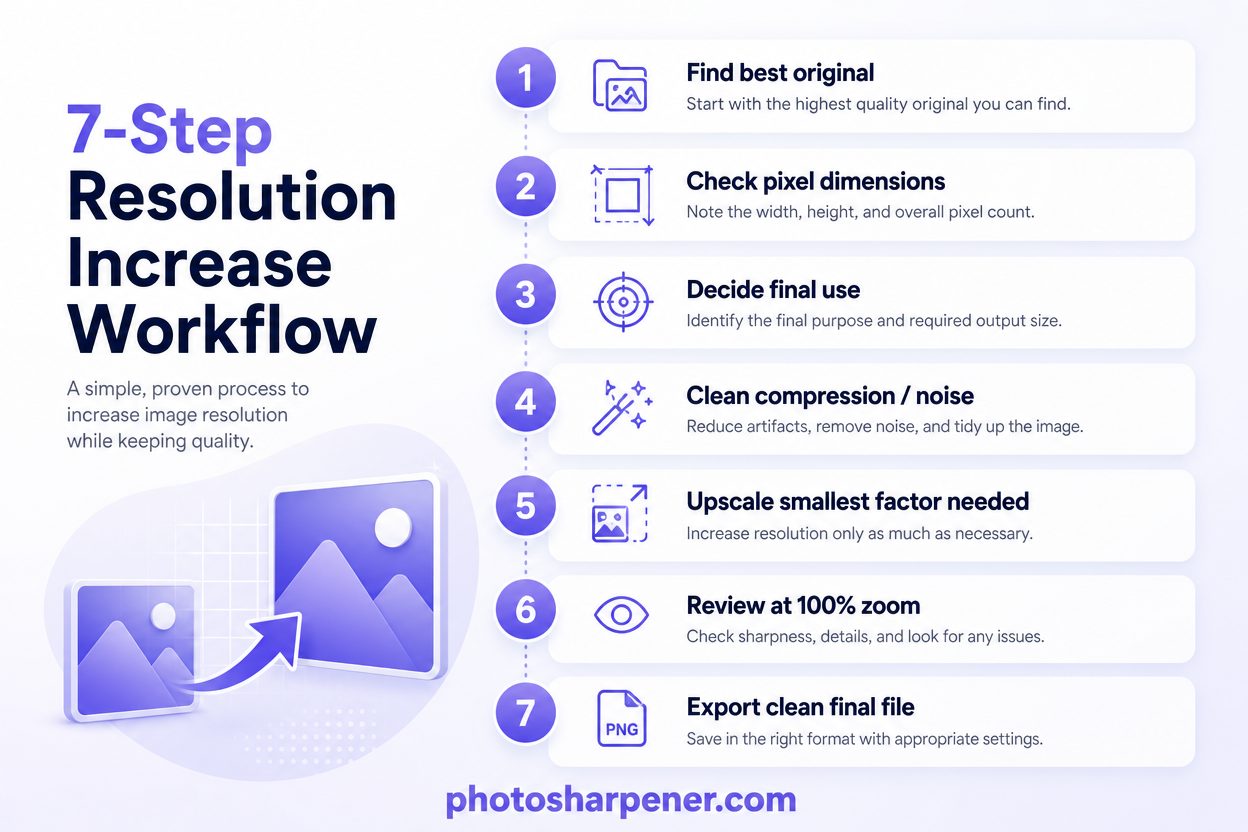
Most readers do not need a complex editing stack. They need a workflow that prevents obvious mistakes. This one works well for most photos:
- find the best original or scan
- check the image's current pixel dimensions
- decide the final use, like print, profile photo, product image, or web
- clean obvious compression, noise, or borders
- upscale with the smallest factor that solves the size problem
- review at
100%zoom - export one clean final file for the destination
That sequence keeps you from using enhancement as a substitute for planning. It also helps you stop earlier, which is often the difference between a natural result and an overcooked one.
Know when to stop and accept the realistic limit
Sometimes the best way to improve a photo is not to keep pushing resolution higher. If the source is tiny, badly blurred, or heavily compressed, a modest cleanup and a smaller final use may look much better than an extreme upscale.
Use this decision rule:
- if the image is too small but still readable, upscale it conservatively
- if the image becomes fake-looking after a moderate pass, reduce the target size
- if the photo is mainly blurry rather than small, switch to a blur-specific workflow
- if the file is already large enough, do not upscale just because you can
That last point matters more than people expect. Bigger is not the same as better. The best result is the one that still looks like a real photo.
FAQ
Can I increase a photo's resolution without losing quality?
You can often improve the usable resolution with AI upscaling while keeping the image looking natural, but there is always a limit. The cleaner the source file, the better the result. If the original is tiny or badly blurred, quality loss may still show up when you push too far.
Is changing 72 DPI to 300 DPI enough?
No. That usually changes metadata, not real detail. What matters most is the photo's pixel dimensions and whether you added believable new pixels through upscaling or a better source.
Is 4x always better than 2x?
No. 4x asks the model to invent much more detail. If 2x already gets you to the size you need, it is usually the safer and more natural-looking option.
Should I sharpen before I increase resolution?
Usually no. Clean noise or compression first, then upscale, then add only light sharpening at the end if the final image still needs a little extra crispness.
What is the best way to increase a photo's resolution for print?
Start with the best source file, calculate the pixel target for the print size, use conservative AI upscaling if the file is too small, and inspect the result at full size before ordering the print. A proof print is worth it when the image matters.
