Image Upscaling
Can you upscale an image without quality loss?


TL;DR
- Not in the strict, technical sense. Upscaling always creates new pixels that were not in the original file.
- You can often make an image larger without obvious visible damage if you use AI upscaling carefully.
- Start from the cleanest original you can get, use the smallest upscale that solves the problem, and review the result at
100%zoom.2xis usually the safest choice.4xis for genuinely small files that need a much bigger jump.- A browser-first tool like PhotoSharpener can be practical when you want quick AI upscaling, cleanup, and optional face recovery in one pass.
Can you upscale an image without quality loss? The honest answer is no, not literally. If you make an image larger, the software has to create pixels that were not present in the source file. That means some amount of guessing is always involved.
What is possible is getting a larger image that still looks clean, natural, and useful for the job you need. That is why people talk about "upscaling without losing quality" even though the process is never truly lossless. In everyday use, the real goal is not mathematical purity. It is getting a bigger image that does not fall apart when you print it, crop it, upload it, or view it on a larger screen.
Understand what "without quality loss" really means
Why true lossless upscaling does not exist
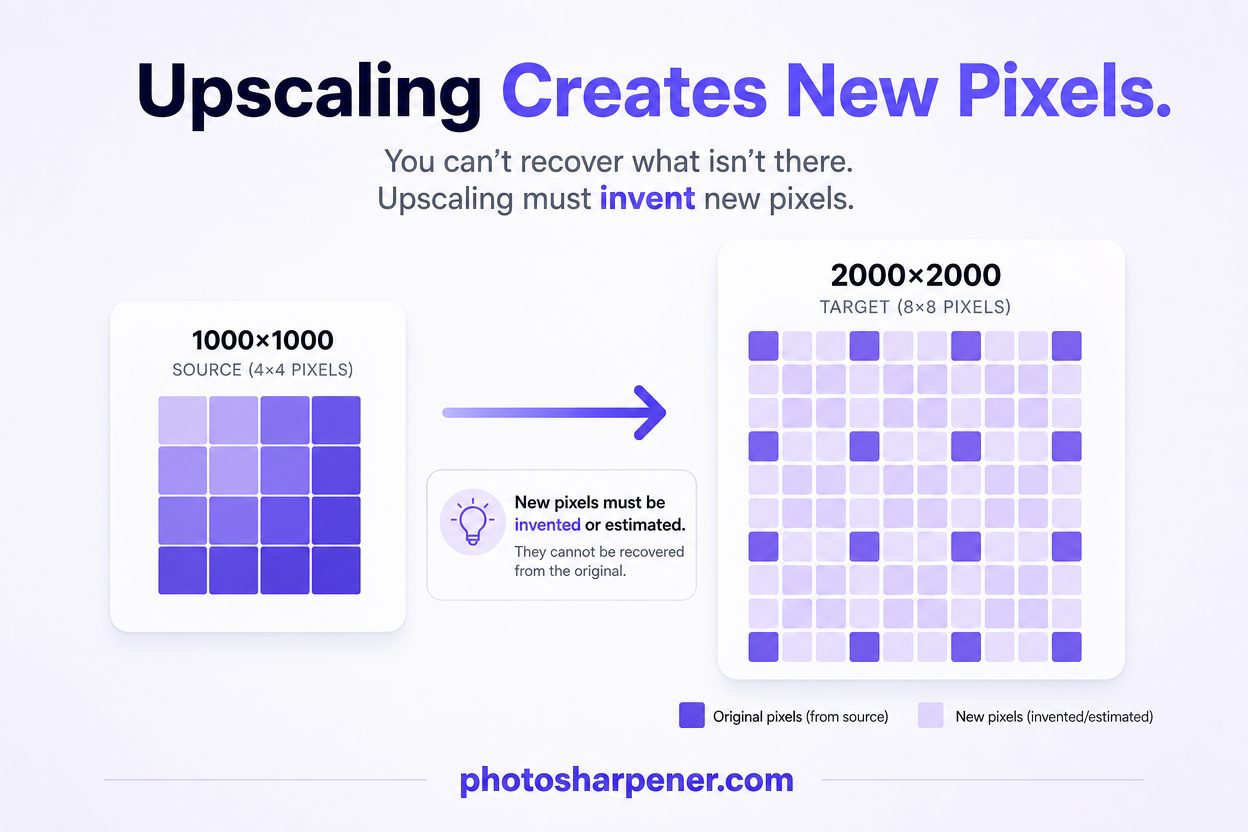
A digital image is just a grid of pixels. If you take a 1000 x 1000 file and enlarge it to 2000 x 2000, you are asking the software to produce four times as many pixels as the original had. Those extra pixels have to come from somewhere.
They cannot be recovered from thin air. They can only be estimated.
That is why true lossless upscaling is not possible in the same way lossless compression is possible. Compression can preserve existing data. Upscaling has to invent new data.
What people usually mean when they ask this question
Most people are really asking one of these:
- Can I make this image bigger without making it look blurry or pixelated?
- Can I enlarge this file for print, web, or social media and still have it look good?
- Can AI create a bigger version that still feels believable?
That framing is much more useful because it gives you a practical standard. If the enlarged image still looks natural at the size you need, then the upscale was successful even though it was not technically lossless.
Use AI upscaling instead of ordinary resizing
Traditional resizing makes images bigger, not better
Older resizing methods like bilinear or bicubic interpolation mostly smooth and stretch the pixels that already exist. They are fine when you need a minor size change, but they do not rebuild meaningful detail. Edges soften, texture gets mushy, and text often becomes harder to read.
That is why people used to think enlarging an image always meant destroying it. With older methods, that was often true.
AI upscaling can preserve the look much better
AI upscaling works differently. Instead of averaging neighboring pixels, modern super-resolution models analyze the image content and predict what higher-resolution detail should plausibly look like. That does not mean the model knows the original missing detail with certainty. It means it can produce a more convincing result than a simple resize filter.
This is also why tools from Adobe and Microsoft now present AI upscaling as a mainstream workflow. Adobe's Firefly upscaling and Microsoft's Super Resolution both focus on making enlargements stay sharper and more natural-looking.
If your source image is reasonably clean, AI upscaling is usually the best way to enlarge it.
Start with the best source file you can get
The source matters more than the tool
This is one of the biggest patterns across the current SERP and it matches real-world results. The better your source file is, the better your upscale will look.
Use:
- the original camera or export file if you have it
- the least-compressed version available
- a fresh scan instead of an old email attachment
- the uncropped photo instead of a screenshot
Avoid starting from a file that already went through messaging apps, social media compression, or repeated JPEG saves. When the source already contains blocks, ringing, or smeared detail, the upscaler has to guess around those problems too.
If your image came from a chat app, it helps to understand why photos lose quality after WhatsApp sending before you decide how hard to push the enlargement.
Know when the problem is blur, not size
Upscaling solves a pixel shortage. It does not magically fix every kind of image weakness.
If the image is mainly:
- out of focus
- smeared by motion blur
- damaged by severe JPEG compression
- heavily cropped from a tiny original
then the result may look larger but not genuinely better.
That is why it helps to separate "too small" from "too blurry." If blur is the main issue, read AI upscaling vs normal sharpen filter: what's different? or how can I make a blurry photo clear again? before assuming more pixels will solve it.
Choose 2x or 4x based on the actual job
Why 2x is usually the safer starting point
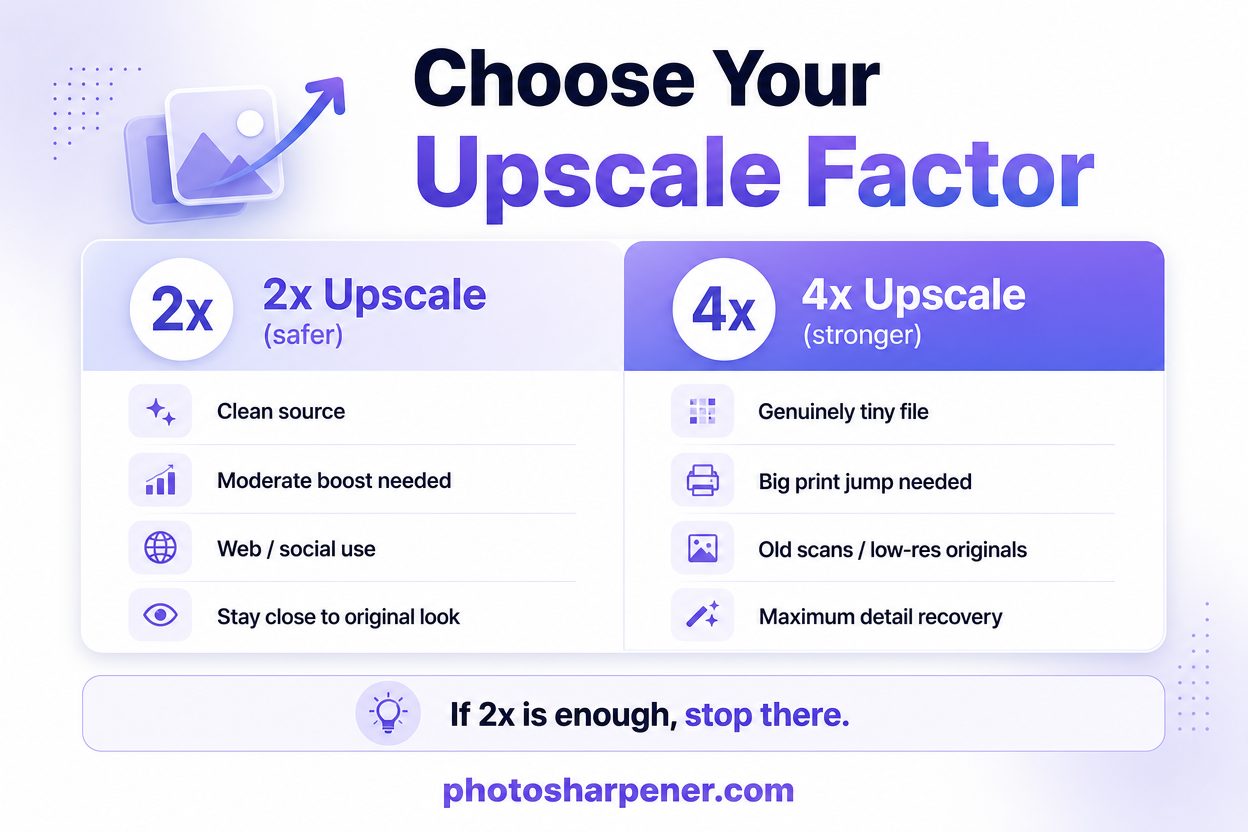
2x upscaling doubles the width and height of the image. That already creates four times as many total pixels, which is a meaningful jump. It also asks the model to invent less new detail than a stronger enlargement does.
That makes 2x the best default when:
- the image is already fairly clean
- you only need a moderate boost
- the file is heading to web, social, or a modest print size
- you want the output to stay close to the original look
When 4x makes sense
4x upscaling is useful when the source is genuinely small and the final target is much larger. It can work well for old scans, tiny web images, cropped photos, and files being prepared for bigger prints.
But 4x is a stronger intervention. The model has to invent much more detail, so weak source files are more likely to produce fake-looking texture, waxy skin, or overdrawn edges.
Use this rule of thumb:
| Situation | Better starting point |
|---|---|
| Photo is close to usable size already | 2x |
| Small image for standard web or social use | 2x |
| Small scan that needs moderate print enlargement | 2x, then review |
| Tiny file that truly needs a big jump | 4x |
| File already looks artificial at native size | smaller target, not a harder upscale |
If 2x gets you where you need to go, stop there. Bigger is not automatically better.
Clean the file before you enlarge it
Remove obvious compression, noise, and clutter first
AI upscalers usually perform better on a clean input than on a damaged one. If the file has heavy JPEG blocks, scanner dust, noisy shadows, or a distracting border, those flaws can get amplified during enlargement.
You do not need a full retouching session before every upscale. Usually a light cleanup is enough:
- crop away empty borders
- straighten the image if needed
- reduce obvious compression or noise
- make sure the subject is clearly framed
That gives the model a better foundation for the enlargement step.
Do not sharpen too early
Many people sharpen first because the preview looks instantly punchier. The problem is that early sharpening can harden halos, jagged edges, and noisy texture. Then the upscaler treats those artifacts as real signal.
The safer order is:
- start with the best source
- clean obvious noise or compression
- upscale to the size you actually need
- add only light finishing sharpness if the final image still needs it
That order tends to preserve quality better than sharpening before enlargement.
Save the output in a format that does not throw away the gains
PNG, TIFF, and high-quality JPEG each have a role
Once the upscale is done, the export format matters. If you immediately save the result as a low-quality JPEG, you can throw away much of the detail you just gained.
Use this simple guide:
- PNG if you may keep editing or want a clean master copy
- TIFF if the image is heading into a print or archive workflow
- High-quality JPEG if the file is finished and meant for normal web, social, or lab printing
If you are enlarging an image for print, what resolution is needed to print an AI-upscaled photo is the right next question, because file format and pixel dimensions need to work together.
Avoid repeated recompression
One export at the end is usually fine. Repeatedly opening, editing, and re-saving the same JPEG is not.
If you want to preserve the result, keep one clean master version first. Then create smaller delivery copies from that master for the web, a client, or a print lab.
Check the result at full size before calling it successful
A fit-to-screen preview hides problems
Many bad upscales look acceptable when the preview is small. Problems show up when you inspect the image at 100% zoom or use it in the real context it was prepared for.
Look closely at:
- eyes and facial features
- hair and skin texture
- fabric and repeating patterns
- text, logos, and hard edges
- flat backgrounds where noise becomes obvious
If the image still feels believable there, the upscale is doing its job.
Watch for the most common warning signs
Stop and back off if you see:
- halos around strong edges
- skin turning plastic or waxy
- hair looking painted or stringy
- repeated fake texture in grass, brick, or fabric
- text that looks thicker but not actually clearer
Those are signs the process created a larger image, but not a better one.
Use a simple workflow if you want the best chance of a natural result
The easiest order for most people
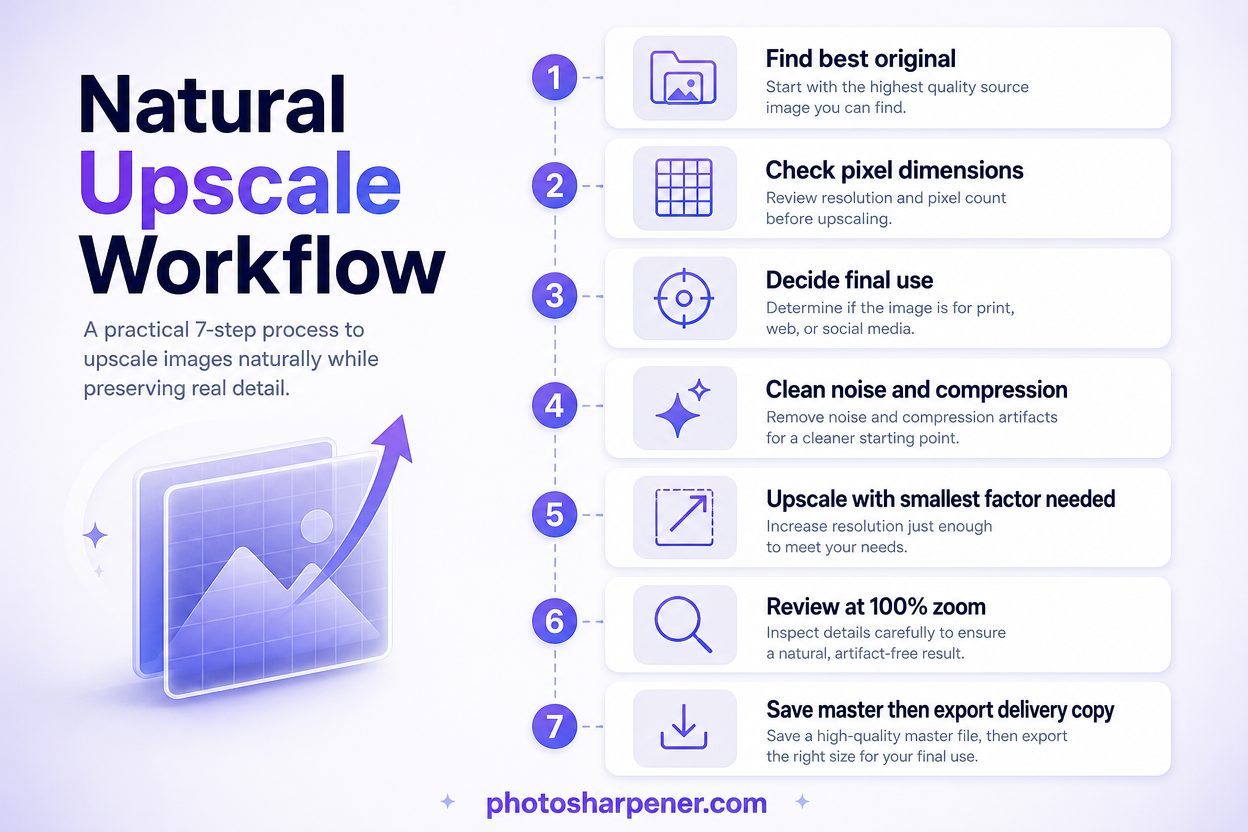
If you do not want to guess, use this sequence:
- find the best original or scan
- check the image's current pixel dimensions
- decide the final use, such as print, product photo, profile image, or social post
- clean obvious compression, noise, or borders
- upscale with the smallest factor that solves the size problem
- review the result at
100%zoom - save one clean master and then export the final delivery version
This works well because it keeps you from using enhancement as a substitute for planning.
Where a browser-first workflow can help
For many readers, the best workflow is not the most advanced one. It is the one they will actually complete without introducing extra mistakes.
If you want a fast, browser-based process, a tool like PhotoSharpener can make sense because it combines AI upscaling, artifact cleanup, and optional face restoration in a single workflow. That is especially helpful when the file is small, slightly compressed, or an old scan that needs a quick but careful lift.
Still, the same rule applies no matter which tool you use: stop as soon as the image looks naturally cleaner. Chasing more detail than the source can support is where "quality loss" becomes obvious.
Know when to lower the target instead of pushing harder
Some files are already at their limit
The most useful mindset is not "How do I force this image bigger?" It is "How big can this image go before it stops looking believable?"
That matters when:
- the source came from social media or messaging apps
- the face is already soft at native size
- the photo was cropped too aggressively
- the image needs more than one heavy fix at once
In those cases, a smaller final use often looks much better than an aggressive upscale.
Use this decision rule at the end
If the upscaled image looks natural at full size and meets your pixel target, use it.
If it meets the pixel target but looks artificial, reduce the target size.
If it still looks poor after a moderate, careful pass, the source is probably the limit and not the tool.
That is the most honest answer to the question. You cannot upscale an image without quality loss in the pure technical sense, but you can often enlarge it without obvious practical loss when the source is good, the upscale is restrained, and the review is strict.
FAQ
Can AI upscale an image without losing quality?
Not literally. AI still creates new pixels that were not present in the original. What it can do is make the enlargement look far more natural than ordinary resizing.
Is 4x always better than 2x?
No. 4x asks the model to invent much more detail. If 2x already gets you to the size you need, it is usually the safer and more faithful option.
Should I sharpen before upscaling?
Usually no. Clean obvious noise or compression first, upscale second, and then add only light finishing sharpness if the final image still needs it.
What file format is best after upscaling?
PNG or TIFF are strongest for clean masters and further editing. A high-quality JPEG is usually fine for finished delivery, as long as you avoid repeated recompression.
What if the image is blurry, not just small?
Upscaling alone may not solve that well. If the real issue is blur, you need a blur-focused workflow and realistic expectations about what the original file actually captured.
