No-Photoshop Workflows
Best way to improve image quality without Photoshop?


TL;DR
- For most people, the best way to improve image quality without Photoshop is a browser-based AI enhancer like PhotoSharpener, because it handles sharpening, noise cleanup, and upscaling in one simple workflow.
- Use Photopea or GIMP when you need selective edits, layers, masking, or more control than a one-click tool can give.
- Start with the best original file you can get, because compressed chat-app copies and screenshots limit every tool.
- Match the fix to the real problem: blur, noise, low resolution, or weak color all need a slightly different approach.
- Review the result at
100%zoom and stop as soon as the photo looks natural. Bigger or sharper is not always better.
If you want to improve image quality without Photoshop, the best method depends less on brand names and more on the actual problem in the file.
Some photos are soft because they are too small. Some are noisy because they were shot in low light. Some only need better contrast and cleaner color. And some are a mix of all three. That is why people get frustrated when they try one random tool, crank the sliders, and end up with halos, crunchy edges, or waxy skin.
For most beginners, the safest answer is not learning a full editor from scratch. It is using a simple browser-based workflow for the first pass, then reaching for a free editor only when the image needs selective control.
Start by naming the real quality problem
Blur, noise, and low resolution are not the same thing
"Bad quality" sounds simple, but it usually means one of four things:
| If the photo looks like... | The real problem is usually... | Best first move |
|---|---|---|
| Soft or slightly smeared | blur or softness | try AI cleanup or careful sharpening |
| Grainy, blotchy, or dirty in dark areas | noise | reduce noise before adding more sharpness |
| Blocky or tiny when enlarged | low resolution | upscale carefully |
| Flat, dull, or too dark | weak tone or color | fix brightness, contrast, and color after detail cleanup |
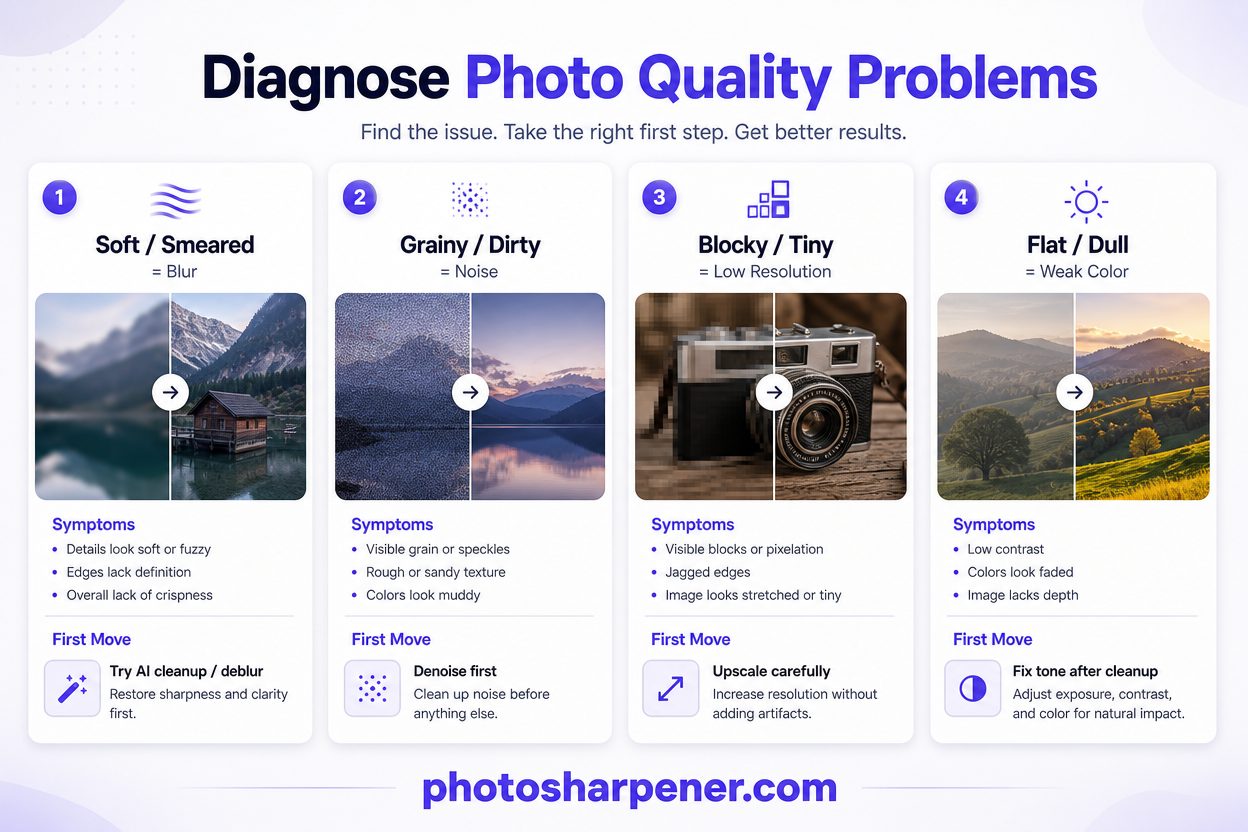
This step matters because the wrong fix often makes the image worse. If you upscale a noisy photo before cleaning it, you get a bigger noisy photo. If you sharpen a blurred face too aggressively, the skin texture can turn brittle and unnatural.
Decide whether you need a quick rescue or a full edit
A lot of readers asking this question do not actually want a "Photoshop replacement." They want one of these:
- make a family photo look clearer
- clean up a product image for a listing
- improve a profile picture
- make a screenshot or document easier to read
- prep a small image for a modest print
If that is your situation, a fast browser workflow is usually the best starting point. If you need layers, masking, spot cleanup, or selective adjustments on one part of the photo, then a free editor makes more sense.
The fastest no-Photoshop path is a browser AI enhancer
Why this is the best starting point for most people
Current search results are heavily aligned around one pattern: people want a tool that does the common fixes automatically. That makes sense, because Photoshop normally splits the job into several steps. You sharpen, reduce noise, adjust tone, and maybe upscale. A good AI enhancer compresses that into one flow.
That is why browser-based enhancers are often the best answer when the image is:
- slightly blurry but still recognizable
- lightly compressed from email or messaging
- noisy from phone or low-light capture
- too small for web, social, or a modest print
If you want the simplest path for a single photo, PhotoSharpener is a practical option because it combines AI sharpening, cleanup, upscaling up to 4x, and optional face restoration in one browser workflow. That is especially helpful when the file is an old scan, a soft phone shot, or a product image that needs a quick lift without learning a full editor.
A simple browser workflow that works well
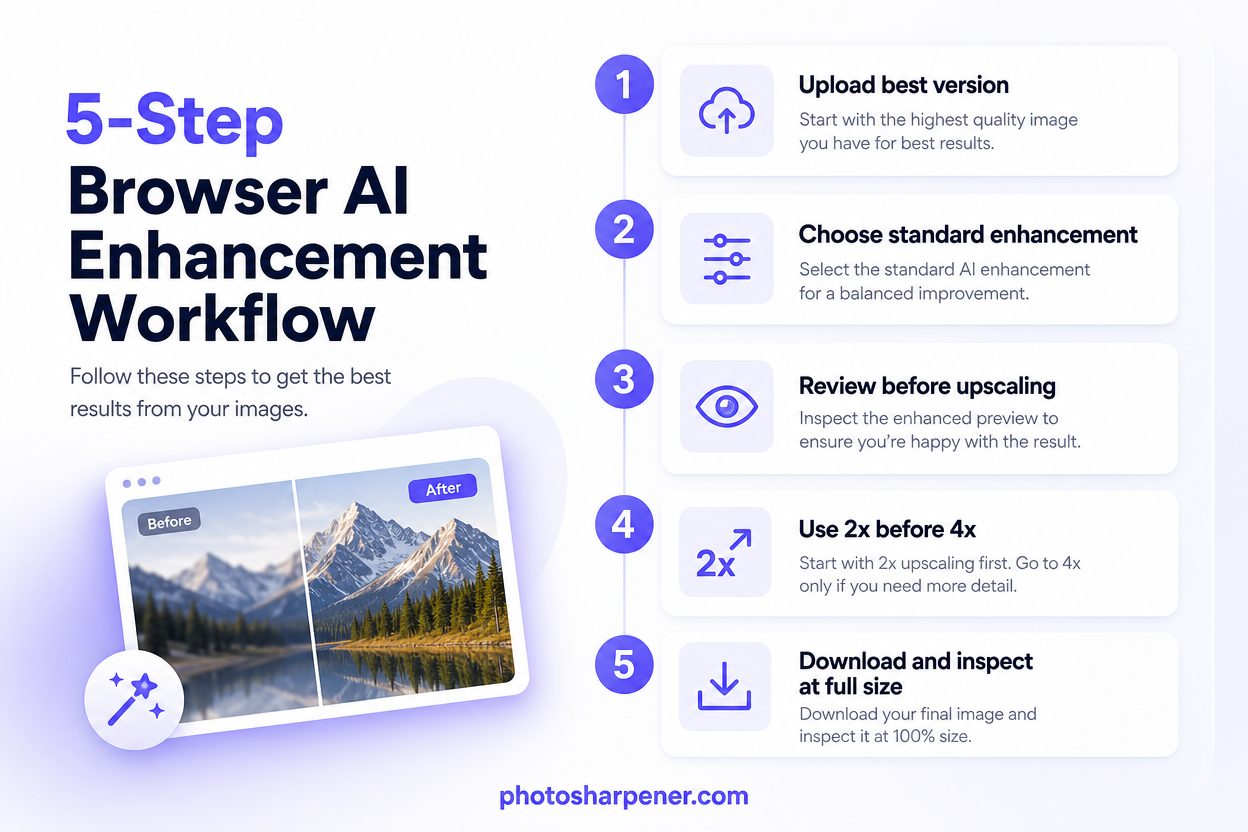
Use this order if you want the safest beginner-friendly result:
- upload the best version of the image you have
- choose a standard enhancement or cleanup mode first
- review the result before deciding whether you also need upscaling
- use
2xbefore4xunless the file is genuinely tiny - download the result and inspect it at full size
That order prevents a common mistake, which is stacking the biggest enhancement on the weakest source and hoping the software will save it.
If your main issue is blur rather than size, it also helps to understand AI upscaling vs normal sharpen filter: what's different? before you assume enlargement will solve everything.
Use a free editor when one-click AI is not enough
Photopea is the easiest browser editor for Photoshop-like control
If you want more control but still do not want Photoshop, Photopea is usually the easiest step up. Its official site highlights local browser-based editing, PSD support, layers, masks, RAW support, and adjustment tools, so it feels familiar to anyone who has seen Photoshop before.
Photopea is a good fit when you need to:
- brighten only one subject instead of the whole image
- remove a distracting background area
- sharpen one section but not the face
- resize and export in a more controlled way
- open a PSD without paying for Adobe
It is not the best choice for people who want a one-click answer. But if you need selective control and do not want to install a desktop app, it is the most practical non-Photoshop editor to try first.
GIMP is better when you want a deeper free desktop tool
GIMP is the stronger choice when you want a fully free desktop editor and you are willing to learn a little more. The official GIMP site positions it as a high-quality open-source image editor, and that is the right way to think about it. It is not a fast magic fix. It is a real editing environment.
GIMP makes more sense when you need:
- more serious retouching
- healing and clone-style cleanup
- layer-based edits on a larger screen
- a desktop workflow that does not depend on a browser tab
For most casual users, GIMP is not the first tool I would open for a single soft photo. It is better when the image matters enough that you want to work carefully and selectively.
Fix the source before you try to "enhance" it
Start from the best file, not the most convenient one
This is one of the most consistent patterns across image-enhancement articles and real-world results. The source file matters more than the tool.
Try to get:
- the original camera or phone file
- the cloud backup version
- the first export before it went through chat or social compression
- a fresh scan if the only surviving version is a print
Avoid starting from:
- screenshots of photos
- social media downloads
- WhatsApp or Messenger copies
- repeated JPEG re-saves
If your file already lost detail during sending, read why do photos lose quality after WhatsApp sending? first. It will help you set realistic expectations.
Clean obvious problems before the heavy enhancement step
You do not need a full retouching session before improving quality, but a little prep helps a lot:
- crop empty borders
- straighten the image if it is tilted
- remove obvious dust or scan edges if they are distracting
- make sure the subject fills the frame sensibly
This matters because enhancement tools treat whatever is in the frame as important. If half the image is border noise, scanner bed shadow, or empty background, the tool spends part of its effort on the wrong thing.
Match the fix to the problem
For blur and softness, use restraint
If the image is just a little soft, AI cleanup or light sharpening can help a lot. If the photo is badly out of focus or stretched by motion blur, results become less truthful very quickly.
Use this rule:
- if edges are still readable, rescue is worth trying
- if the face or text is already a smear, aim for partial improvement
That is why how can I make a blurry photo clear again? and can an out-of-focus blurry photo be fixed? often lead to a more realistic workflow than simply adding more sharpness.
For grain and dirty texture, denoise before you sharpen
Noise reduction is where many beginners go too far. A noisy photo can look cleaner fast, but it can also lose skin texture, hair detail, and fine edges if the cleanup is too aggressive.
The safest order is:
- reduce obvious noise
- apply moderate enhancement
- add only light final sharpness if needed
If you sharpen first, the software may treat noise as real detail and make it harsher. If you want to avoid the classic plastic-skin result, our guide on why noise reduction makes faces waxy is the right companion.
For low resolution, upscale only as much as you need
Low resolution is different from blur. A small image can be sharp and still unusable because it does not have enough pixels for the final job.
That is where AI upscaling helps most. A free local tool like Upscayl can be a good option when your main problem is size and you want desktop processing without paying for Photoshop. But even then, start small.
2x is usually the best first move. 4x makes sense when the file is genuinely tiny or heading to print. If you are still unsure, can you upscale an image without quality loss? and what resolution is needed to print an AI-upscaled photo will help you choose the target more intelligently.
For dull color or weak contrast, fix tone after detail cleanup
Many people try to fix low-quality photos by boosting contrast and saturation first. That can make the preview feel better, but it does not solve softness, noise, or poor resolution.
The better order is:
- clean blur or noise first
- upscale if needed
- adjust brightness, contrast, and color last
This keeps you from baking stronger artifacts into the file too early.
A safe no-Photoshop workflow that keeps photos natural
Recommended order for beginners
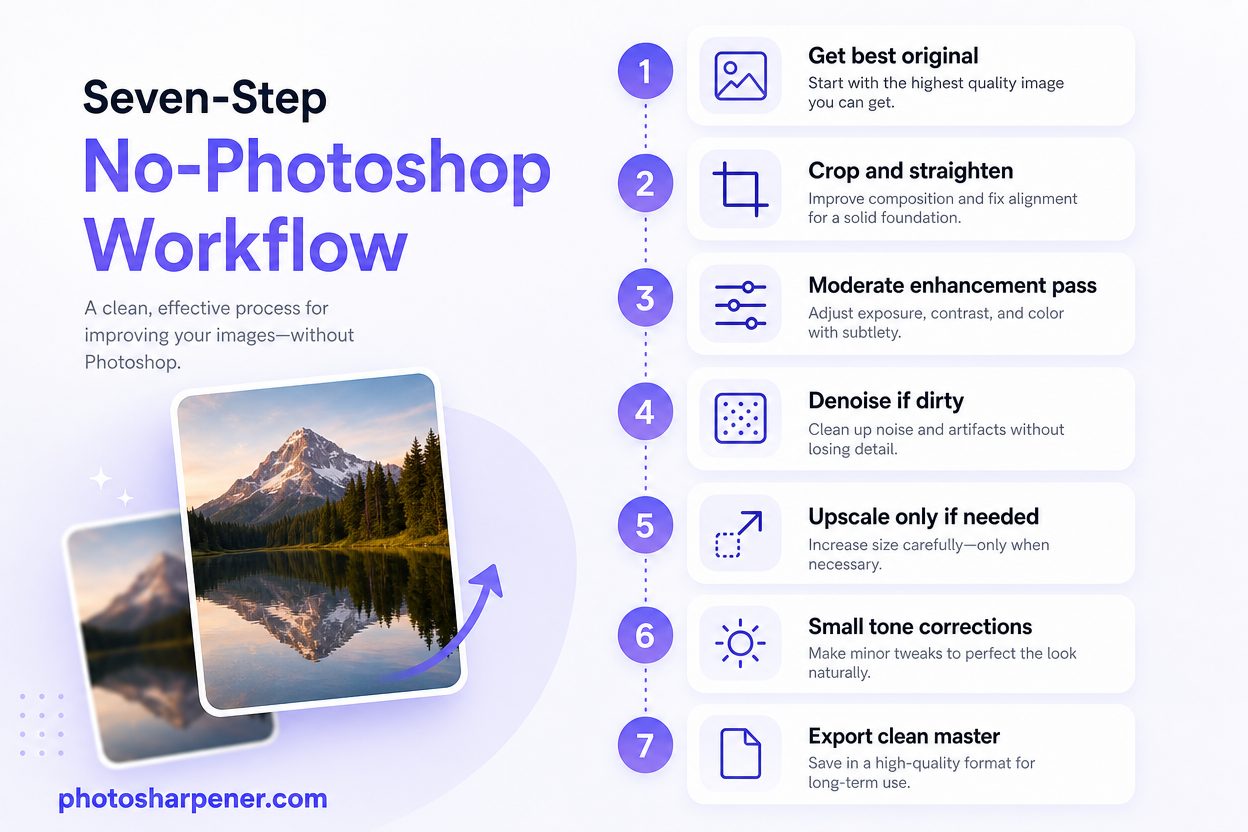
If you want one workflow that works for most images, use this:
- get the best original file available
- crop and straighten the image
- run one moderate enhancement pass
- denoise only if the photo still looks dirty
- upscale only if the final use needs more pixels
- make small tone or color corrections
- export one clean master copy
That sequence is boring, but it stops most quality problems before they start.
Check the result at 100% zoom before calling it done
Almost every enhanced photo looks better when you only view the thumbnail. The real test is full-size inspection.
Zoom in and check:
- eyes and facial features
- hair and fabric texture
- text edges and logos
- hard contrast edges
- smooth backgrounds where noise and banding show up fast
If those areas look cleaner and still believable, the enhancement worked. If they look crispy, thick, painted, or strange, back off.
Which no-Photoshop tool is best for your situation?
Use this two-minute chooser
| Your situation | Best starting point |
|---|---|
| One everyday photo and you want the least setup | browser AI enhancer |
| Soft old family photo or scanned print | browser AI enhancer, then review carefully |
| Product image for a listing | browser AI enhancer or Photopea |
| Screenshot or document that needs clarity | browser AI enhancer, sometimes 2x upscale |
| Selective edits, masking, or PSD work | Photopea |
| Deeper free desktop retouching | GIMP |
| Image is small but not especially blurry | Upscayl or another AI upscaler |
This is why there is no single universal winner. The best way to improve image quality without Photoshop is the method that solves your actual bottleneck with the least damage.
Keep convenience and control in balance
One-click tools win on speed. Editors win on control. Most people start on the wrong side of that trade.
If you only need a better-looking photo, start with convenience. If the easy result gets you 90 percent of the way there, stop. Open a manual editor only when you can name the remaining problem clearly, such as "the face is fine but the background needs cleanup" or "the product label needs a more careful crop."
Common mistakes that make image quality worse
Over-sharpening and over-denoising
These are the two biggest problems in non-Photoshop workflows.
Over-sharpening creates:
- bright halos
- crunchy edges
- thicker text that is not actually clearer
- facial features that feel slightly wrong
Over-denoising creates:
- waxy skin
- smeared hair
- flat backgrounds with lost texture
- that "AI polished" look people notice immediately
A moderate result that still looks like the original photo is usually better than an aggressive result that screams "processed."
Saving the final image the wrong way
You can do a careful enhancement and still lose quality at the export step.
Use this simple rule:
- keep one clean master copy in PNG or another high-quality format if you may edit again
- export JPEG only when you are making a finished delivery copy
- avoid re-saving the same JPEG over and over
If the image is headed to paper output, check the print size before you keep enlarging it. Many people do not need a more aggressive enhancement. They just need a more realistic print target.
FAQ
What is the easiest way to improve photo quality without Photoshop?
For most people, it is a browser-based AI enhancer. It removes the learning curve and handles sharpening, cleanup, and sometimes upscaling in one place.
Is Photopea a real Photoshop alternative?
Yes, especially for occasional edits and browser-based control. It is not identical to Photoshop, but it covers the jobs most people actually need when they want layers, masks, resizing, and selective edits.
What is the best free tool if I do not want to upload my image?
Photopea is a strong browser editor that runs locally, and Upscayl is a good local desktop option when your main need is upscaling. If you want a guided browser workflow for everyday photo cleanup, PhotoSharpener is a practical option too.
Can AI really fix a blurry or low-quality photo?
Sometimes very well, but not infinitely. AI works best on mild blur, compression, noise, and low resolution. It cannot perfectly recover detail that the original file never captured.
Should I use an editor first or an AI enhancer first?
Start with the enhancer if you want a fast rescue. Start with an editor if you already know you need selective adjustments, masking, or cleanup in only one part of the image.

Affiner · Agrandir · Restaurer
Détail réel reconstruit en ~8 s. Jusqu’à 4× d’agrandissement.