Upscale AI images for real-world print sizes
Searching to upscale an AI image for print usually means the export looks fine on a phone and soft on paper. PhotoSharpener rebuilds texture as it enlarges (up to 4x), so generative posters, covers, and wall art hold up past screen zoom.
- Midjourney
- Flux
- DALL·E
- GPT Image
- Nano Banana
- Max output
- Up to 4x
- Avg. time
- ~8s
- Formats
- JPG - PNG - WebP
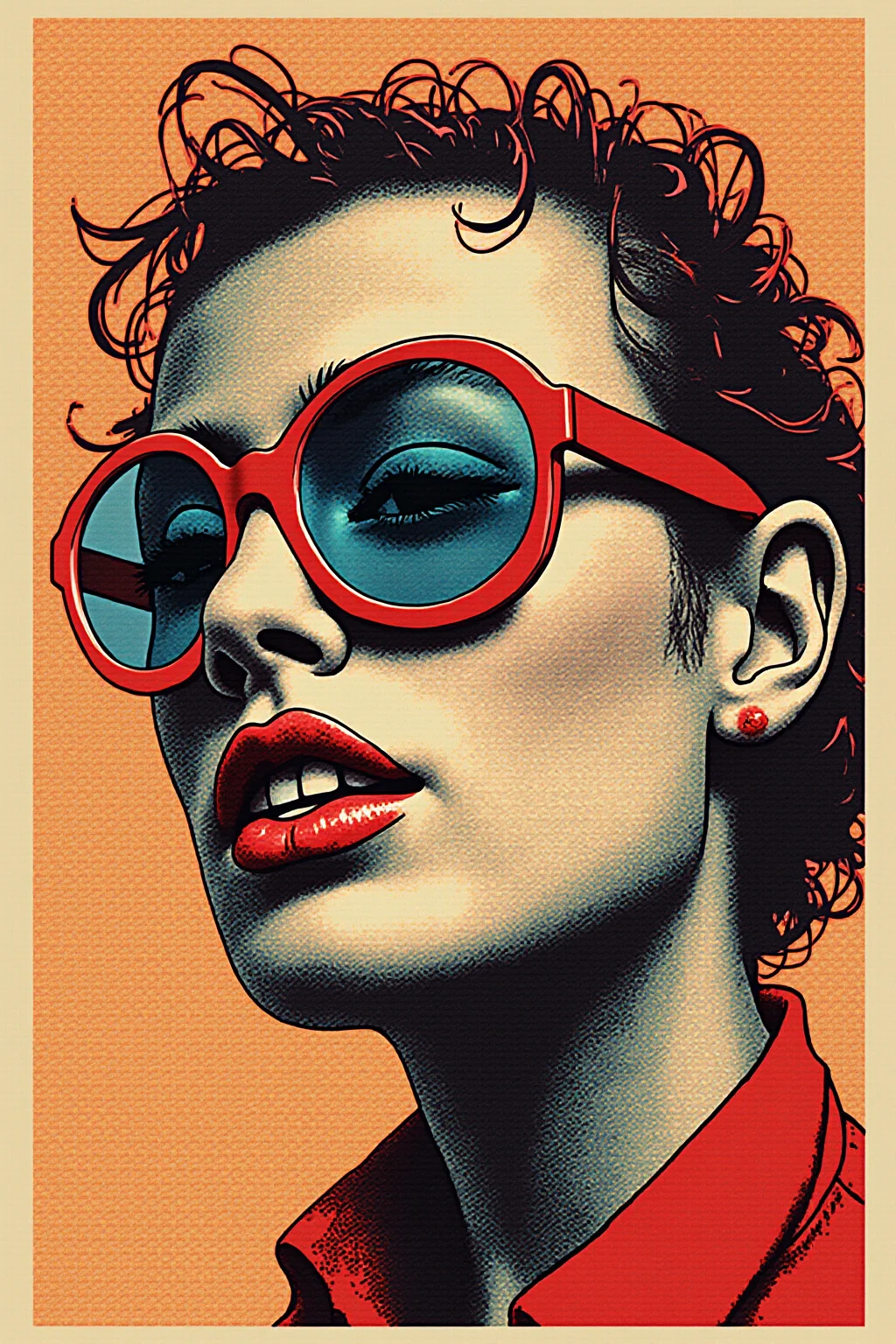
Export once from your AI tool, upscale once for print
Skip the Photoshop bicubic stretch. Pull the largest native export your model allows, run a single Real-ESRGAN pass, then place the file in your layout at the correct DPI.
Export the largest AI file you have
Prefer the native high-res download—not a Discord preview, chat thumbnail, or compressed social share.
AI upscales and rebuilds texture
Real-ESRGAN enlarges up to 4x while reconstructing edges and surface detail that simple interpolation would smear into mush.
Drop into layout at print DPI
Place the upscaled raster in InDesign, Canva, or your RIP workflow at the inches and DPI your printer requires—then send to press.
Upscale AI Art for Print
Upload a generative export—we grow the pixels and recover detail for posters and wall art.
How big can your AI export actually print?
Rough pixel-to-inch math after a 4x upscale. Use 150 DPI for large-format viewing distance; aim for 300 DPI when the piece will be seen up close.
| Typical AI export | After 4x upscale | Soft print (~150 DPI) | Close-view (~300 DPI) |
|---|---|---|---|
| ~1024 × 1024 | ~4096 × 4096 | ~27 × 27 in | ~14 × 14 in |
| ~1280 × 720 | ~5120 × 2880 | ~34 × 19 in | ~17 × 10 in |
| ~1536 × 1536 | ~6144 × 6144 | ~41 × 41 in | ~20 × 20 in |
| ~2048 × 2048 | ~8192 × 8192 | ~55 × 55 in | ~27 × 27 in |
These are approximate. Always confirm bleed, color mode, and vendor DPI with your print shop. Large-format posters viewed from several feet away can often run below 150 DPI; canvas and fine-art prints usually want more.
- Start from the native high-res download—not a Discord or social preview.
- Upscale the art plate first, then overlay vector type in your layout tool.
- Match DPI to viewing distance: posters can go softer than hand-held prints.
Posters, covers, and wall art from AI generators
Same workflow whether you design album art, event posters, or Etsy wall prints—grow the file before ink hits paper.
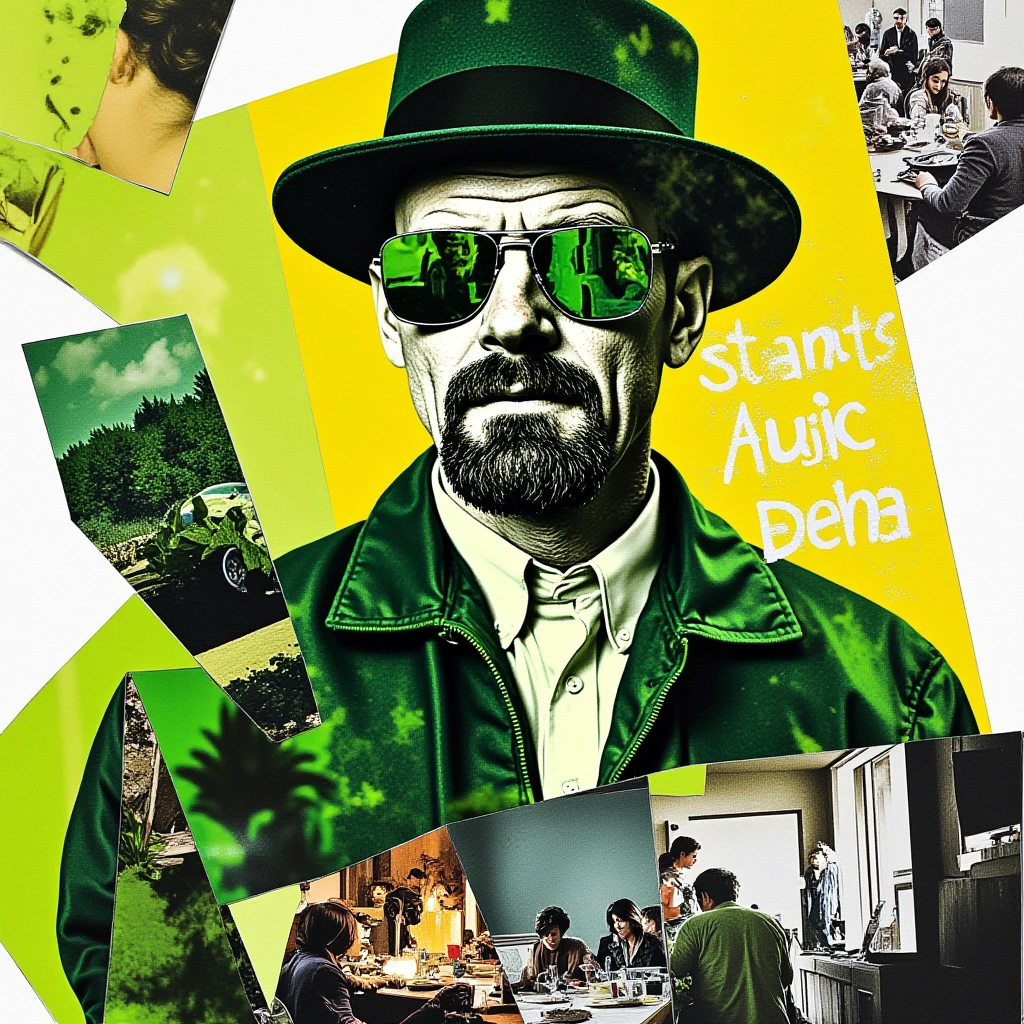 Poster
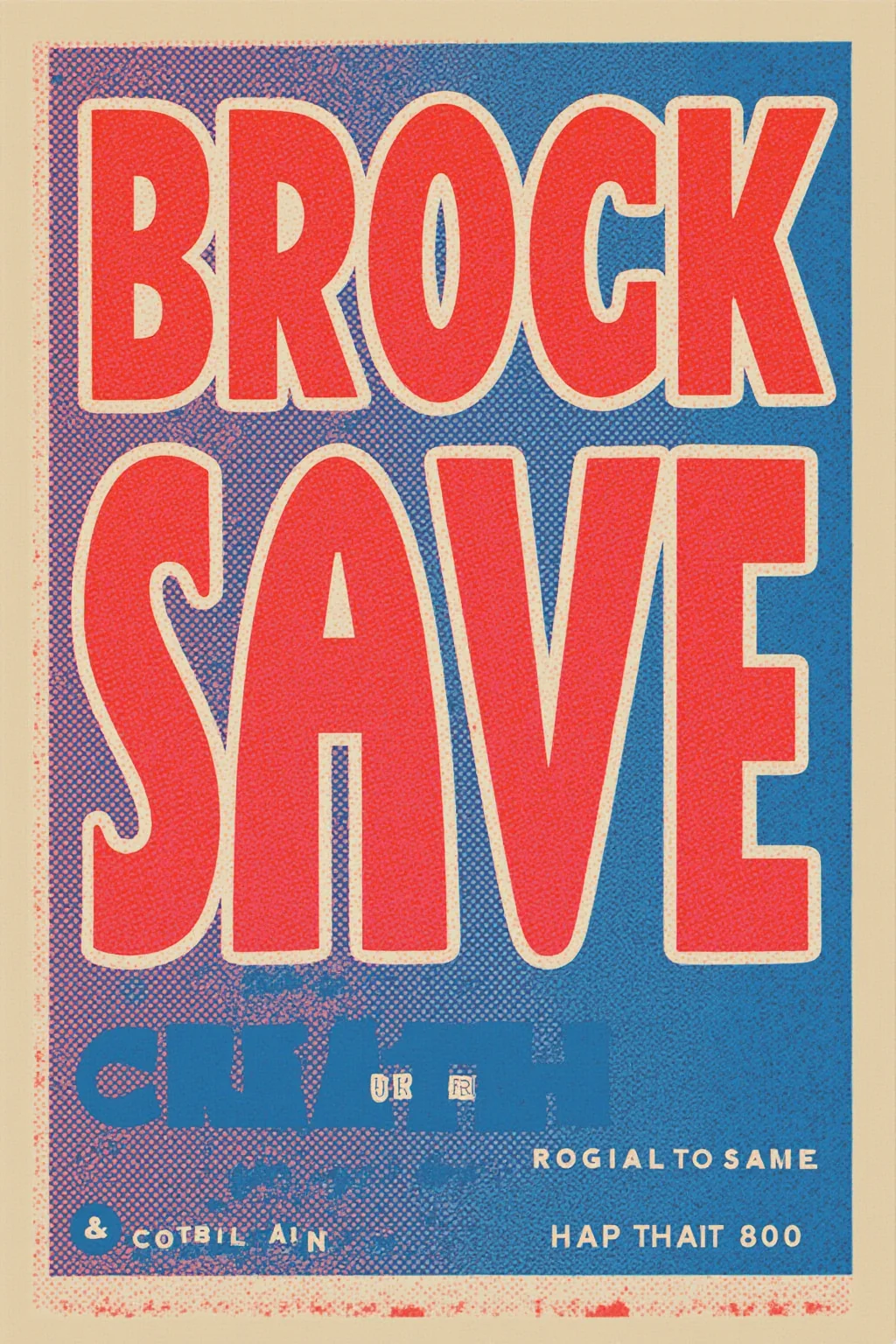 Wall art
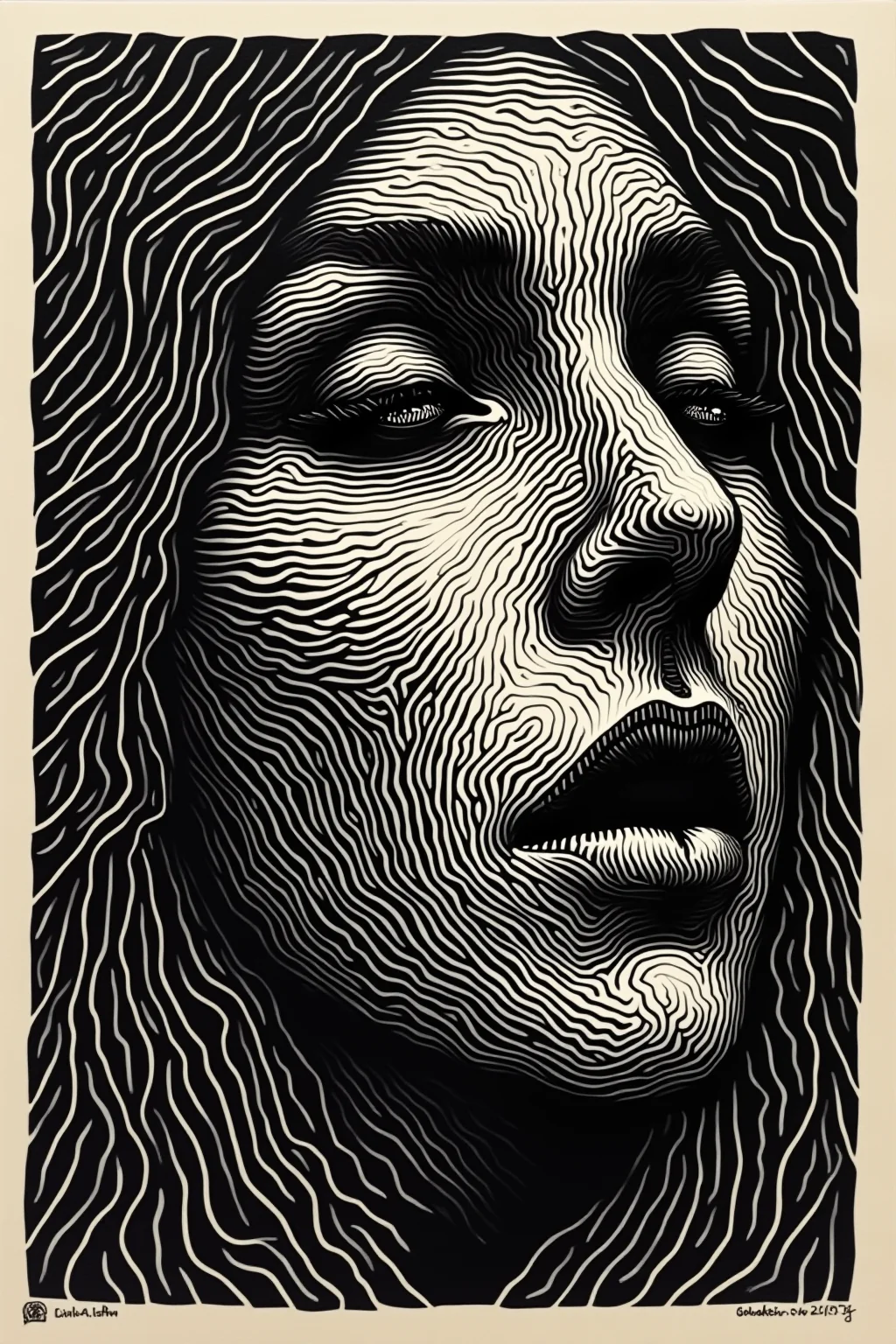 Detail
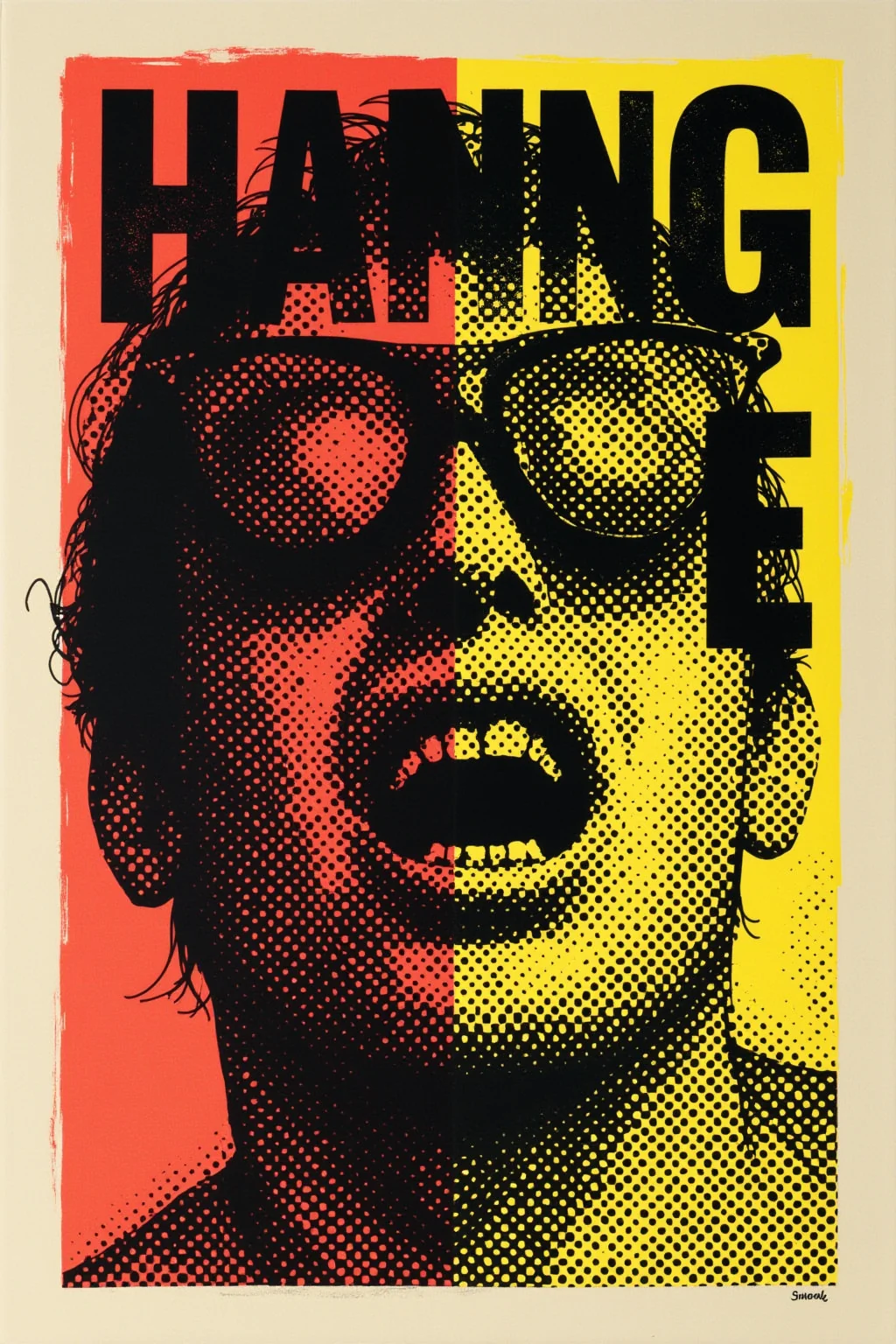 Portrait
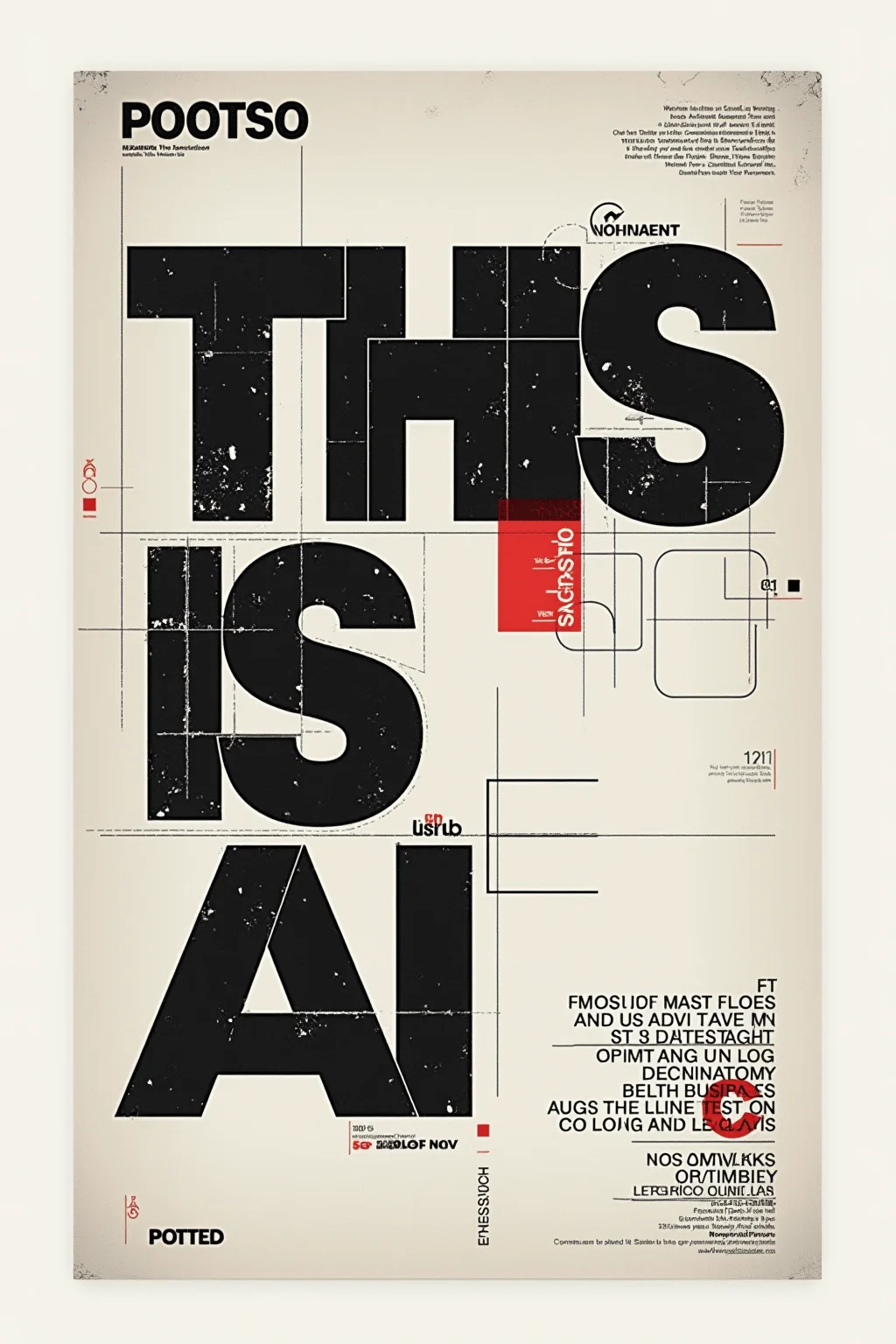 Merch
Merch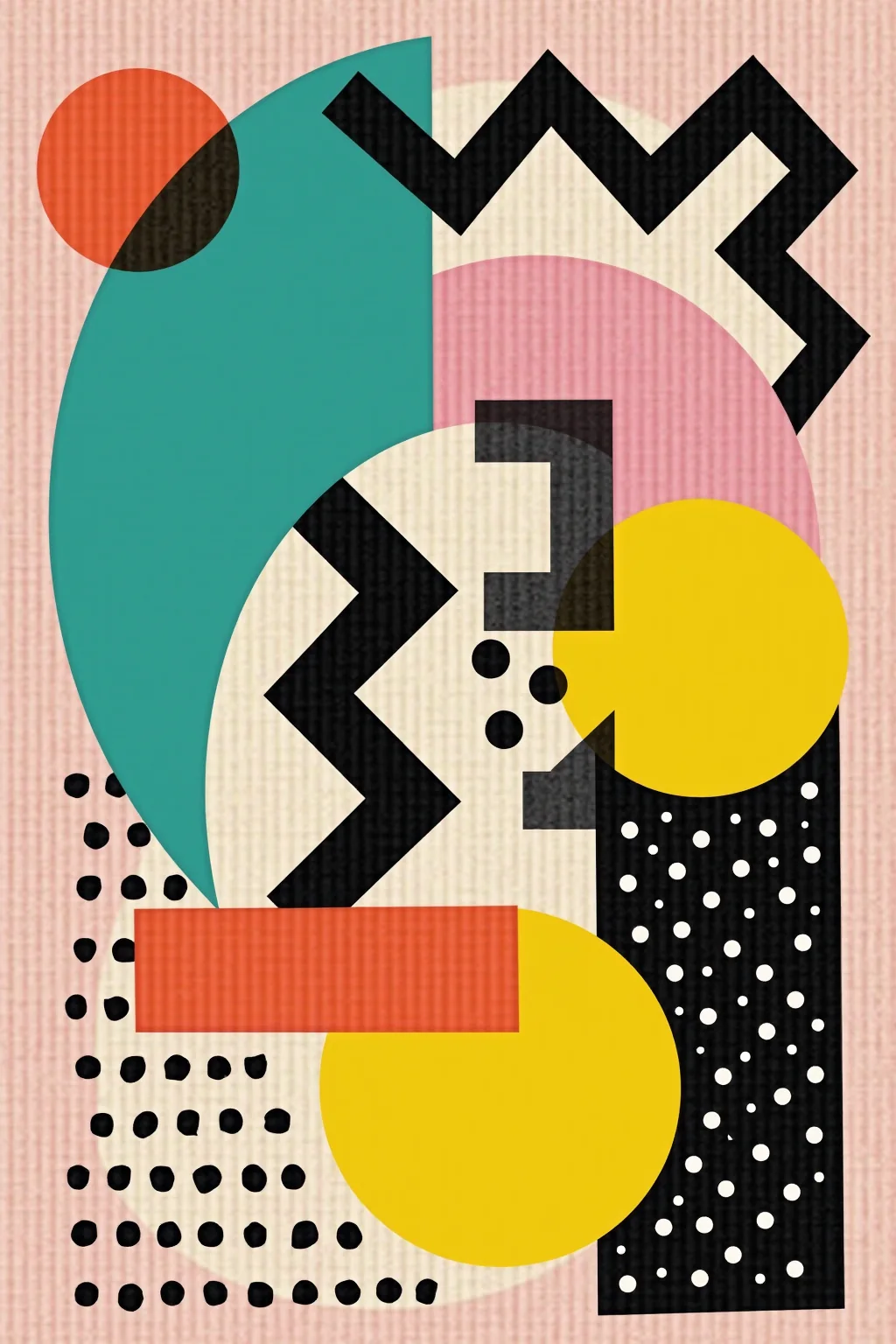
Event and promo posters
Turn a generative concept into a shoppable A2 or A1 without muddy backgrounds at print size.
Wall art and canvas
Upscale square and portrait AI pieces so canvas wraps keep texture at arm's length.
Album and merch covers
Give packaging printers enough pixels for sleeves, stickers, and hoodie prints.
Print-on-demand shops
Prep listing masters once, then export size variants for POD vendors that reject low-res AI uploads.
Upscaling AI art for print
Honest limits—this helps pixel count and detail, it does not replace your printer's preflight rules.
It improves resolution and perceived detail up to 4x, but extreme enlargements still have limits. Start from the largest native download and match DPI to viewing distance.
Close-view pieces usually want ~300 DPI. Large posters seen from several feet away often look fine near 100–150 DPI. Use the size guide above, then confirm with your vendor.
Prefer upscaling the illustration plate first, then overlay crisp vector or high-DPI type in your layout tool.
No—we focus on detail reconstruction in RGB. Convert color in your layout app or RIP.
JPG, JPEG, PNG, and WebP. Very large sources may need paid GPU capacity depending on your plan.
Files are processed over encrypted transit and auto-deleted after delivery.
Upscale AI images for the print size you ordered
One Real-ESRGAN pass between your generator and the print shop—built for posters, covers, and wall art.
- Deleted after processing
- ~8–10s jobs
- Up to 4× upscale